Most things that go wrong in a store are noticed and handled by the employee whose job it is, and go on the record with the reason. What they cannot settle comes to you in one of three places.
Where it reaches you
- Waiting on you, opened by the bell at the top of every page, on the dashboard, and as the Waiting tab on your phone. The bell shows a dot only when something is waiting. Each row opens the place where the decision is taken: Money (a payment run, orders authorised and never captured), Fulfilment (orders nobody has shipped, with the age of the oldest), and Tom's questions.
- The colleague button, bottom right on every admin page. It reads Ask a colleague when nothing is open, and names who is asking (Tom has a question, for example) when someone is waiting on you. A question may say If you don't reply by a time, what the employee will then do. Answer, or press Send and settle to answer and close it. A thread where they acted after the deadline is tagged Went ahead.
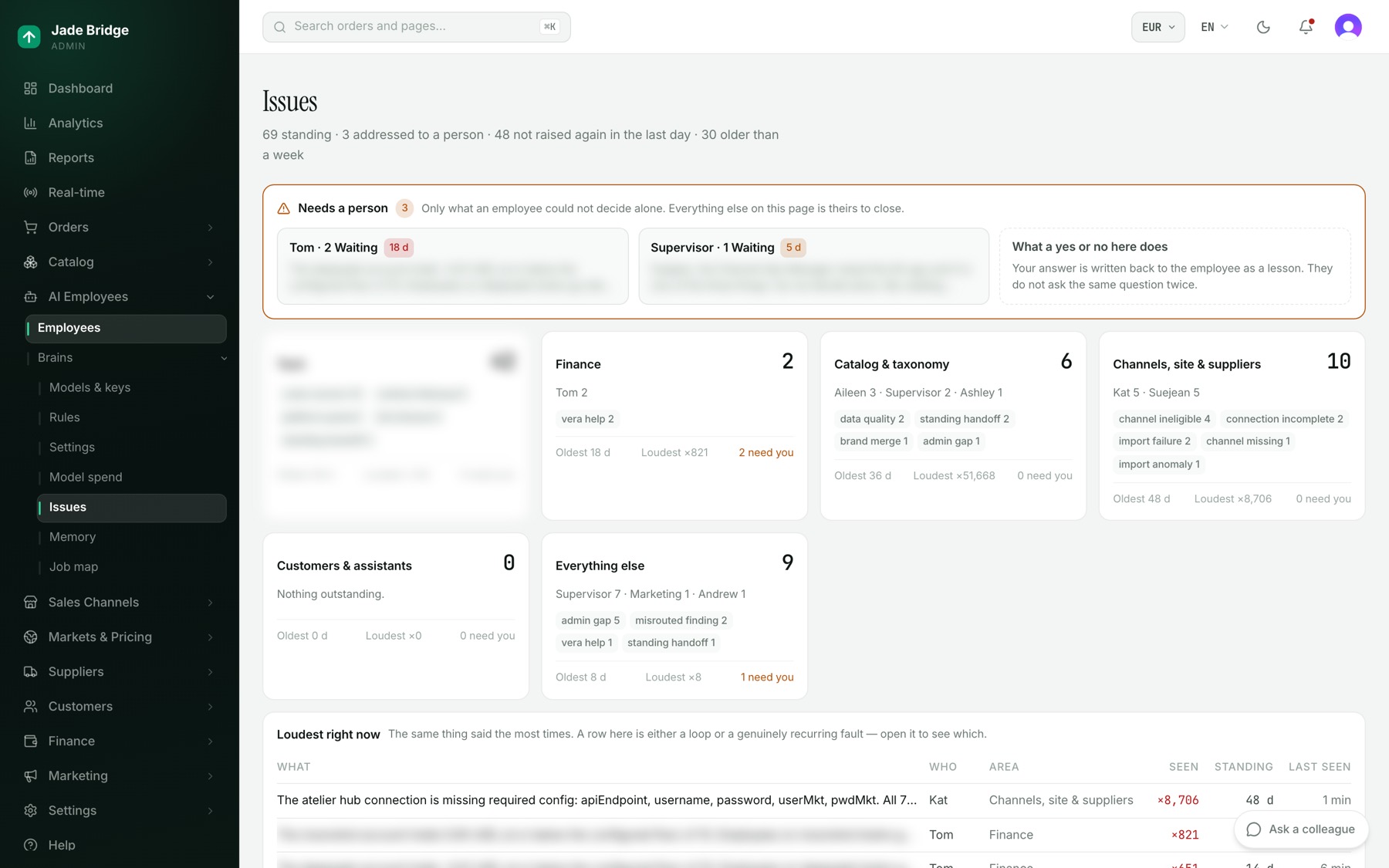
- AI Employees → Brains → Issues. Needs a person lists only what an employee could not decide alone. Everything else on that page is theirs to close.
With Slack connected, the same question also arrives as a Slack direct message, and the thread is marked Also in your Slack DM.
When an employee reaches a wall
Three things never happen without you: money leaving the company, words leaving the company in your name beyond what you have allowed, and the decisions reserved for the owner. An employee who reaches one stops and asks. It does not guess what you would want.
Some examples. A refund request goes to Vera, the supervisor, who rules on policy; a goodwill discount above Katie's cap is declined, not escalated. A supplier balance above the vendor's Always ask above line is not paid until you answer Tom. A connection that needs a contract or a payment comes back to you from Steve as a question.
To answer from Issues:
- Open AI Employees → Brains → Issues and look under Needs a person.
- Open the row to read what the employee says, its History and Where.
- Press Close…, write your answer or why it is closed, and press Close & teach. They learn from exactly what you write.
- Or press Hand to Vera to let the supervisor rule on it, or Quiet for a day to keep it standing without hearing about it until tomorrow.
Your answer is written back to the employee as a lesson, so the same question does not come twice.
When an employee is wrong
An AI employee can be wrong: it can misread a document, misprice an item or misjudge a customer. The record says what it did and why.
- Say so in the thread, in plain words: what was wrong and what is right.
- The employee answers with what it now holds: I've learned this, I've changed my mind about this, or This confirmed what I already thought.
- If the correction should hold for everyone, add it as a rule: Welcome → Your employees' rules → Add a rule, for everyone or for one employee.
The correction is read before every later decision until you retire it. AI Employees → Brains → Memory shows what each employee has come to believe, beside the rules it was given. You can override, correct or stop any employee at any time.
When a model account runs low or runs dry
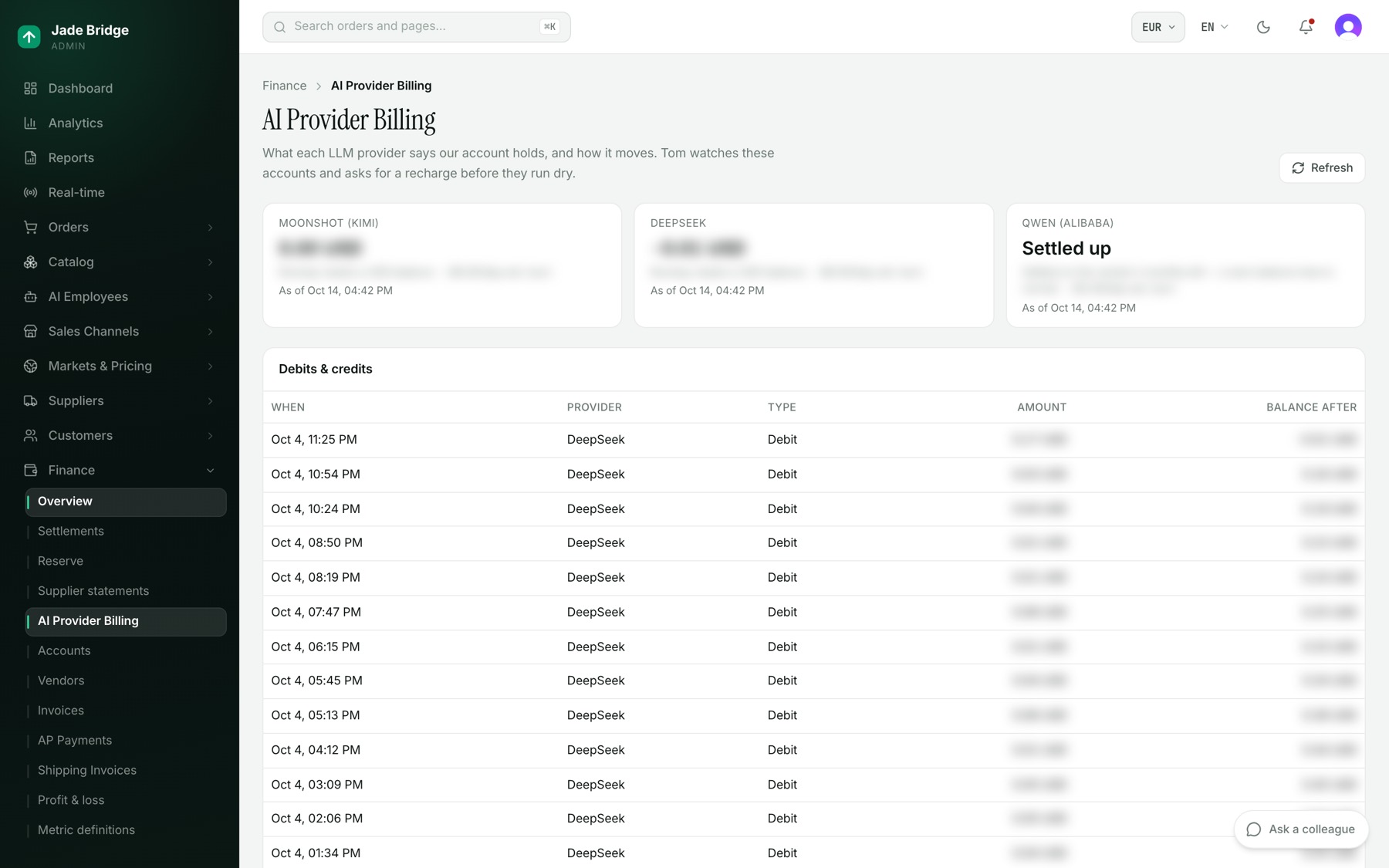
Each employee thinks with a model on an account with a balance. Tom watches those balances on Finance → AI Provider Billing. When one falls to its floor, or has less than seven days of runway at the current rate, he raises it with how long it will last, and says it again after two days if nobody has answered. He asks; buying credit is yours.
If a provider refuses work for want of credit, the employees on it carry on with a stand-in: their own lane on the platform's own model (Our own model (included) in the model picker), or the store's default model when that is the platform's own. They go back to the model you chose once the account is topped up. Your choice of model is never changed.
An employee with neither falls to one stand-in model for the whole store. It is set on AI Employees → Brains → Settings, under Everyone (fleet-wide), in the row "Brains — stand-in when a provider refuses on billing and the brain has NO local lane (provider:model)". Reset puts back the default. Left empty, there is no stand-in, and that employee's jobs cannot run until the account is topped up.
A job that could not run at all, because no model answered, is listed on Issues under Work that never happened, with what the provider said. It clears itself the moment the same job succeeds.
The store also has a daily budget for paid models from outside providers, on AI Employees → Brains → Model spend; the model that comes with the store is included and never held back by it. Past the soft ceiling, each provider's expensive models give way to the cheaper stand-in you pick there. Past the hard stop, paid calls are refused, and the work runs on the platform's own model where an employee has it, until midnight UTC.
When a connection stops working
A carrier that stops returning prices, a mail domain that fails its checks, a provider key that has expired: Steve owns these. Tell him under Ask Steve on Settings → Integrations, and follow the case under Open cases. A case marked Waiting on you needs something only you can give, usually a key, a contract or a payment.
A problem with the platform
A page that does not load, a figure that cannot be right, a button that does nothing: report it from the page where you saw it.
- Press Ask a colleague at the bottom right.
- Switch the panel to Report a platform problem.
- Say what you saw and what you expected, and press Report.
Steve carries the report to the platform with the page you were on and the release your store runs, and answers in the same thread. He tells you when the platform accepts it, or declines it with the reason; when the fix is in a release; and when that release reaches your store. If the platform declines and the problem is still there, write back in the thread and he takes it up again. If the platform cannot be reached at that moment, the report is kept and carried with your store's next release.
News about a report reaches the thread with your store's next release, not the moment the platform decides.
Writing to the platform
Support runs through the admin: you ask your employees, and they reach the platform for you. For anything the admin cannot carry, such as your bill or your agreement, write to the platform:
- A formal notice, including ending the agreement: legal@jadebridgeltd.com, the notice address in the agreement.
- A disputed invoice: in writing within 14 days of its date. Pay the undisputed part.