A market is a place you sell to, in one currency. Your store has one base currency, chosen when you signed up: your books and your pricing are both kept in it. Every price starts as the supplier's cost, converted into your base currency when the supplier's catalogue is read in. Your pricing rules turn that cost into your price in the base currency, the market's exchange rate turns it into the shopper's currency, and rounding makes it read like a price. A market in your base currency sells at the base price itself. A live flash sale overrides all of this for its products.
Who works here
Ashley, the pricing analyst, reads the whole catalog whenever prices move and lists what is wrong, in your base currency, on Pricing Intelligence. Suejean, channel operations, keeps the prices on your storefront fresh; when Ashley finds a stale price she hands it to Suejean. Kat owns shipping and duties. Emi prices flash sales.
Markets
Markets & Pricing → Markets lists every market: its Countries, Locale, Sales channel, Market rate, Effective rate, FX rule, Last update, Publish (Live or Dry run) and an Active switch.
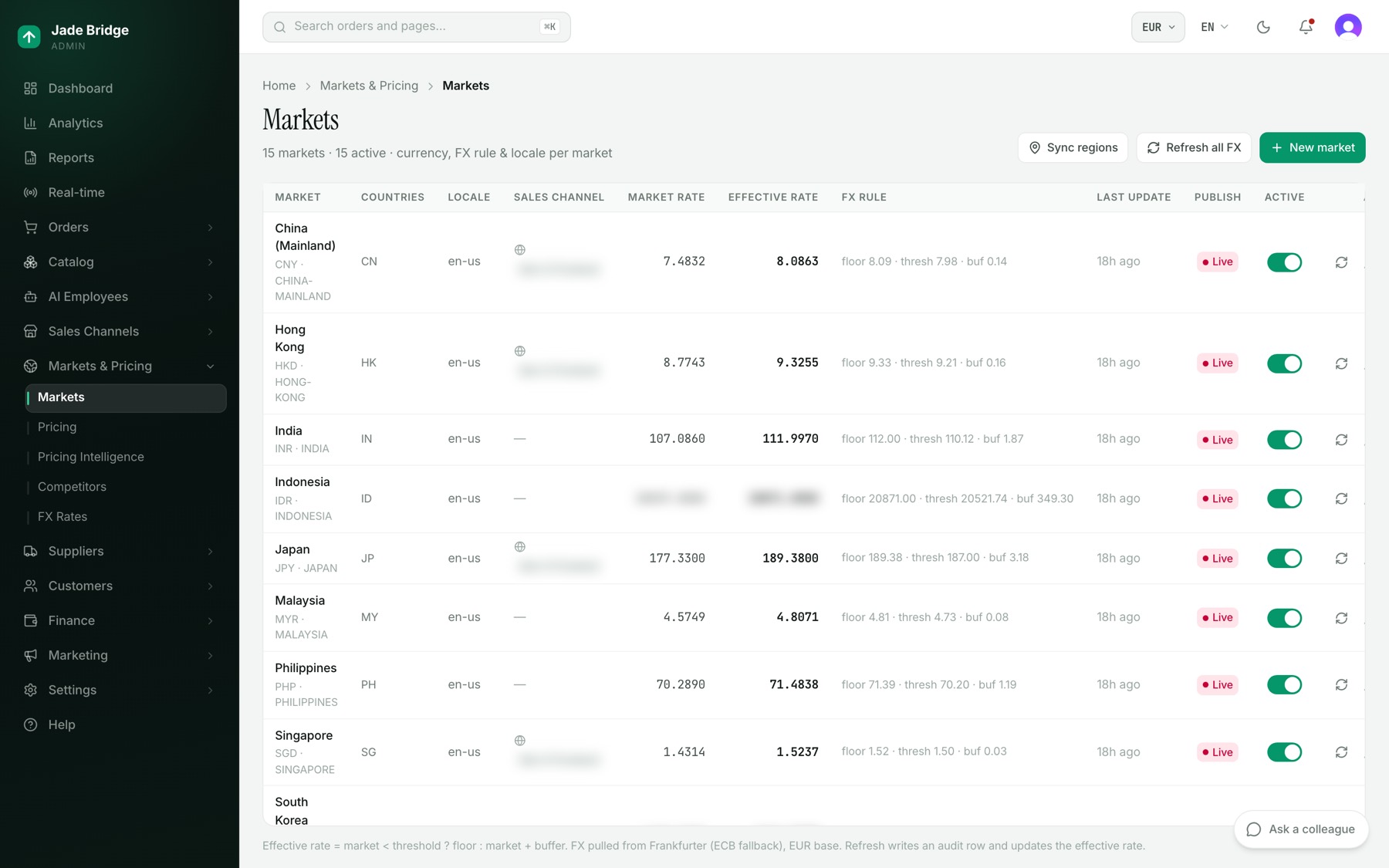
Watch for three things on this list. A market showing "None — routes nobody" under Countries reaches no shopper, however good its prices. A market marked "not synced" under its countries has not yet been pushed to checkout. And a market in Dry run computes its prices without publishing them; only Live puts them on the storefront.
To add a market:
- Press New market.
- Under 01 Identity, type the Market name and choose the Currency and Language / locale.
- Under 02 Countries, press Add a country and pick each country this market serves. Remove one with the × on its chip.
- Under 03 Sales channel, the market publishes to Storefront. You can add channels later.
- Under 04 FX rule, the page shows today's rate and suggests a Floor, Threshold and Buffer from it. Adjust them if you want.
- Under 05 Price rounding, choose .99, .95, Whole or None.
- Press Create market. It opens on its own page, in dry run.
- Check the figures, set Publish mode to "Live — publish to channels" and press Save changes.
- Back on Markets, press Sync regions so each shopper's country selects this market's currency at checkout.
To change a market's countries later, open it, change them under Countries and press Save countries. They reach shoppers after the next Sync regions.
The FX rule
The effective rate is the rate your prices are converted at: units of the market's currency for one unit of your base currency. If the market rate is below the Threshold, the Floor is used; otherwise the market rate plus the Buffer. If today's rate is 1.10, the page suggests a floor of 1.045, a threshold of 1.067 and a buffer of 0.022, so prices convert at 1.122. The buffer protects what you earn on each sale from small swings; the floor stops a falling currency from pulling prices down with it.
The market page shows the FX snapshot and an FX history of every refresh. Refresh FX updates one market now; Refresh all FX on the list updates every active one. A market in your base currency has no FX. An inactive market is skipped by refreshes and publishing.
Changing your base currency
Your base currency is set on Settings → Company. Once your catalogue has prices, it is changed only through Change base currency there, a guided change: every pricing rule, band, fee and floor, every market's FX rule and rate, and your employees' money limits are re-expressed in the new currency at the day's rate, in one step, and the whole catalogue is re-priced and published again. Each market's rate is re-expressed with the rest, so what shoppers pay in a market moves only by rounding. Past orders and reports stay in the currency they were kept in. The steps are in Settings and connections.
FX Rates
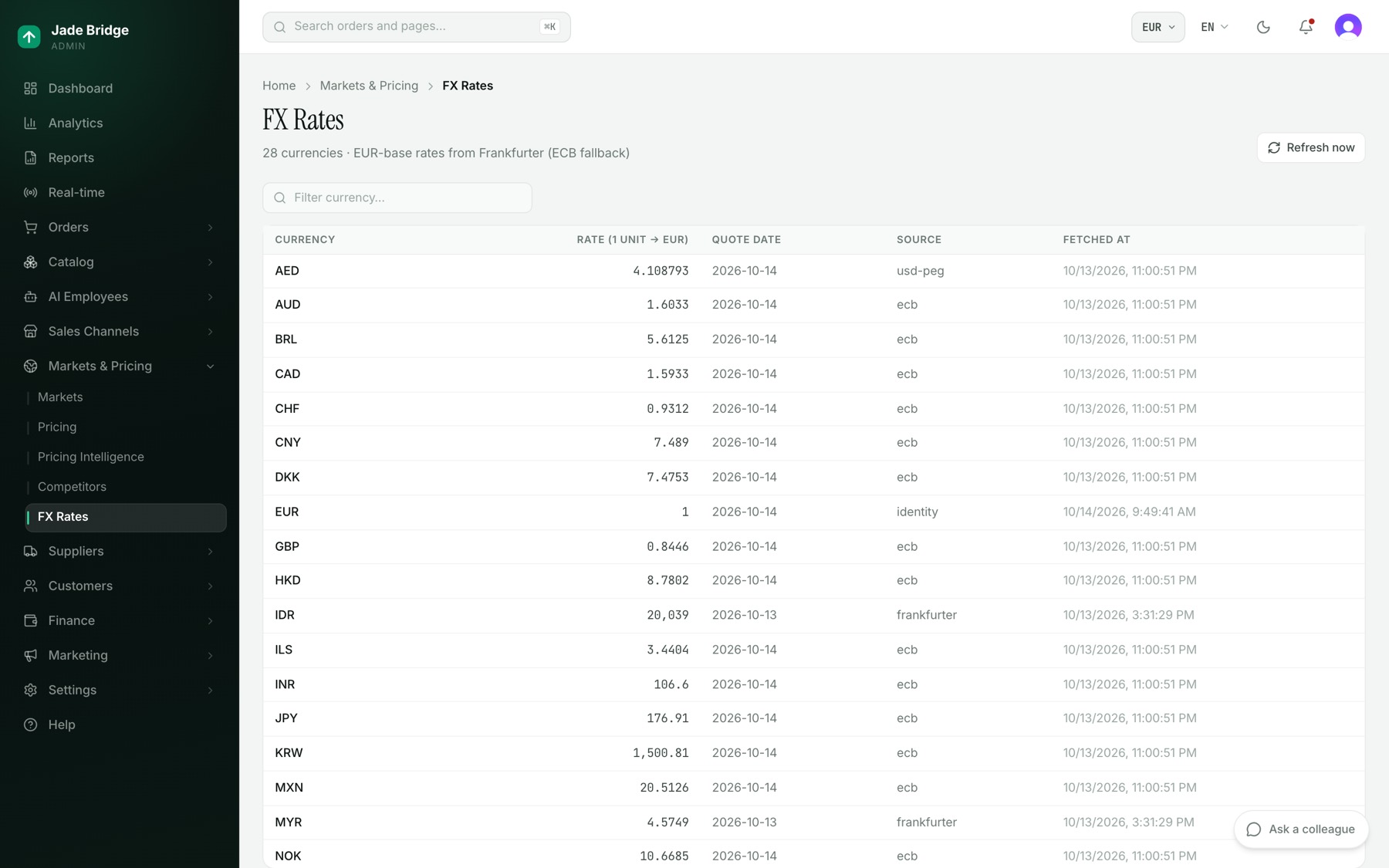
Markets & Pricing → FX Rates is the reference table: every currency your store uses — its markets', its suppliers', its ad accounts' and the ones its orders came in — with its rate against your base currency, its Quote date, Source and Fetched at. The rate services are asked for exactly these, against your base currency; a currency you pick for a new market is fetched the moment you pick it. A market's rate is read straight from its row. Rates come from Frankfurter; if it cannot be reached a second public rate service is tried, and the European Central Bank's daily table last. They are fetched once a day at 06:00 UTC, in the same run that updates every active market's effective rate; that run is the FX refresh job on Settings → Scheduled Jobs. Refresh now fetches them at once.
Pricing rules
Markets & Pricing → Pricing holds the rules. With none, every product sells at 1.5 times its supply cost.
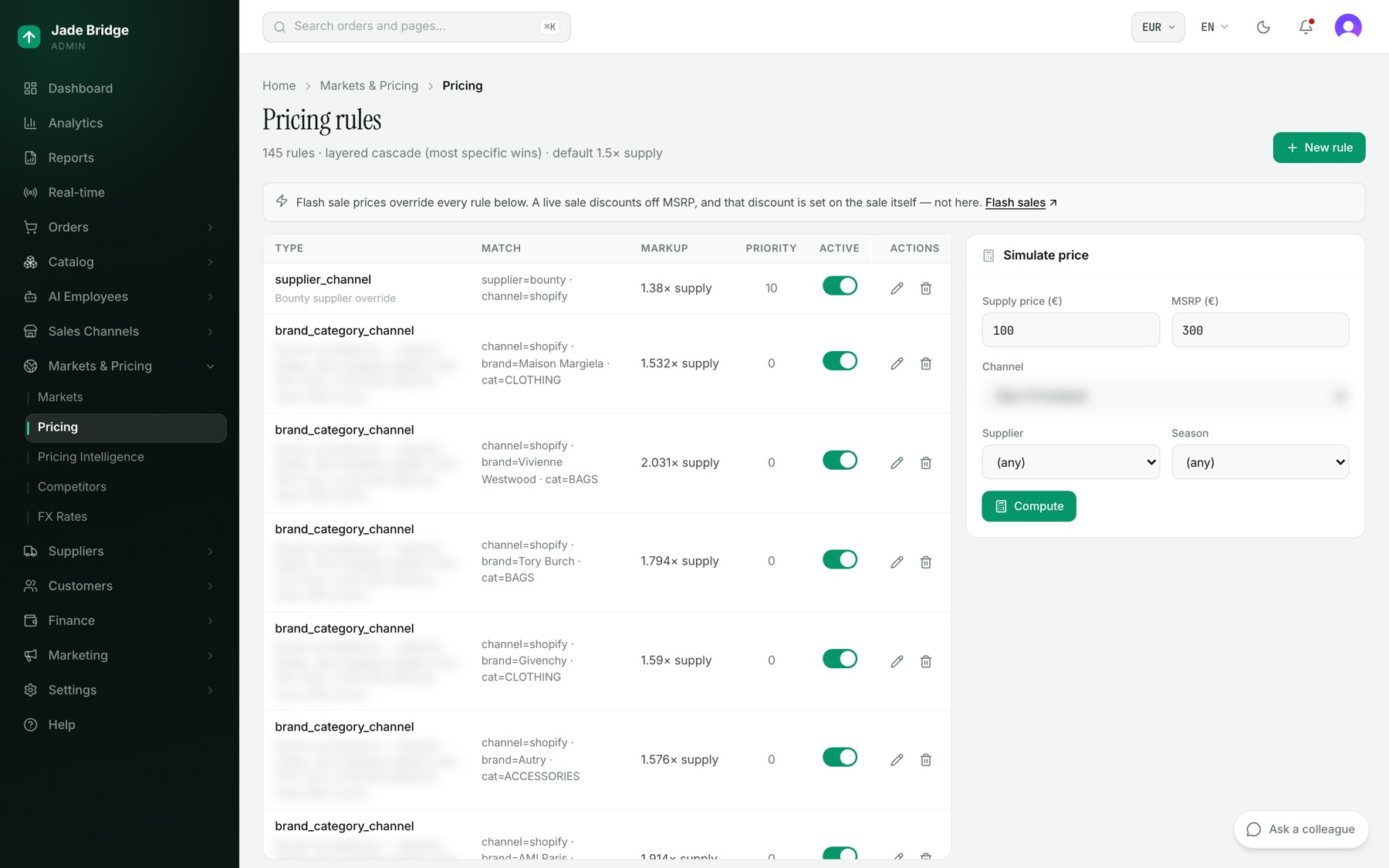
Each rule matches a slice of the catalog: Supplier, Season, Brand, Category, Product type, Gender, Tag, or a supply price range. A blank field matches everything. The most specific matching rule wins. To add one:
- Press New rule. Give it a Type (a name such as brand-override) and choose the Channel.
- Fill only the match fields you need.
- Set one pricing approach: Sale markup (× supply), for example 1.8; or MSRP % (of compare-at) as a fraction, 0.85 for 85% of retail.
- Set Min margin % as a fraction too (0.10 is 10%) if the rule must never price below it.
- Press Create. The rule takes effect on the next price recompute.
Before you save, use Simulate price on the right: enter a Supply price and an MSRP, both in your base currency, pick a channel, supplier and season, and press Compute. It shows the Sale price, Compare-at (MSRP), Landed and how many rules applied.
Duties and import taxes
Duties and import taxes are quoted at checkout by a landed-cost service, Zonos Landed Cost, on Sales Channels → Storefront → Settings → Shipping rates, under Duties & import taxes. The service runs on your own Zonos account: paste the GraphQL credential token from your Zonos dashboard, press Save, and turn on its switch. The shopper pays duties and import taxes (VAT, GST or sales tax) at checkout and nothing at the door.
Switching it on routes every country you sell into through it. The card shows how many of your selling countries are covered, and Re-file countries puts the rest on it after you add a market. If the service is off or does not answer, no duties are charged. There is no page for setting a market's own tax rate; import taxes come from the duties service.
Pricing Intelligence
Markets & Pricing → Pricing Intelligence is Ashley's page. The header says when she last analysed the catalog; Analyse now runs her again.
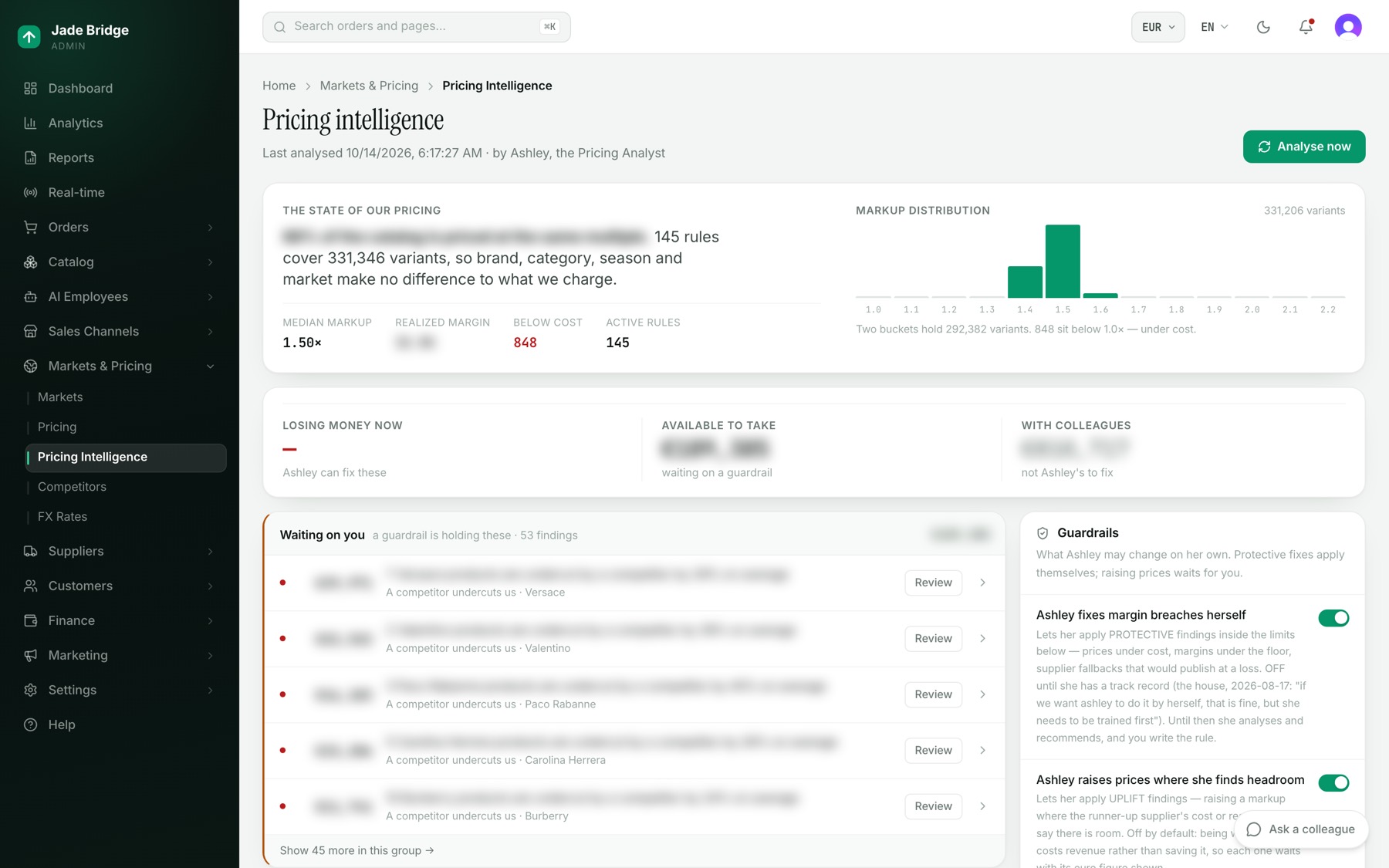
What you see, top to bottom:
- The state of our pricing: one sentence, the Median markup, Realized margin, how many variants are Below cost, Active rules, and a Markup distribution chart.
- Three money figures: Losing money now (Ashley can fix these), Available to take (waiting on a guardrail) and With colleagues (not Ashley's to fix).
- The findings in four groups: Losing money now, Waiting on you, With colleagues, and Fixed by Ashley. Findings of one kind about one supplier or brand collapse into a single row.
- Guardrails on the right: what Ashley may change alone. Each says how many findings it is holding and what they are worth.
A finding has a kind, such as Priced below cost, Supplier raised cost, we did not, or A competitor undercuts us. Every money figure says its basis: realized (from units that sold) or exposure (the margin at stake on stock you hold).
To decide a finding:
- Open its row. The page shows the money and its basis, what is wrong, The rule this writes, and the Measured evidence.
- Press Apply this. The rule goes live and takes effect on the next recompute.
- Or type why it is not worth acting on and press Dismiss. It stays quiet even when Ashley finds it again. Reopen undoes a dismissal.
Every decision is in the Decision record at the foot of the finding, with the person's name.
Ashley's guardrails
Two switches decide how much she does alone, and both start off. "Ashley fixes margin breaches herself" lets her apply protective fixes: prices under cost or under the margin floor. "Ashley raises prices where she finds headroom" lets her raise markups. With them off, her findings wait for you. Under them sit the limits: Largest change she may make unattended, in your base currency, 2,000 by default; Furthest a markup may move in one pass, 0.05; Margin floor (× supply cost), 1.15; and the thresholds she reads evidence by. Change a number and press Enter.
Competitors
Markets & Pricing → Competitors decides which products are watched against other shops, on which source. A selection rule names a slice of the catalog, the sources allowed to watch it (UPCitemdb, by barcode, or Prisync), and Products at most. The Rules, Tracked and Matches tabs show the rules, what each source is watching, and competitor prices beside yours with the Gap. Watching costs money: UPCitemdb charges a lookup per product per refresh and Prisync bills per tracked product, so set Products at most with care. Prisync is connected at Settings → Integrations. What the sources find feeds Ashley's competitor findings.
The Competitor prices panel on Pricing Intelligence shows where this stands: Not connected (no selection rule is active), Waiting for prices (products are tracked, no price back yet) or Collecting, with the Listings held, the share of the Catalog covered and when a price was Last seen.