The Welcome page
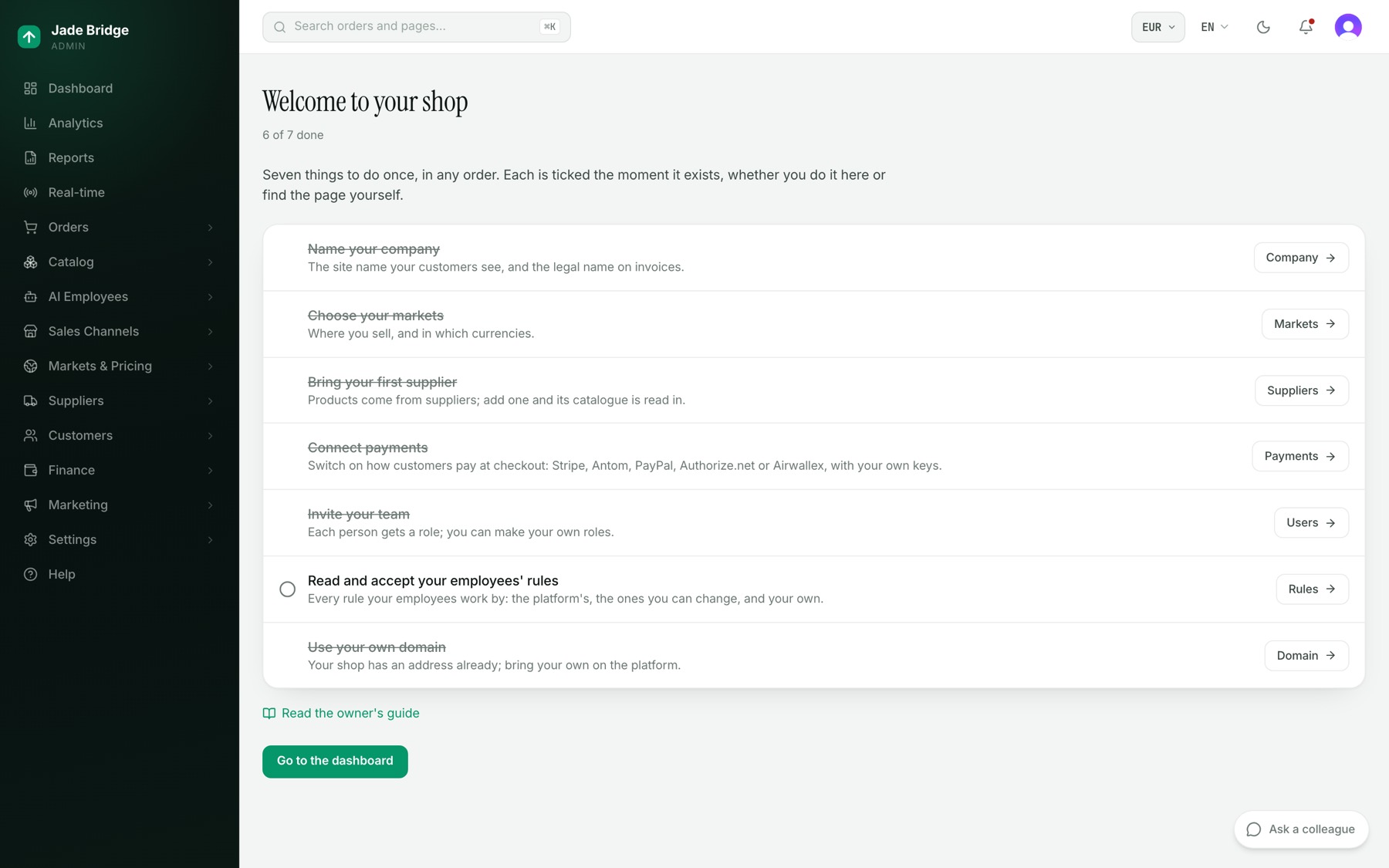
When you first sign in to a new store, the admin opens on "Welcome to your shop": eight things to do once, in any order. Each row has a title, one line on what it is for, and a button to the page where it is done.
A row is ticked the moment the thing exists, however you got there. The count beside the heading reads, for example, "3 of 8 done".
At the foot of the page are two things:
- "Read the owner's guide" opens Help.
- "Go to the dashboard" takes you to the dashboard and tells the store you have seen the list.
A store counts as new while it has no company name saved, no supplier, and nobody signed up but you. While the store is new and you have not yet gone to the dashboard from here, signing in opens this page. As soon as any of the three changes, or you press "Go to the dashboard", signing in opens the dashboard. The Dashboard item in the menu always opens the dashboard.
The same list, with the same buttons and ticks, is under Help → Owner's guide → Your store's reference → The welcome steps. While any step is still undone, "Open the welcome page" there takes you back to this page.
1. Name your company
Button: Company. It opens Settings → Company.
What it asks: under Brand, the Site name your customers see (the storefront, the support chat and every customer message use it) and a Tagline the employees use when they introduce the brand. Under Legal & contact, the Legal name for invoices and policies, the Support email customers write to, the Country of registration (choose it first; it decides which address fields apply), the address, and your registration and tax numbers. Under Store, your base currency, the one your books and your pricing are kept in, chosen when you signed up, and your store's time zone.
- Fill in Site name and Legal name.
- Choose the Country of registration, then type the address into "Find the address" and pick a match. The fields stay editable.
- Check the base currency and set the time zone.
- Press Save.
What happens after: the row is ticked as soon as a Site name or a Legal name is saved. The storefront's Contact, Terms and Privacy pages use these details; a blank field is left off, never filled in for you. The time zone decides when your store's day starts, for Today, reports and sale start times. Until your catalogue has prices the base currency can still be changed here; after that it is changed with Change base currency, a guided change that re-expresses your pricing and re-prices the catalogue (Settings and connections).
2. Choose your markets
Button: Markets. It opens Markets & Pricing → Markets.
What it asks: press "New market" and give the market a name, a currency and a language. Add the countries it serves with "Add a country": shoppers in those countries get this market's currency and prices, and a market with no countries routes nobody. Choose the sales channel its prices publish to. Set its FX rule (a floor, a threshold and a buffer, seeded from today's rate) and its price rounding (.99, .95, whole numbers, or none). Press "Create market".
What happens after: the row is ticked once a market exists. A new market starts in Dry run. Its prices are worked out but not published until you switch its Publish mode to Live on the market's own page, where its countries can also be changed. Prices, duties and shipping are worked out per market from here on.
3. Connect your ad accounts
Button: Google Ads. It opens Settings → Integrations → Google Ads. Meta has its own card on the same page.
What it asks: your store has its own Google Ads email, shown on the card with a Copy button. Add it as a user in Google Ads:
- In Google Ads, open Admin → Access and security.
- Under Users, press + and paste the email.
- Choose Standard access and press Add account. Read only also works, but approved budget changes and pauses are then recorded, not carried out.
Back on the card, press "Check access" and choose the account to read. There is no sign-in and no passkey, and no key is kept in your store. For Meta, press "Connect with Meta", allow access to your ad accounts, and choose the account.
What happens after: the row is ticked once an account is chosen. Marian reads 90 days of spend at once, then every few hours; the spend appears on Today, on Marketing → Ad spend and in the profit and loss.
4. Bring your first supplier
Button: Suppliers. It opens Suppliers → Onboarding.
Marshall, the onboarding manager, takes each supplier from first contact to live. You start one here:
- Press "New case".
- Fill in the Company, a Contact and their Email, and press Create.
- Open the case. Under "Set up supplier", choose "Create new" and press "Create supplier". This adds the supplier to Suppliers → Directory with the case's contact details, as pending with its feed off.
Marshall writes to them, gets and enters the connection details, and moves the case through its stages: Lead, Contacted, In dialogue, Configuring, Testing, Ready, Live. A case goes Live only once its supplier is set up.
What happens after: the row is ticked once the supplier exists. Once the supplier is connected and switched on, Kat, the supply chain manager, reads its catalogue in (products, variants, stock and prices in the supplier's currency) and keeps it current as the feed changes. Aileen writes the product pages and translates them; Amy files each product in the catalogue tree.
5. Connect payments
Button: Payments. It opens Sales Channels → Storefront → Settings → Payments.
Your checkout takes payment through providers on your own accounts and keys: Stripe, Antom, PayPal, Authorize.net and Airwallex. Until one is enabled, checkout cannot take payment, and the page says so.
For each provider:
- Paste its keys under Credentials. Secrets are encrypted and never shown again; a field left blank keeps the stored value.
- Where the page shows "This store's address:", press "Use it" to fill in the webhook.
- Set the Checkout label shoppers see and the Capture mode. "Authorize now, capture later" holds the money at checkout and takes it when a supplier confirms the order; "Capture immediately" takes it at checkout. Press Save.
- Switch the provider on. The switch takes effect at once.
A provider marked "Not available" cannot be enabled yet.
What happens after: the row is ticked as soon as any one provider is enabled. Steve, the integrations manager, owns every connection your store has; ask him from this page if a provider does not answer.
6. Invite your team
Button: Users. It opens Settings → Users & Permissions.
- Press "Invite member".
- Type their Email address and choose a Role.
- Press "Send invitation".
What happens after: they get an invitation by email, and the row is ticked once a second person has joined. Under Roles you can make your own roles, each with View and Manage permissions per area; what a person sees and can change follows their role.
7. Read and accept your employees' rules
Button: Rules. It opens "Your employees' rules".
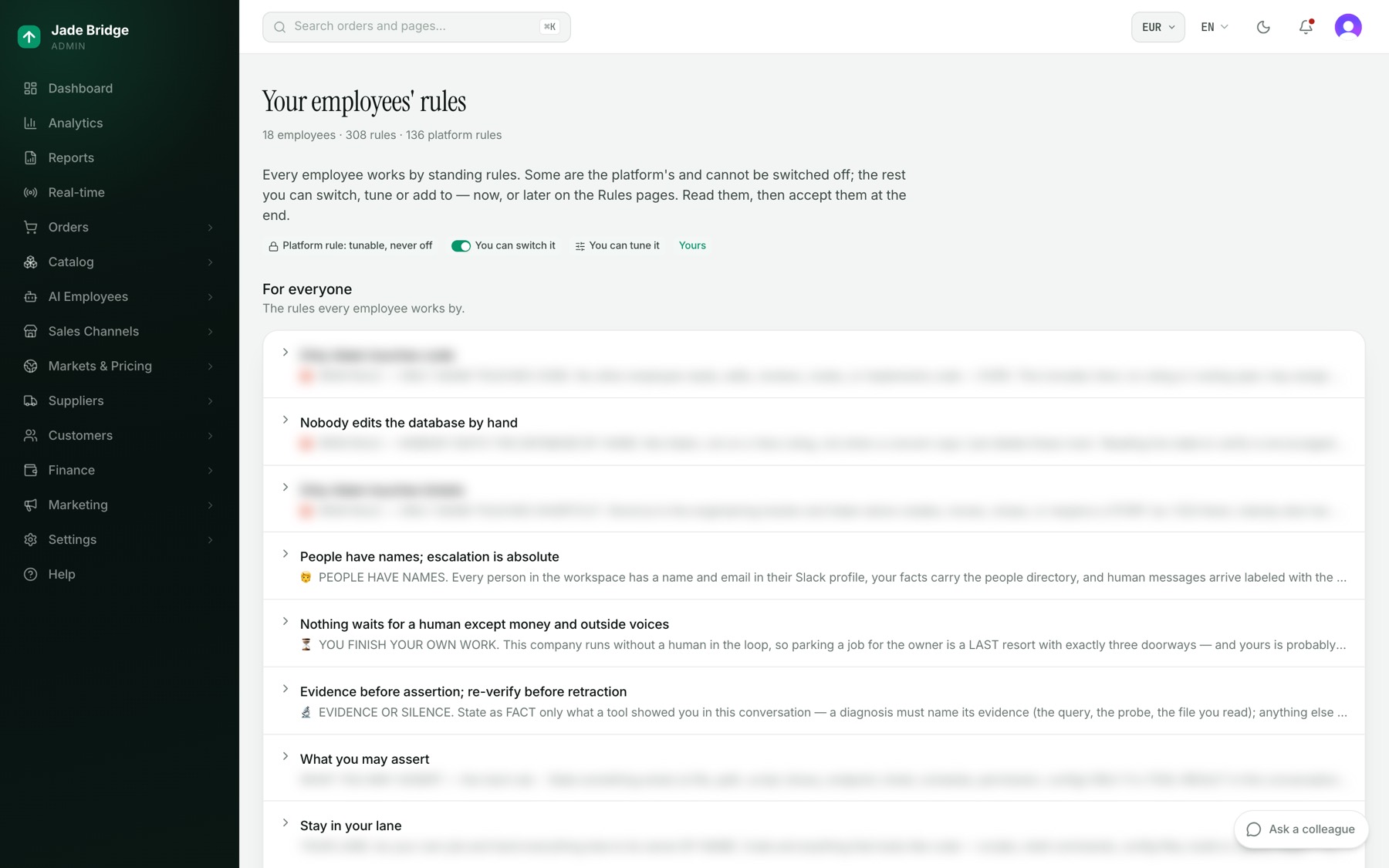
The heading's line counts the employees, the rules and the platform rules. A legend explains the marks: a lock for "Platform rule: tunable, never off", a switch for "You can switch it", sliders for "You can tune it", and "Yours" for your own.
The page has three sections:
- For everyone. The rules every employee works by. Click one to read it in full with its reason. "Edit on the Rules page" opens AI Employees → Brains → Rules.
- Each employee. One row per employee who works in your store, with what they own and a count of rules, gates and locked rules. Open a row to see each rule: what it states, what it refuses, and whether it is a platform rule. A switch turns a rule off or on at once. "Tune" opens that employee's rule builder, where its numbers are set.
- Your own rules. Press "Add a rule", fill in Name, Applies to (Everyone or one employee), The rule, and Why, and press "Add rule". It reaches the employee exactly like the platform's.
To accept:
- Read the sections.
- Press "I have read these rules and accept them".
What happens after: the page shows "Accepted" with the date and your name, and the Welcome row is ticked. When a later release changes the platform's rules, this page says so with the new version number; nothing stops working, and you accept again when you have read it. The Rules chapter covers this page in full.
8. Use your own domain
Button: Domain. It opens the platform's Shops page in a new tab; open your shop there.
Your store has an address from the day it is built. To move it to a domain you own:
- Under "Your own domain", type the domain and press "Use this domain".
- Add the records the page shows at your registrar. The first proves you hold the domain; the rest point it at your store.
- Press "Check again".
What happens after: the store moves over by itself once the records are in place, and the page says "Your store answers on its own domain." The Welcome row is ticked once your storefront answers on your own domain.
After the first week
The employees are working from the first supplier onward. Anything waiting on you is behind the bell at the top of every page (Waiting on you) and under AI Employees → Brains → Issues.