The Settings menu holds the things you set once and change rarely. Steve, integrations, owns every connection to an outside service. Kat, supply chain, owns how parcels are priced and shipped. You can do any of this yourself, or ask Steve and he does it with the keys you give him.
Company
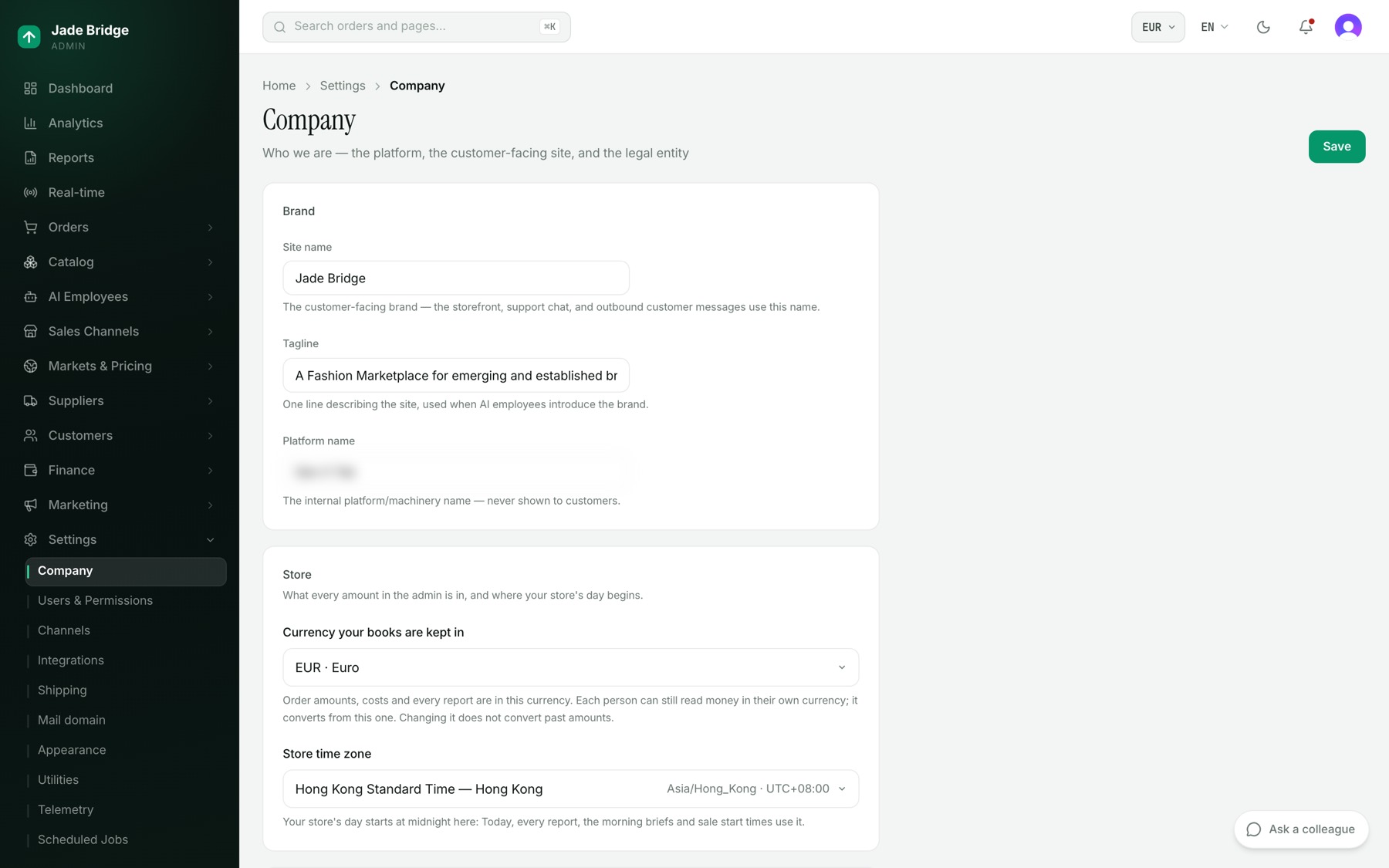
Settings → Company has three cards and one Save button at the top.
- Brand. Site name is the name customers see on the storefront, in support chat and in every customer message. Tagline is the line employees use to introduce the brand. Platform name is internal and never shown to customers.
- Store. Base currency is the one currency your books and your pricing are kept in: every amount and report, supplier costs once they are read in, your pricing rules and every market's rate. You choose it when you sign up. Until your catalogue has prices it can still be changed here; after that, the card shows it with Change base currency (below). Store time zone decides when your day starts, for Today, every report and sale start times.
- Legal & contact. Legal name, Support email, Country of registration, the address, and Registration & tax numbers. These print on your storefront's Contact, Terms and Privacy pages. Choose the country first; it decides which address fields appear. Find the address fills them from a search, and every field stays editable. How it will appear shows the address as it will print. A field left blank is left off those pages, never guessed. Numbers marked Not shown publicly stay internal.
Changing your base currency
Once your catalogue has prices, the base currency is no longer a field you can simply switch: every price, rule and rate is in it. Change base currency re-expresses them instead.
- On Settings → Company, under Store, press Change base currency.
- Choose the new currency and press Preview the change.
- Read the preview: every amount that will be re-expressed, with its value before and after, grouped as pricing rules, pricing settings, markets, flash sales and employees' limits; how many supplier offers and current prices are converted with them; and the rate used, with its date. If something stops the change, such as a flash sale that is live now, the preview says so and nothing can be confirmed until it is over.
- Type the new currency's code (for example USD) to confirm, and press the Change button beside it.
Everything in the preview is changed in one step, or nothing is. If a rate or an amount moved after you previewed it, the change is refused and you preview again. Once it is done, the whole catalogue is re-priced and published again to your storefront and channels; a market's prices move only by rounding, because its rate is re-expressed too. Past orders, reports, statements and the P&L stay in the currency they were kept in and are converted the way they always are. The change is recorded in the store's audit log with who made it and the rate used.
Users and roles
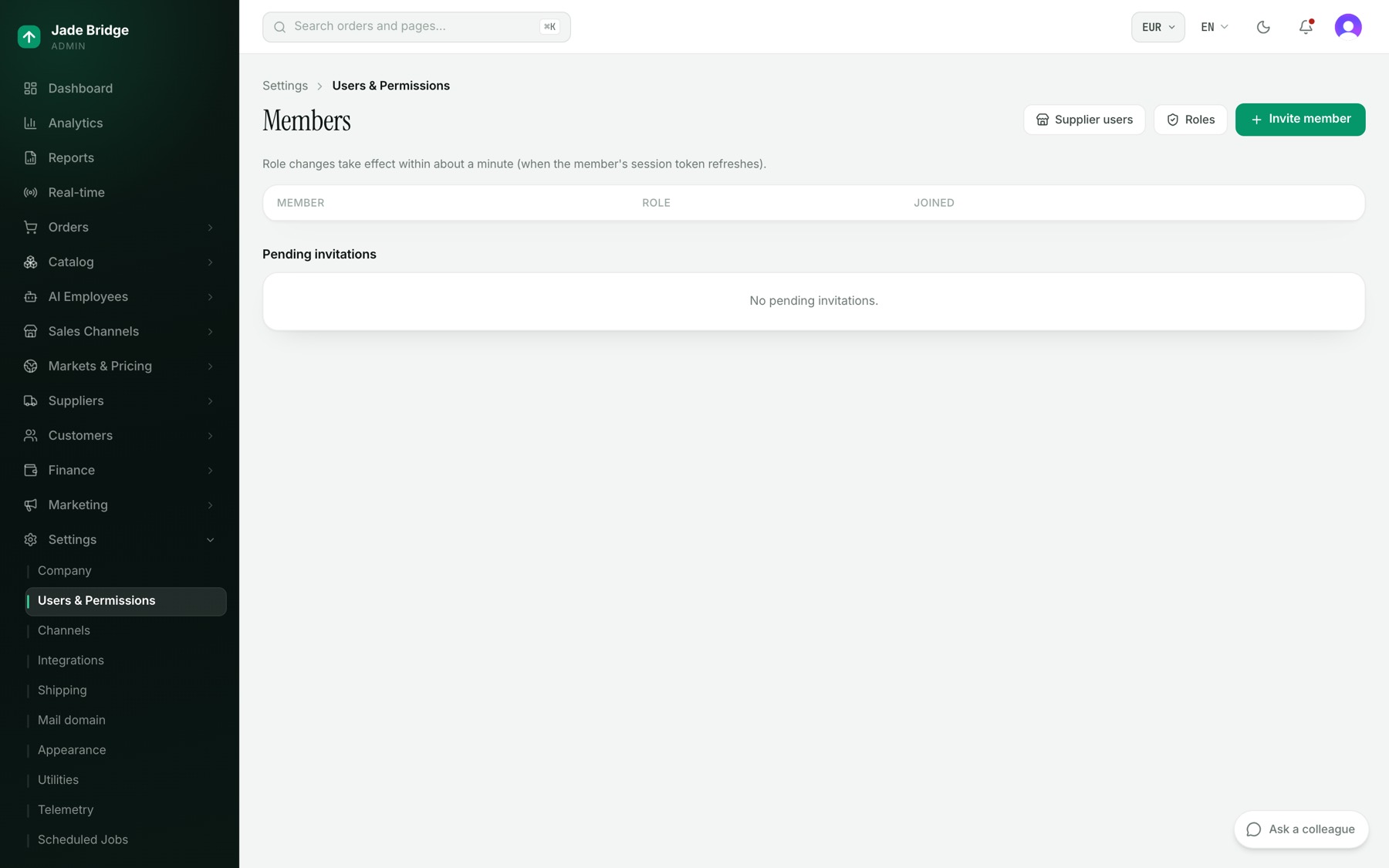
Settings → Users & Permissions lists Members with their role and the date they joined, and Pending invitations below. You cannot change your own role or remove yourself. Role changes take effect within about a minute.
To invite a person:
- Press Invite member.
- Type their Email address and choose a Role. Viewer is preselected.
- Press Send invitation. They appear under Pending invitations until they accept; Revoke withdraws it.
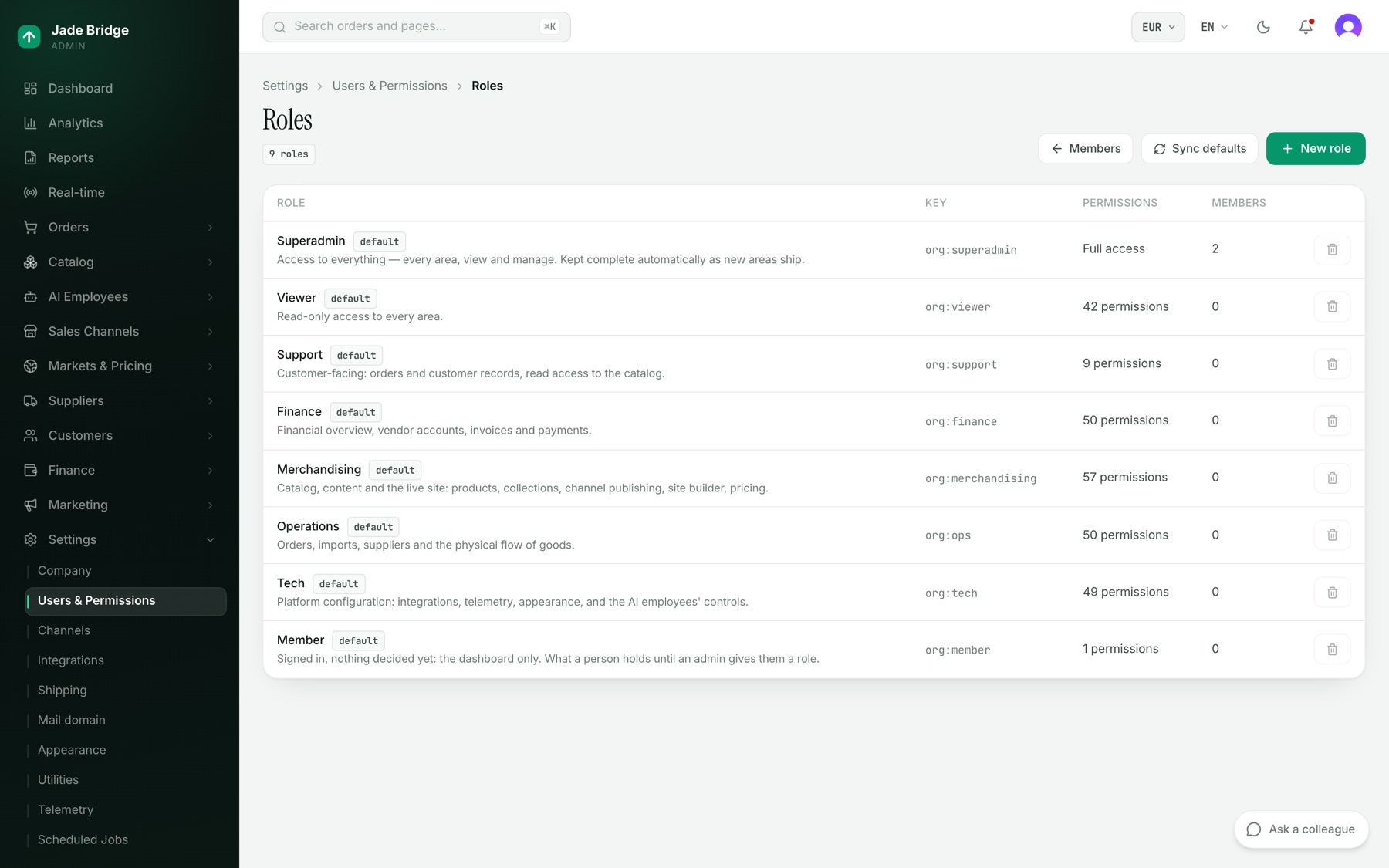
Press Roles to see the roles. Eight are built in: Superadmin, Tech, Operations, Merchandising, Finance, Support, Viewer and Member. Member sees only the dashboard, and is what a person holds until you give them a role. Built-in roles cannot be deleted.
To make a role of your own:
- On Roles, press New role.
- Give it a Name, a Key (fixed once saved) and a Description.
- Tick View or Manage for each area. Manage includes View.
- Press Save. To delete a role, move its members to another role first.
Sync defaults adds back any built-in role or permission that is missing, and never undoes your edits. Supplier users, on the Members page, manages who can sign in to each supplier's portal.
Shipping
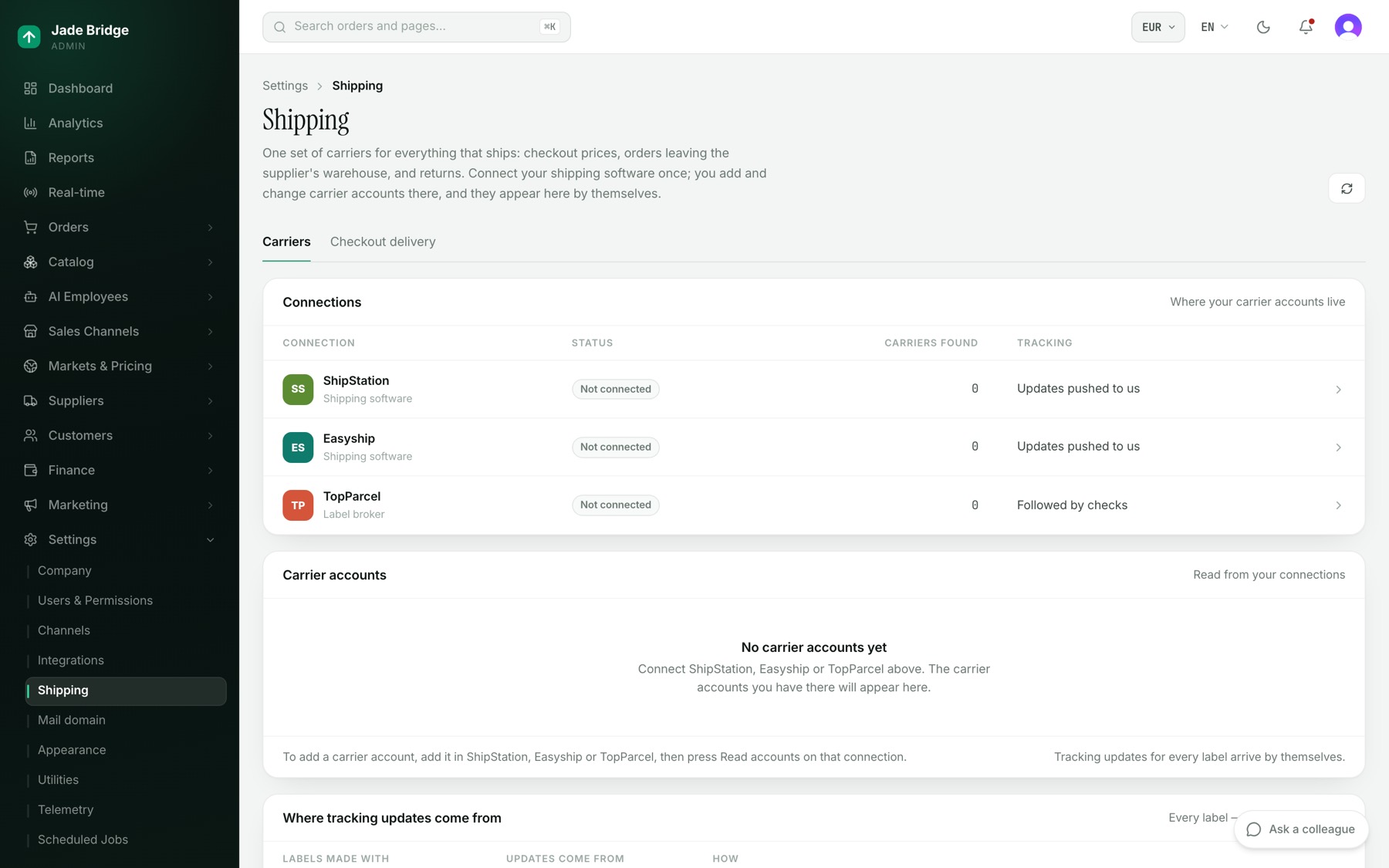
Settings → Shipping has two tabs. Carriers lists your Connections (ShipStation, Easyship, TopParcel), then the Carrier accounts read from them. For each account, three switches decide what it is used for: Checkout prices, Supplier labels and Return labels. Below, Where tracking updates come from says how each kind of label is followed.
To connect ShipStation:
- On Carriers, open ShipStation.
- Follow How to connect: in ShipStation, open Settings → Account → API Settings and generate an API v2 key.
- Paste it, turn on Use this connection, and press Save. The result says how many carrier accounts were found and that tracking updates are on.
- To add a carrier later, add it in ShipStation, then press Read accounts.
On a connection's page, each service has a Delivery choice and an On switch. TopParcel has Test labels, which book no courier and spend nothing, and Real labels; check which it is on before a supplier books.
Checkout delivery sets what shoppers pick from. What checkout shows is either Your delivery choices (Standard, Express, Next day and any you add with Add a choice) or Every carrier service, cheapest first. Open a choice to set Offer this choice at checkout, which service wins when several can carry a parcel, and what The shopper pays: the carrier's price plus your markup, a fixed price, or nothing. Add the promise shown under it, in each language.
Integrations
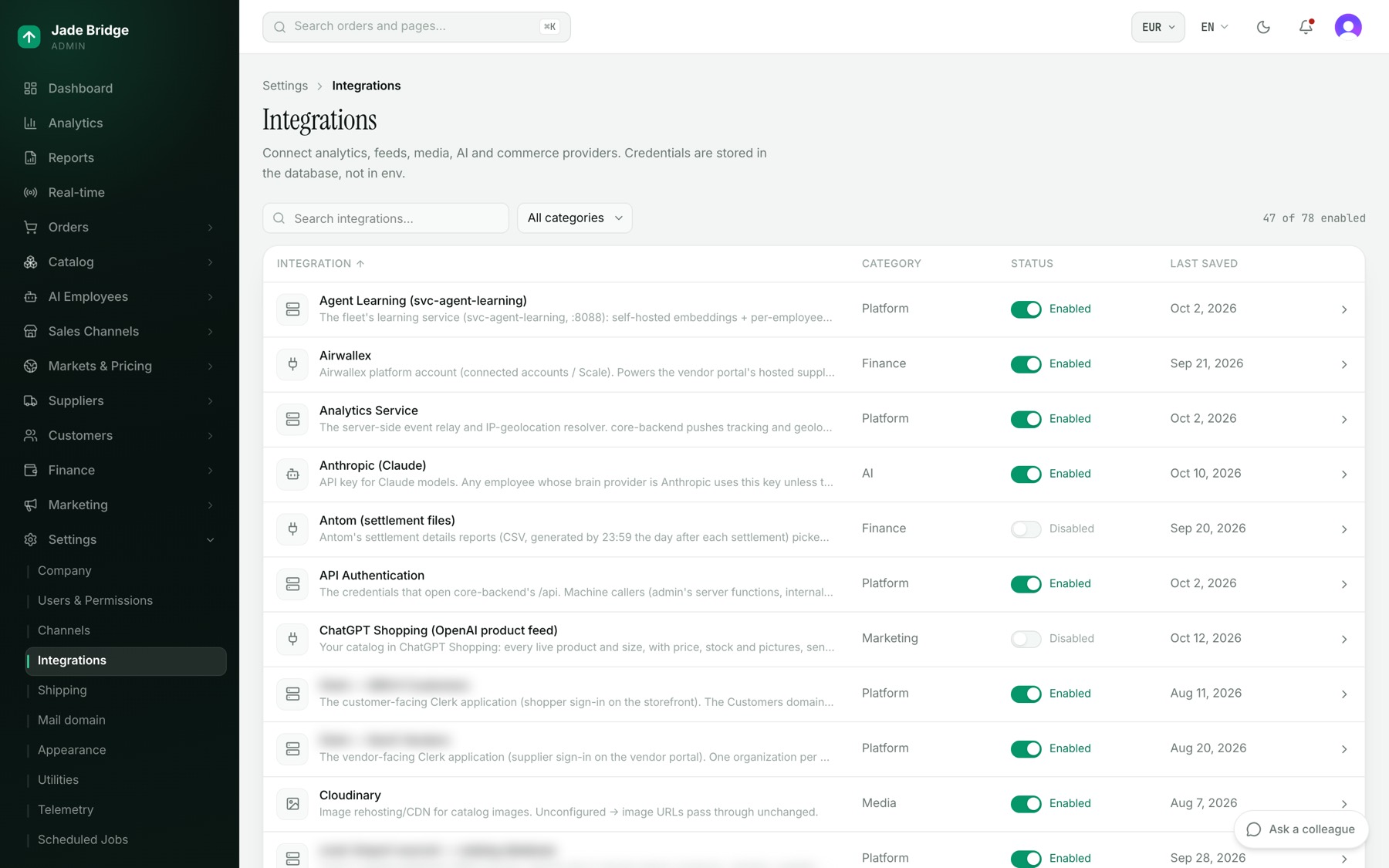
Settings → Integrations is one table of every outside service your store uses: Integration, Category, Status and Last saved. Search or filter by category; the switch in a row turns a service on or off at once. A row opens its page: what it does, Open the provider console, its fields, and Save. A saved secret shows "Saved — type to replace"; the eye shows it, and every look is logged.
To ask Steve for a connection:
- Under Ask Steve, write what you want connected or what is not working.
- Pick the Connector if there is one, and press Ask Steve.
- Follow it under Open cases: Open, Waiting on you, Waiting on the other side, Waiting on the platform, Live. Still missing names what he needs.
Steve writes to the provider himself and comes back to you only for money or a commitment.
Mail domain
Settings → Mail domain gives your AI employees email addresses. It needs SendGrid connected under Integrations first. Add mail domain asks whether the name is your company's own domain, which your employees send from, or a separate name that receives mail. The domain's page lists the DNS records to add, checks them by itself, and has Check now. Under Mailboxes, Add mailbox gives one employee an address, with the Name recipients see, May send email and Replies go to. Send a test message proves the mailbox once the domain is live.
The rest of Settings
- Appearance. Accent color for the admin, for Light mode and Dark mode, with Reset to default.
- Channels. The sales channels your products publish to. A channel's page has Test connection and Publish now. Suejean, channel operations, keeps publishing running.
- Scheduled Jobs. Each job's schedule, last success and an On switch; Reset to default undoes a change.
- Telemetry. A live, read-only view of each employee's heartbeat and the store's queues. Nothing here needs you.
Utilities is greyed out: coming soon.
Your own domain
Your store has an address on the platform from the day it is built. Moving it to a domain you own is done on the platform, not in the admin, and only the shop's owner can do it.
- On the Welcome page, press Domain, or sign in to the platform and open your shop.
- Under Your own domain, type the domain, like acme.com, and press Use this domain.
- The card lists records. Add them at your registrar: the first proves you hold the domain, the rest point it at your store.
- Press Check again. When the card says Your store answers on its own domain, you are done.
The shop must be running before it can move. The same page has People, where the owner invites others to the shop on the platform, as owner or admin, and can Remove them or Withdraw an invitation.
People on the platform and Members in the admin are two separate lists. People decides who sees your shop on the platform. Members, on Settings → Users & Permissions, decides who signs in to your store's admin and with which role. A person who needs both is invited in both places.