How products arrive
You do not create products by hand. Every product comes from a supplier's catalogue. Each supplier is connected in its own way (a direct connection to their system, a file dropped on a server, a spreadsheet feed, or updates they send you) and has an import schedule. The store checks the schedules every five minutes and runs whatever is due.
An import reads products, variants, stock and supply prices. New products arrive active. An offer below your import price floor is skipped (the floor is set under Suppliers → Live stock). When several suppliers offer the same item, the cheapest supplier with stock wins the sale.
Then the employees take over:
- Kat, supply chain, watches every import. A failed run, or a supplier with connection details missing, she notices and hands to the right colleague.
- Amy, taxonomy, files each product in the category tree and fills in the attributes its category defines, such as pattern, neckline and materials.
- Aileen, product content, matches the brand, fills in gender, researches the product, rewrites its title and description, and translates them.
Products
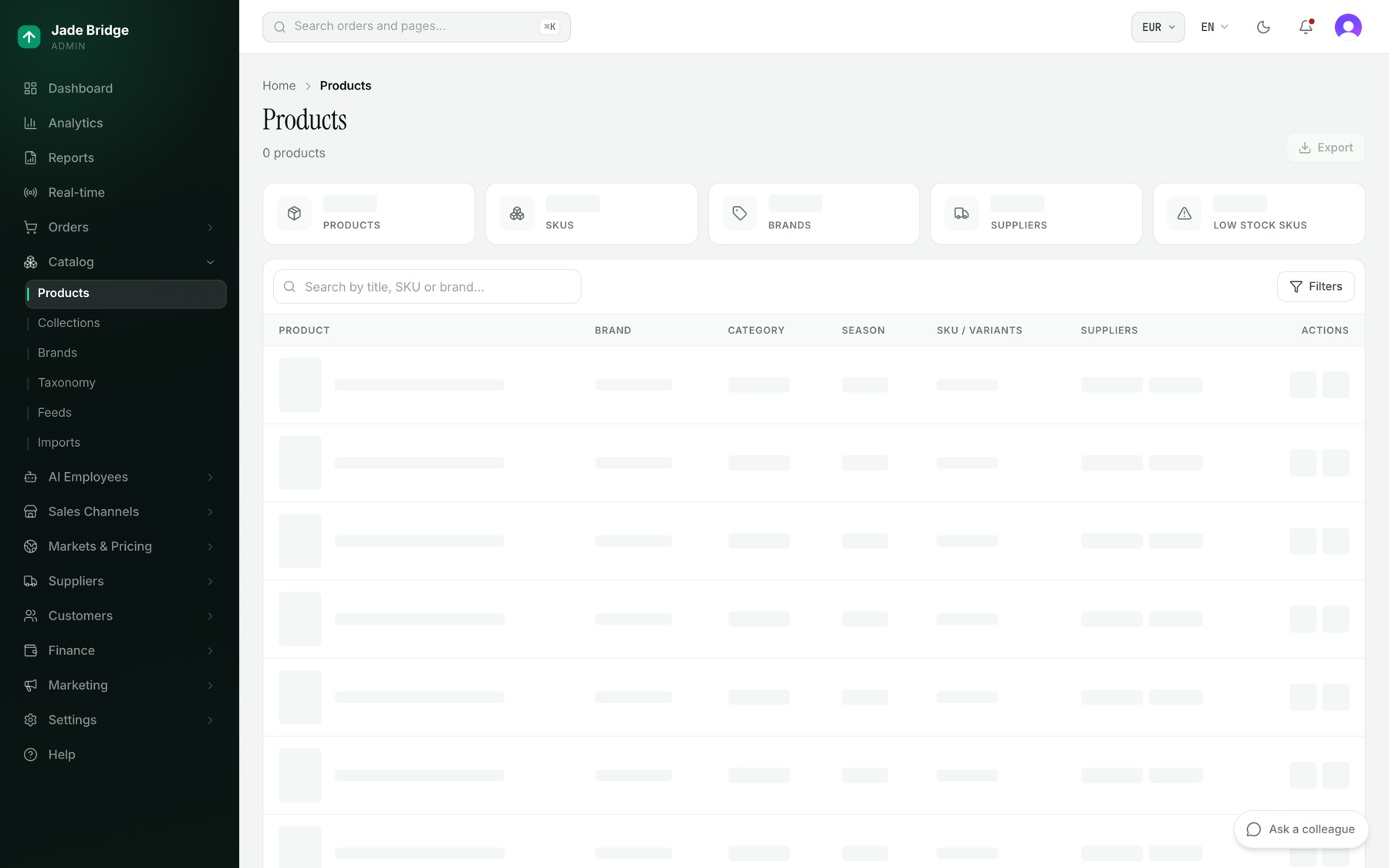
Catalog → Products lists every product. The counters across the top are Products, SKUs, Brands, Suppliers and Low stock SKUs, for the filters you have set. The table shows brand, category, season, variants and suppliers. A supplier in green is the cheapest for at least one variant.
- Search by title, SKU or brand.
- Filters: Brand, Supplier, Status (Active, Draft, Archived), Category, and Show out of stock. Out-of-stock products stay hidden until you switch that on. Each filter shows as a chip; Clear all removes them.
- Click a row to open its variants in place: size, colour, stock, each supplier's price and the saving against the next supplier.
- Export downloads every product that matches your filters, across all pages, as a CSV file.
A product's page
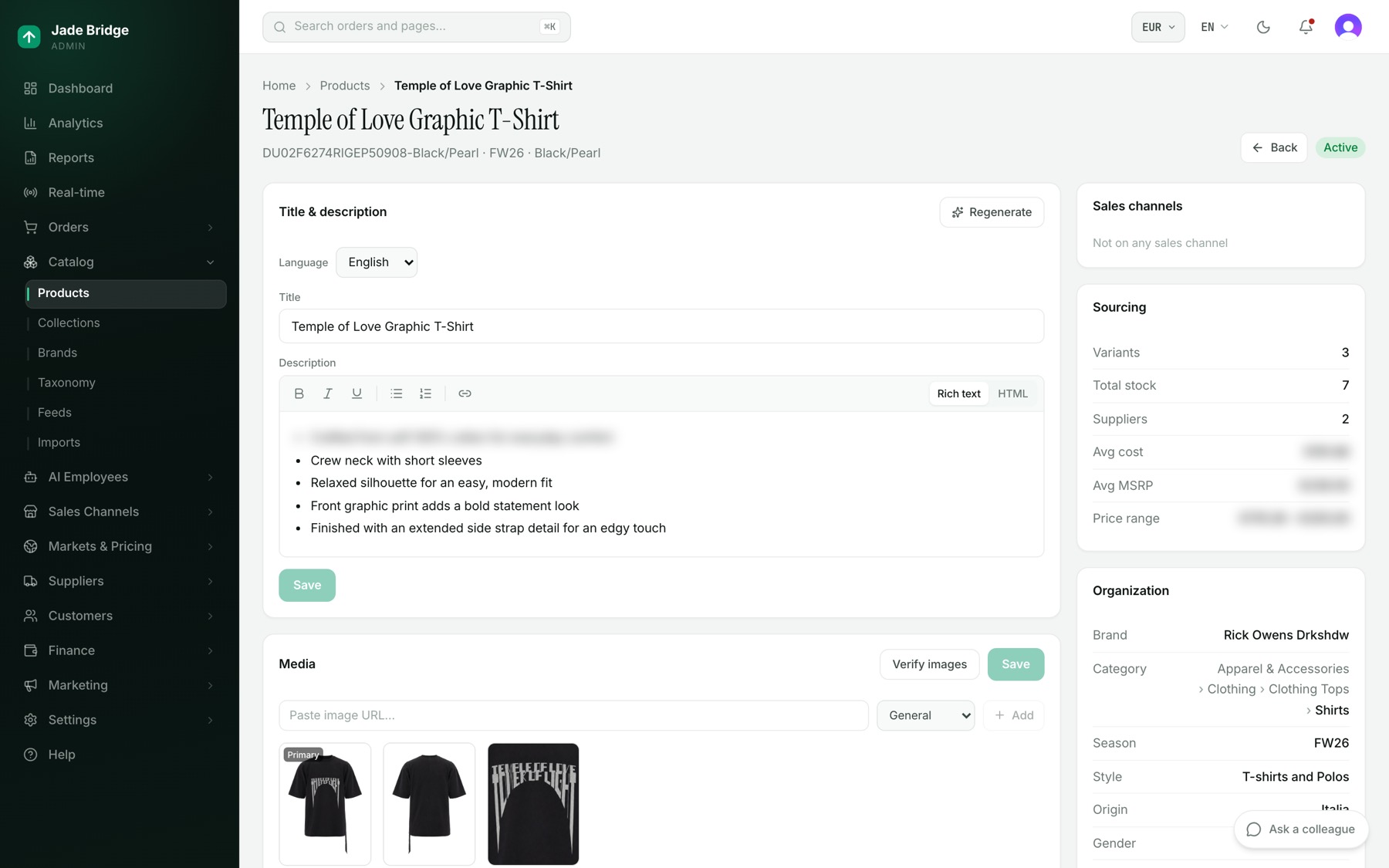
Click a product's name to open it. The top bar has Back, a View on button for each storefront it is live on, and its status, which this page cannot change.
Title & description holds the words shoppers read. The Language list offers English, which is the source, and every other language your storefront offers, each by its own name. To add one, switch it on under Sales Channels → Storefront → Site Content → Languages. A language Aileen wrote is marked AI; one a person saved is marked Edited.
Regenerate hands the product to Aileen. She looks it up in shopping listings, web search and retailers' pages, rewrites the title and description from what the sources say, and every translation is redone. The card then shows her research and the sources she used. When she cannot find the product online she says so and writes from the photo and the supplier's fields; read those carefully.
The other cards:
- Media. Paste an image URL and Add, tag each image with a colour or General, reorder with the arrows; the first image is Primary. Verify images asks each image's host whether it still serves the picture. Save.
- Variants. One row per supplier offer: SKU, supplier (the cheapest marked Lowest), the supplier's colour and the colour group, size, stock, supply price, MSRP, selling price, margin, and three dates. Price/qty updated is the last real change; Last checked is the last time the feed confirmed the offer. Supply and selling prices on this card are shown in your base currency. Supplier data (as received) shows each price in the supplier's own currency.
- Supplier data (as received). Show puts what the supplier sent beside what the store made of it. Bold means the two differ; "nothing sent" means every word in that field is the store's own.
- Sales channels, Sourcing, Organization (brand, category path, season, gender, age group, materials, HS code, Amy's attributes, tags) and Activity, down the side.
To correct a product's words:
- Open the product and keep English selected.
- Edit the Title or Description and click Save.
- Choose each other language and click Translate with AI, or type your own and Save.
Collections
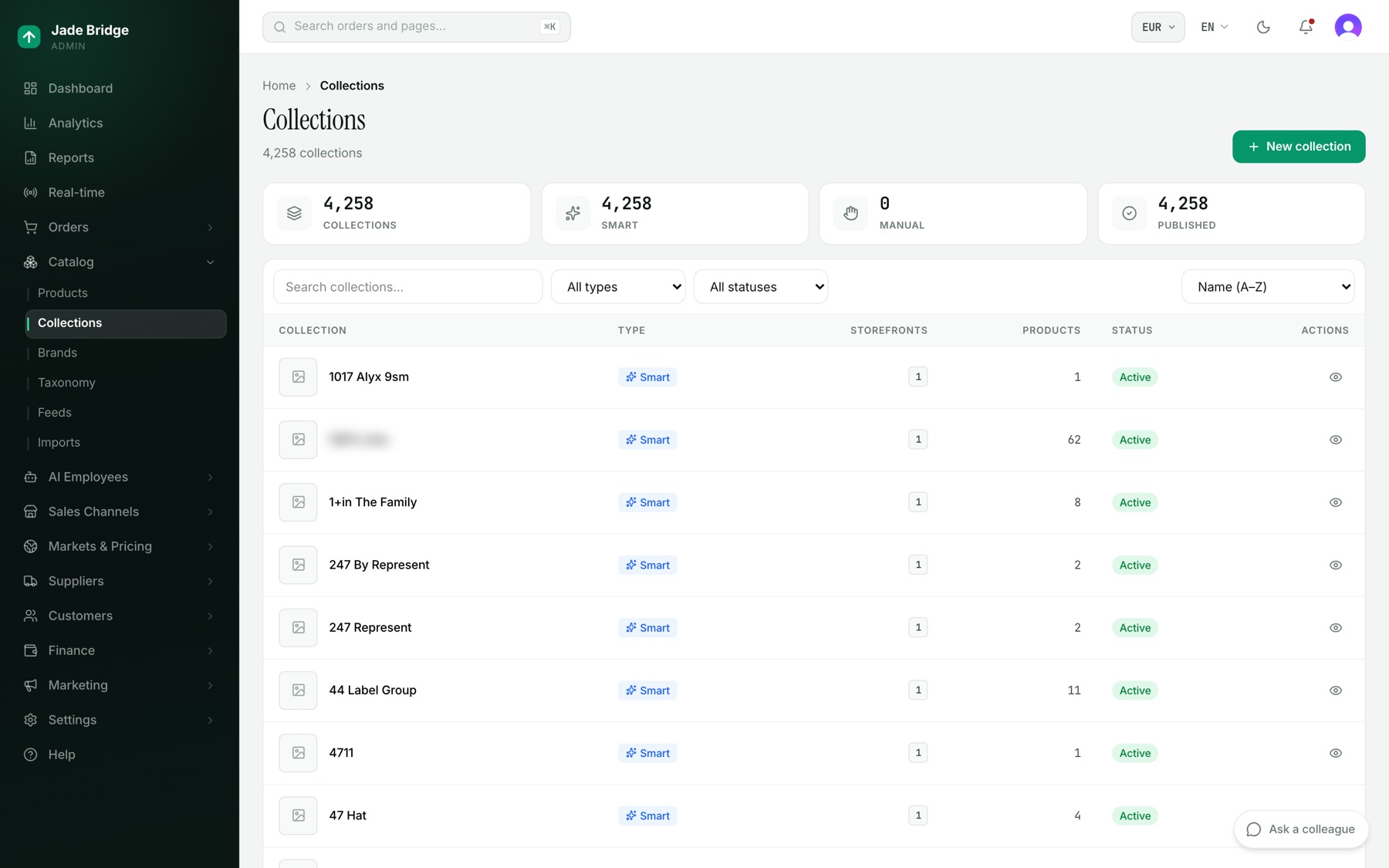
Catalog → Collections counts Collections, Smart, Manual and Published, and lists each with its type, how many storefronts it is on, its products and its status. Filter by type or status, and sort.
To make a collection:
- Click New collection and give it a Title and Description.
- Under Collection type choose Smart or Manual. For Smart, set Products must match to All conditions or Any condition and use Add condition or Add group; conditions include Brand, Product type, Category, Gender, Age group, Season, Color, Size, Material, Price, Discount, On sale, In stock and Luxury brand. Preview for shows how many products match on a storefront, with a sample. For Manual, search and pick products.
- Switch Published on, tick the Storefronts it belongs on, and under Appearance set an Image URL and a Sort order.
- Click Save. The collection's own page opens.
A collection's page shows who created and last changed it, the same form, Membership per storefront, and a History of every change. Re-evaluate recalculates who belongs.
Delete, at the top of a collection's page, asks first: the collection comes off every sales channel, its page on your site goes away, and the products stay in your catalogue. Press Delete collection to go ahead, or Keep it.
Aileen owns collections and how they read. Some are made automatically, and their History says Auto-generated. Amy checks that every menu item points at a collection that means what its place in the menu says.
Brands
Catalog → Brands opens with the Brand Matcher strip: Aileen's brand pass, which links products to brands, merges spellings of one brand and passes unsure cases to Vera, the supervisor. Run now runs a pass and reports what it merged and flagged. The counters are Brands, Unmatched products, Duplicate groups and Aliases. The tabs:
- All brands.
- Supervisor queue: groups Vera is ruling on. If you disagree, click the right spelling to merge the others into it, or click Not the same.
- Duplicates: names that differ only in accents, punctuation or spacing. Click the spelling to keep; the page says how many products move and asks you to confirm with Merge into (the name), or Cancel. The other names are kept as spellings of it.
- Activity: each pass and what it linked, merged and escalated.
A brand's page holds its Identity (Name, Logo URL, Website, the Description shown on its storefront page, Luxury, Active) with Save changes, its Aliases, Collaborations, Lines and products. To catch a spelling a supplier keeps sending, type it under Aliases and click Add; products sent with that spelling then land on this brand.
Taxonomy
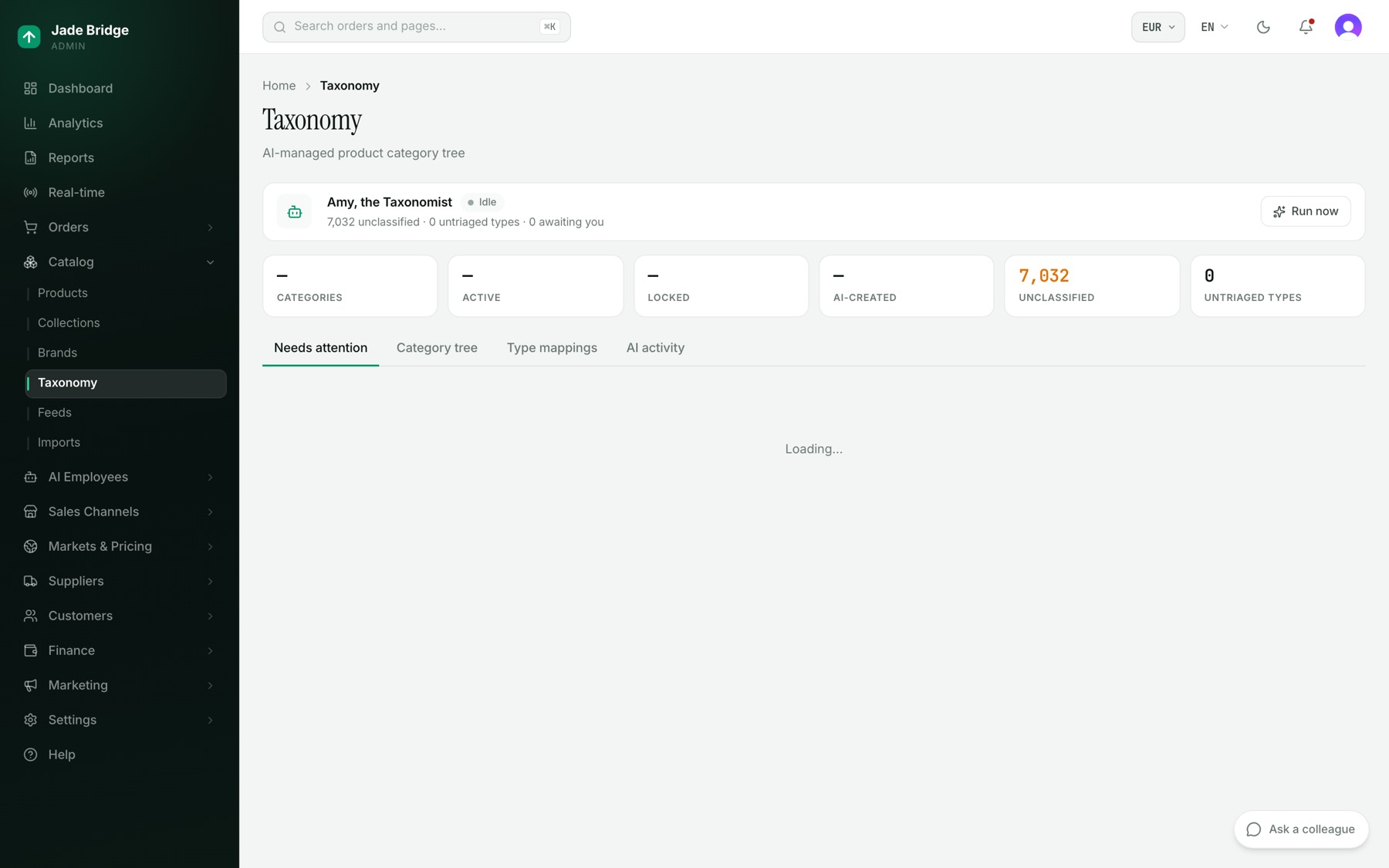
Catalog → Taxonomy opens with Amy's strip: what is unclassified, untriaged and awaiting you, and Run now. The tabs:
- Needs attention. Under Amy needs your input, pick a category for each question and she applies it and learns from it, or dismiss it; a proposed split has Accept. Under Uncategorized product types, choose a category for a type, review its products one by one, or make a new category from it.
- Category tree. Hover a row for Add subcategory, Edit, Lock and Delete; deleting a parent deletes everything under it, after asking. New category opens the editor, where Suggest asks Amy for a parent and the product types to bring in. Saving locks a category, and Amy never changes a locked one.
- Type mappings. Every product type suppliers send and the category it maps to, with source, confidence and product count.
- AI activity. Every change, by Amy or by a person, with Roll back on category and mapping changes.
Imports
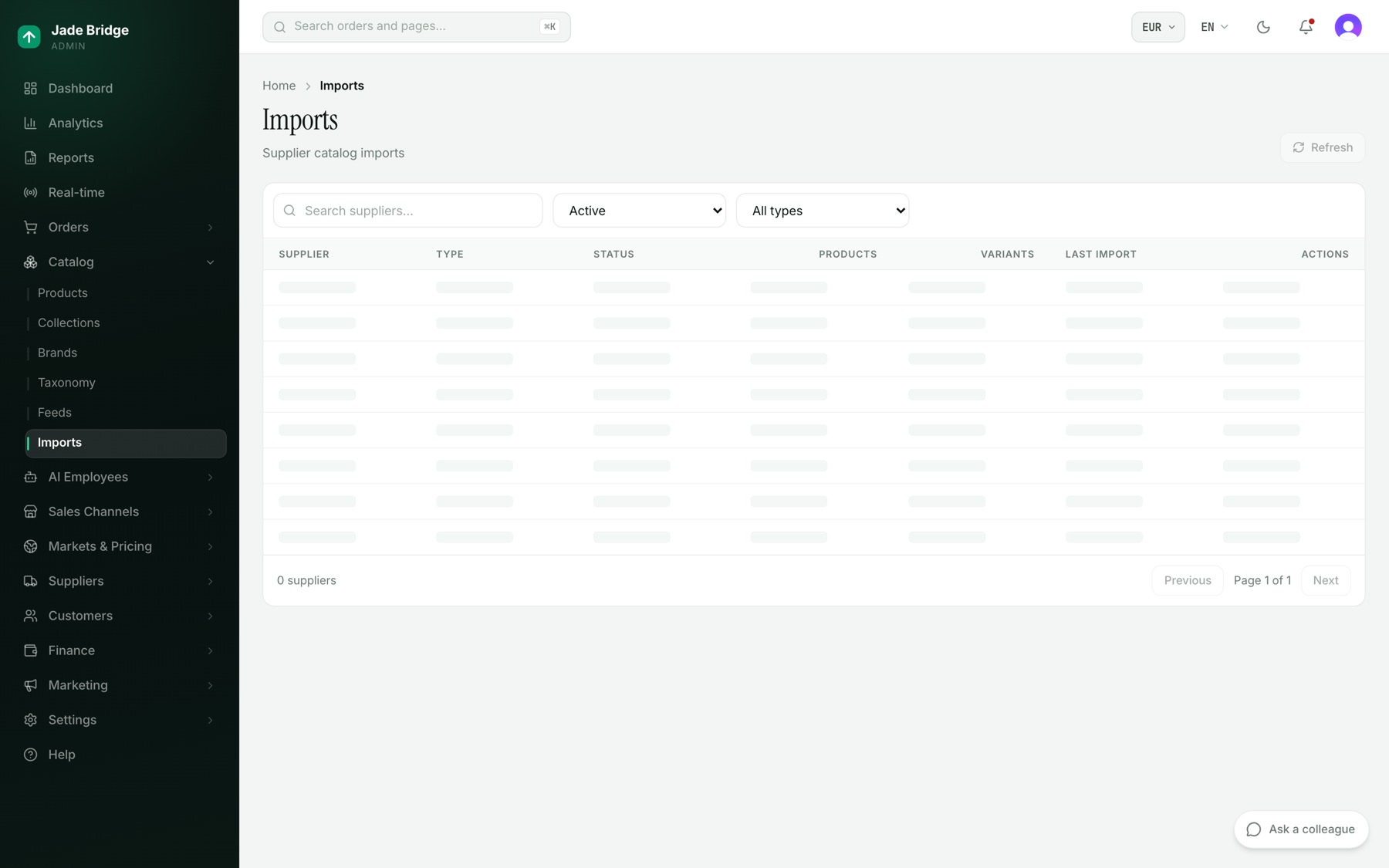
Catalog → Imports lists your active suppliers with their connection type, the result of the last import (Completed, Failed, Running, Partial), products and variants in stock, and when it ran. Click Run to queue an import now. A supplier's page shows its schedule, catalogue size, stock, and Recent import runs with what each processed, created, updated and failed on. Kat owns imports; a supplier's connection details are edited in Suppliers → Directory. Feeds, beside Imports in the menu, is greyed out and marked Coming soon.
Asking and what comes to you
On the Products, Collections, Brands and Taxonomy pages the Ask a colleague panel offers Amy first, then Aileen and Ashley, pricing. On Imports it offers Kat first, then Marshall. What waits for you here: Amy's questions under Needs attention, Vera's brand rulings if you want to overrule one, and any product Aileen marks as not verified online.