Katie, customer support, owns every customer conversation and every message your store sends a customer: the chat on your site, order and delivery messages, return messages and account codes, each in the customer's own language. These pages show you all of it. Ask a colleague on All Customers, Waiting list and Support history starts with Katie. On Customer messages and Drop reminders it starts with Steve, integrations; Katie is further down the same list.
The customer list
Customers → All Customers.
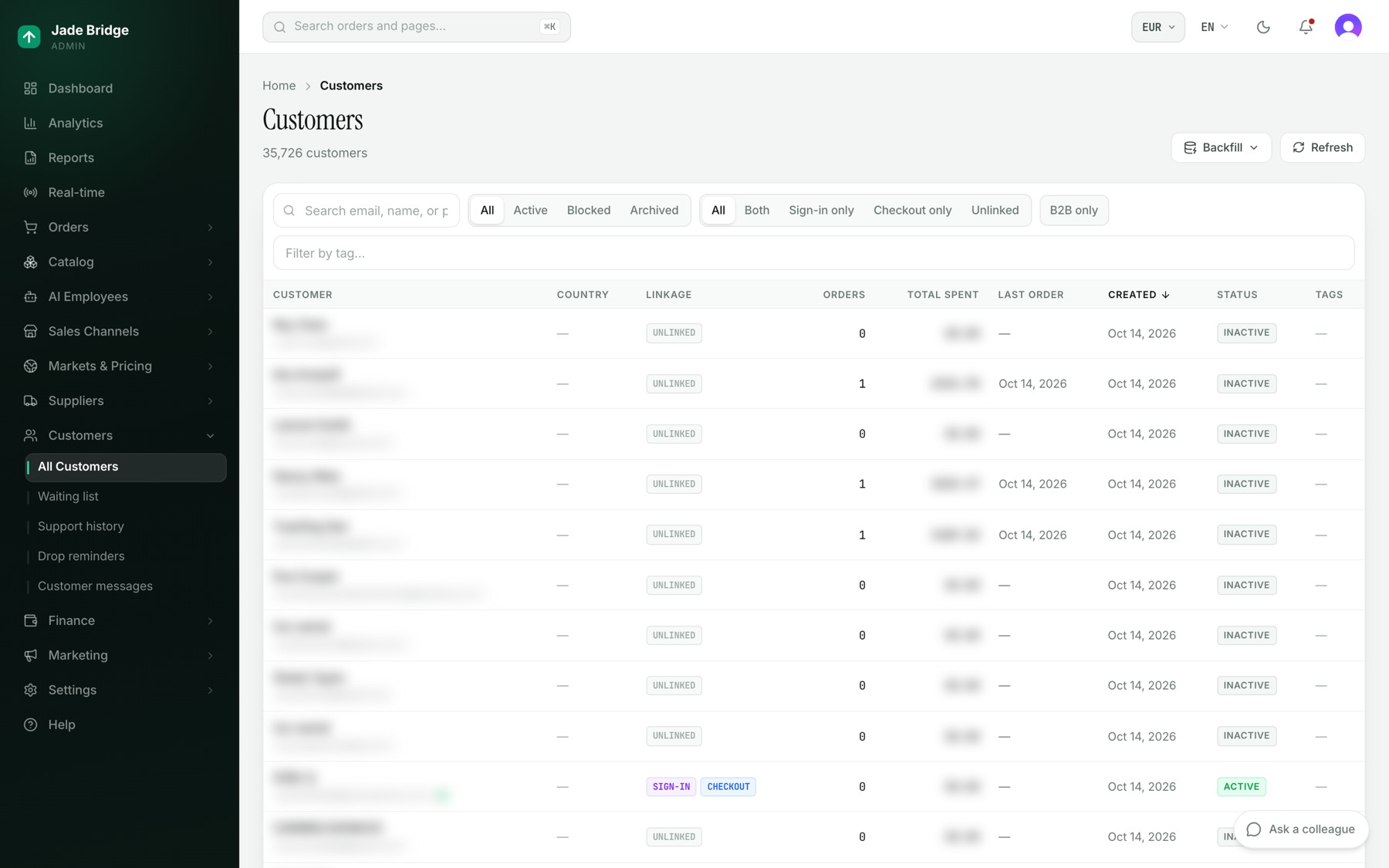
- Search by email, name or phone.
- The status buttons are All, Active, Blocked and Archived.
- The linkage buttons are All, Both, Sign-in only, Checkout only and Unlinked. Sign-in is the shopper's account on your site; Checkout is the record the checkout keeps for them. Both means the person has both. The Linkage column shows the same as Sign-in and Checkout badges.
- B2B only and Filter by tag narrow further.
- Columns: Customer (with a tick when the email is verified), Country, Linkage, Orders, Total spent, Last order, Created, Status and Tags. Click Customer, Orders, Total spent, Last order or Created to sort.
Backfill re-reads order history and sign-in accounts to fill in missing customer records. It is safe at any time: press Backfill, Run backfill, then Run now.
One customer
Click a name. The header shows the email, Customer since, and an Account or Guest badge. The status menu on the right sets Active, Blocked or Archived.
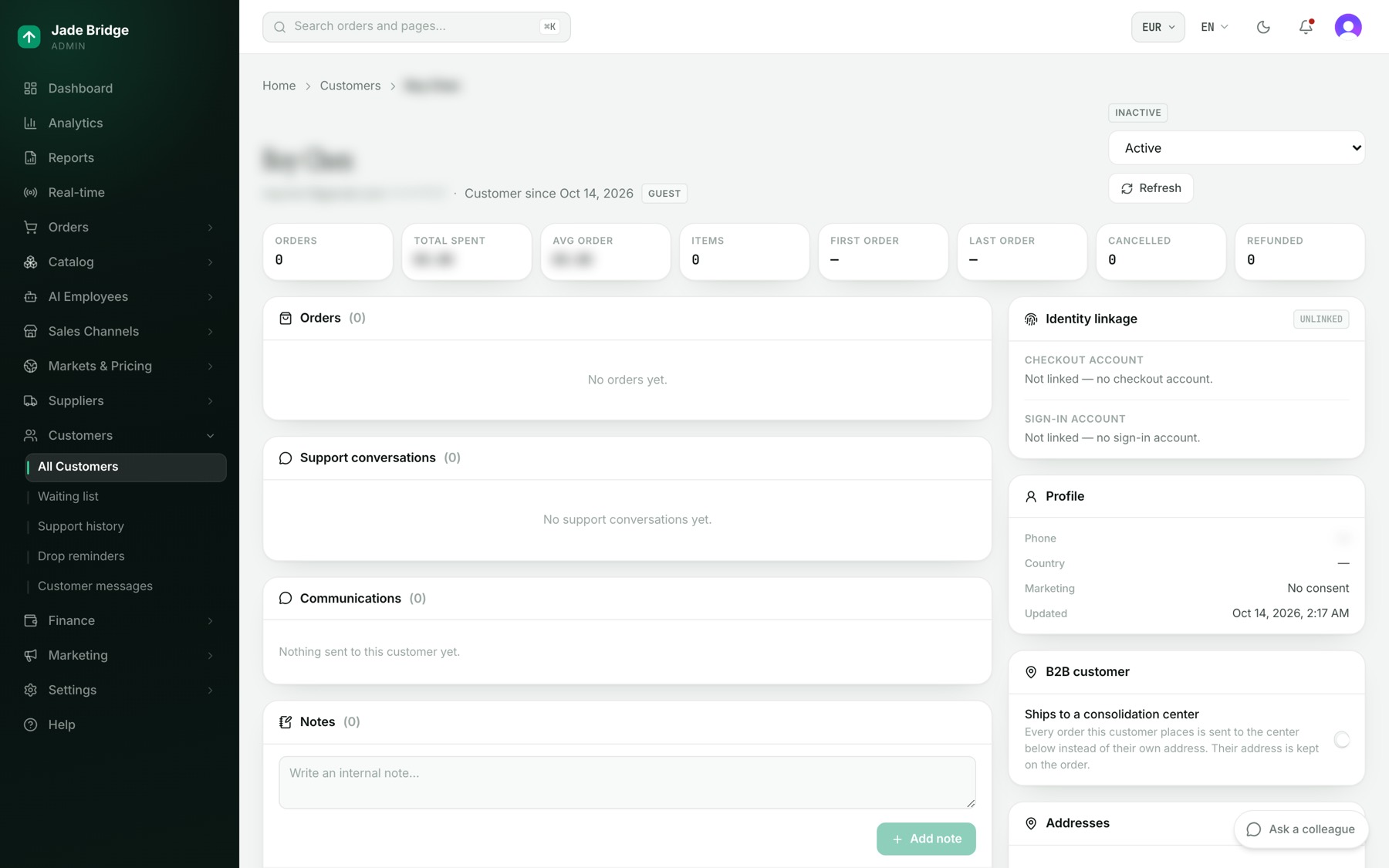
Eight figures run across the top: Orders, Total spent, Avg order, Items, First order, Last order, Cancelled and Refunded.
- Orders lists each order with its payment and fulfilment state; click a number to open it.
- Support conversations lists their chats, each with the name Katie used, the message count, and Open or Closed. Open full support history goes to Support history.
- Communications lists every message the store sent them, or rehearsed. Above it are the channels they linked beyond email; a star marks marketing consent, and a struck-through channel is one the store has stopped using for them. Click a row to see the message.
- Notes are for your team only.
- On the right: Identity linkage (the Sign-in account and Checkout account), Profile (phone, country, marketing consent), B2B customer, Addresses (read live from the checkout account) and Tags.
To add a note: type in Write an internal note… and press Add note. Use the pencil to edit and the bin to delete.
To tag a customer: type in Add a tag… and press Add. Click the cross on a tag to remove it.
To send every order of a business customer to a consolidation centre:
- Under B2B customer, turn on Ships to a consolidation center.
- Choose the centre. Their own address stays on each order.
If no centre takes orders yet, the card says to add one under Suppliers → Consolidation Centers.
Support history
Customers → Support history. Every customer who has chatted with support, with Chats, Messages, Discounts, First contact and Last contact. Search by email or name.
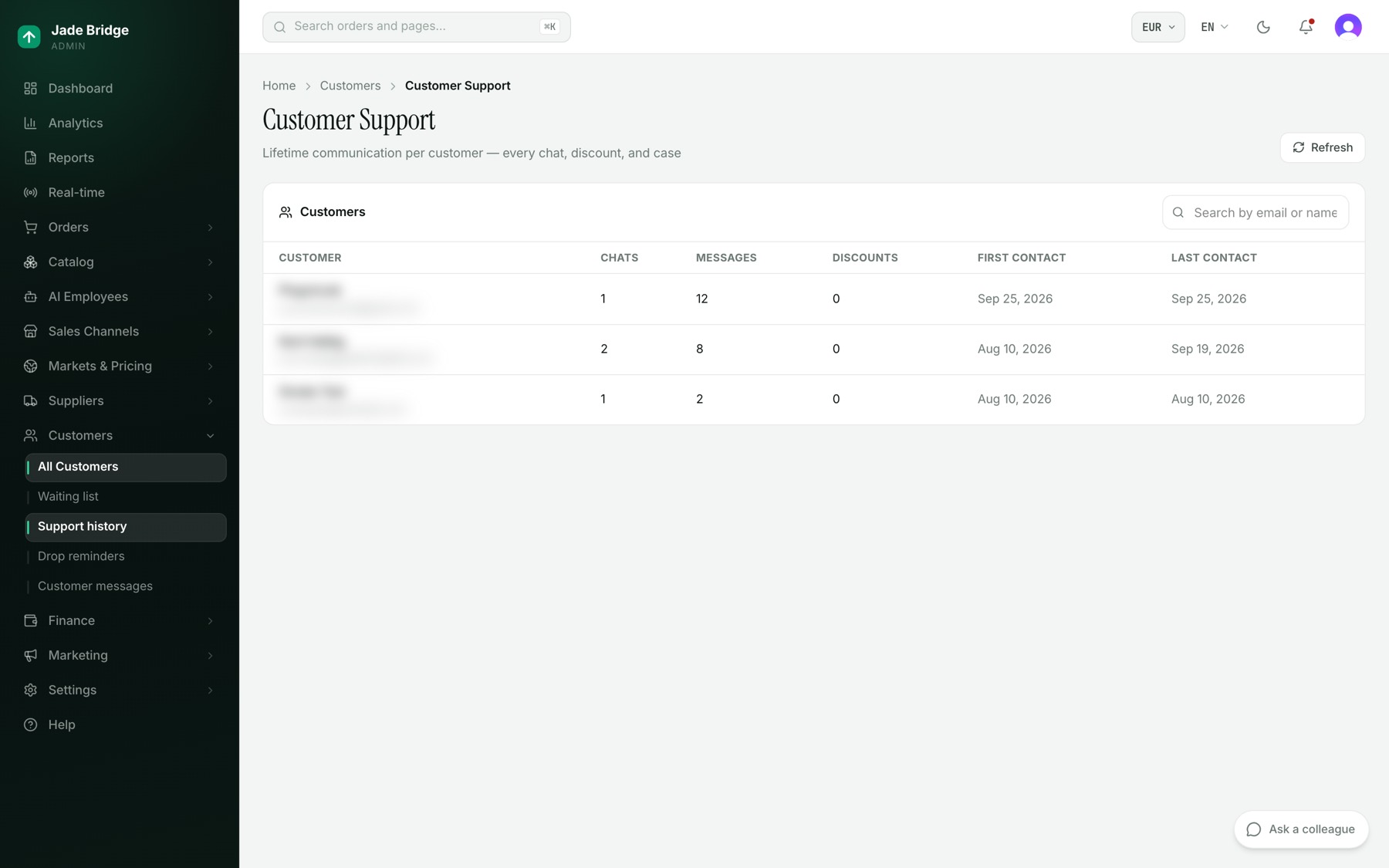
- Click a customer. Conversations with them appears below.
- Click a chat. The transcript opens: the customer on the left, Katie on the right under the name she used, and any discount code she gave at the foot.
This page is for reading. Katie talks with signed-in customers in the storefront chat, and with anyone who writes to the support address you forward to her mailbox; she answers from their order, its tracking and your policies, and never names a supplier or a cost. She may give a small discount to put something right, within a cap and once per customer per period; both are on Katie's own Settings page under AI Employees → Employees. Refunds and returns are never settled in chat: Katie passes them on, and Vera decides what is beyond the rules.
Customer messages
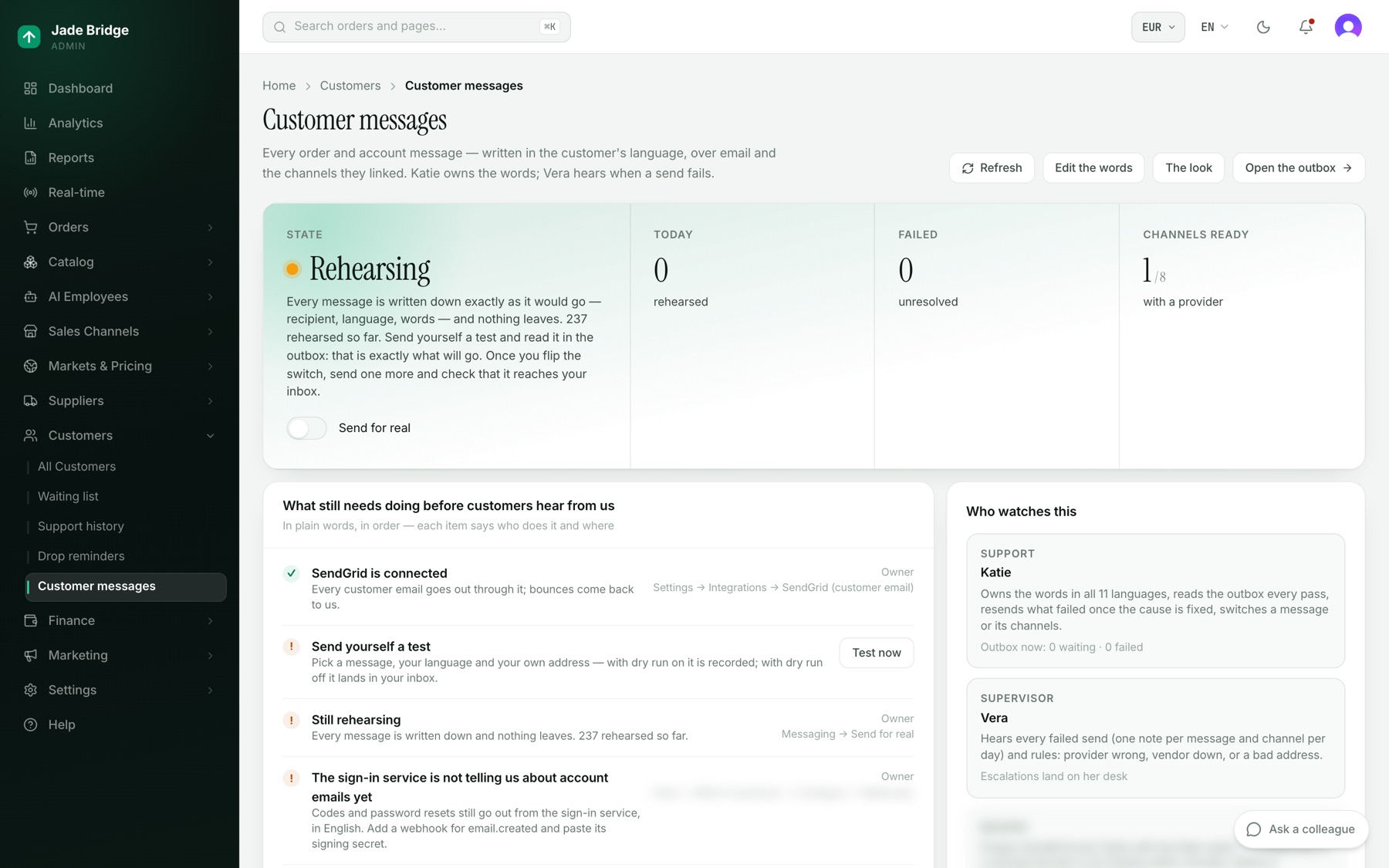
Customers → Customer messages. The band answers one question: Sending for real, or Rehearsing. A new store rehearses: every message is written down exactly as it would go, to whom, in which language, and nothing leaves. The band also counts today's messages, unresolved failures, and channels with a provider. The Send for real switch sits on the band.
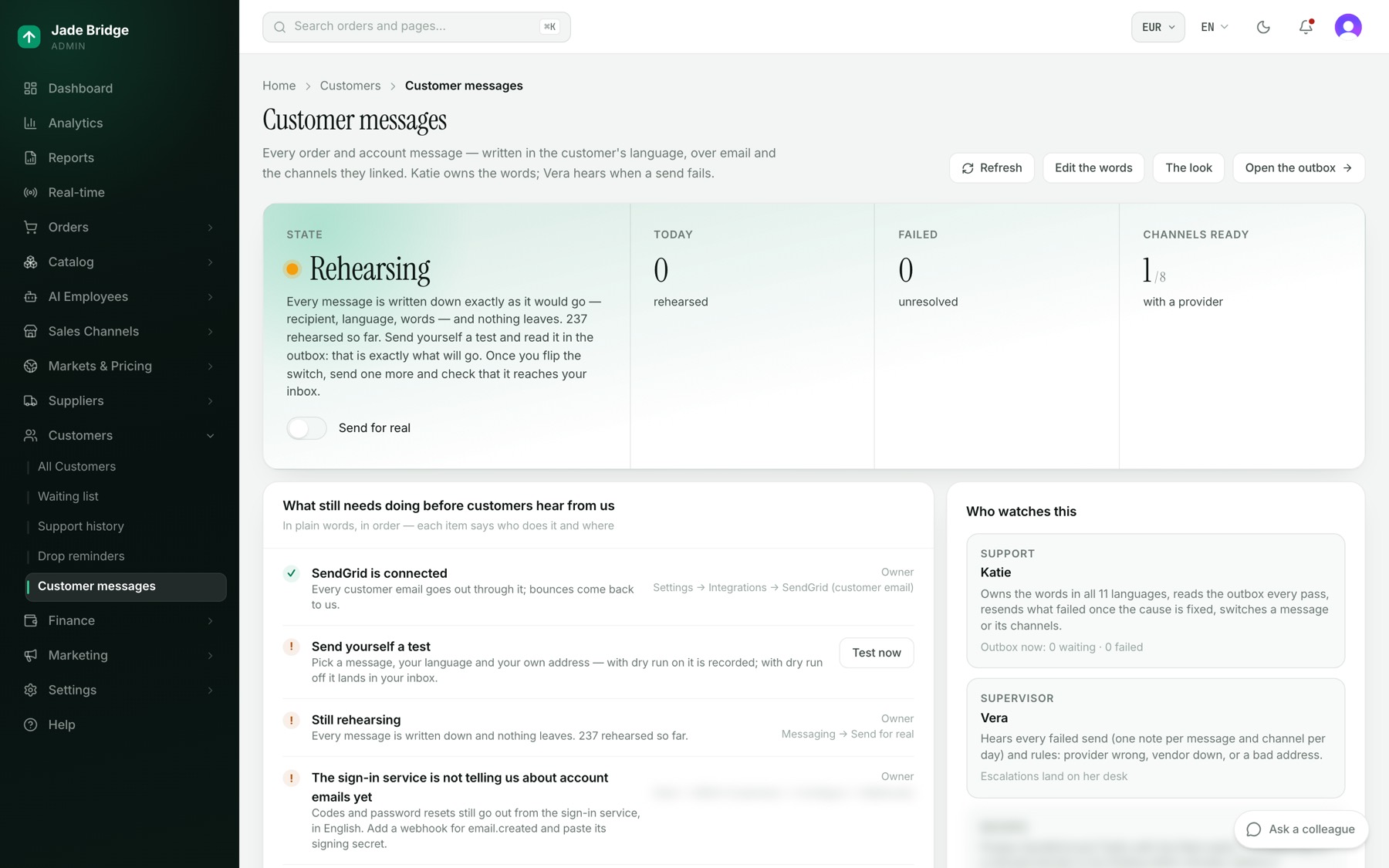
What still needs doing before customers hear from us is a live list: SendGrid (the customer email provider) connected, a test sent, sending for real, the registered address for the email footer, and the rest. Each line says who does it: Owner, Admin, Katie, or The platform for the one step on the platform's side, the account emails from the sign-in service. Who watches this names Katie, who owns the words and resends what failed, and Vera, who hears every failed send.
To start sending for real:
- Connect SendGrid under Settings → Integrations. Steve, integrations, does this with you.
- Press Edit the words, open Order confirmed, enter your address under Send a test to yourself and press Test send. While the store is rehearsing, the test is written to the outbox and not delivered.
- Press Open the outbox and read the test as it would have gone.
- Turn on Send for real.
- Send one more test the same way. With rehearsal off it lands in your inbox, so you see the real email.
Messages rehearsed earlier are not sent when you switch. Open one and press Resend if it should go.
What we send, and where
Press Edit the words. One row per message: Order confirmed, Order shipped, Order delivered, Order cancelled, Refund issued, the return messages (Return registered, Return approved, Return declined, Return label, Store credit issued, Exchange shipped and the rest), the account codes, Welcome and Waiting list confirmed. A few rows go to people other than customers, such as the Supplier statement. The chips filter All, Orders, Account and Off.
- On switches a message on or off. Welcome and Waiting list confirmed start off.
- Goes out over shows the channels. Email always goes for order messages; SMS, push, LINE, WhatsApp, KakaoTalk, Zalo and WeChat go as well when the customer linked one and their market offers it. A green dot means the channel has a provider.
- Words shows how many languages have words on every channel the message uses, and how many languages you edited. Account codes carry "Still sent by the sign-in service": those emails go out from the service shoppers sign in with, so the words on this page do not reach them yet.
Click a message to edit it. Pick the channel tab and the language. Change the subject and text; words in double braces are filled in per order. The preview on the right shows a sample order as you type. Save replaces our words for that language on that channel only; Reset to code brings them back. Messenger channels also need the approved template id from that app.
How emails look
Press The look. Choose the logo (the site header's, an email logo you upload, or the wordmark), the blocks in every order email (product photos, the maison's name, the "What happens next" steps, the help card) and the footer (social links, policy links, the language line). Colours and type come from the storefront; the legal line from Settings → Company. Preview any message in any language, then press Save look.
The outbox
Press Open the outbox. Filter by status, message, channel and language, or search. Each message shows what was sent, the delivery facts, its History, the same event on other channels, and buttons to open the Customer or Order. A skipped message says why; a failed one gives the provider's reason. Resend sends a rehearsed or failed message again once the cause is fixed.
Drop reminders
Customers → Drop reminders holds the Remind-me messages shoppers ask for: one sale, or the daily list. The same page is under Sales Channels → Storefront → Site Content → Drop reminders. Dry run is on and Daily list is off in a new store. The tabs are Channels, Subscribers, Sends log and Customer messages.
- Channels: each channel's provider, an Enabled switch, the markets it is offered in (Reset to default returns to the regional list), subscribers and last send. Click a channel to edit its words per language. A language with no words gets no reminder; English is never sent in its place.
- Send now starts a run by hand, for the daily list or one sale.
- Subscribers lists every subscription. Pending means the shopper signed in through LINE, KakaoTalk, Zalo or WeChat but has not added your official account. Remove has no undo.
- Sends log shows recent runs and whether each was a rehearsal.
The waiting list
Customers → Waiting list. The emails left on the storefront's members-only invitation, with language, status and date. Export CSV downloads them. The page is a list only: nothing on it invites a person, and no employee works it. To tell each person their place is confirmed, in their language, switch on Waiting list confirmed under Customer messages → Edit the words.