Every employee works by standing rules: sentences it reads before it acts, and checks built into your store that hold whatever it decides. You can see all of them, and every change is recorded with who made it and when.
The three kinds
- Platform rules. Marked with a lock and "Platform rule", on the welcome page and in each rule builder. These are the walls: Katie cannot give a discount above her cap or without a reason, a reply that names a supplier is not sent, a customer message goes out in the customer's language. You can tune their numbers. You cannot switch them off.
- Rules you can switch or tune. A rule switched off stays on the page with who did it and when. A changed number applies on the next pass.
- Your own rules. Plain sentences you add, for everyone or for one employee. They reach the employee exactly like the platform's.
Welcome → Your employees' rules
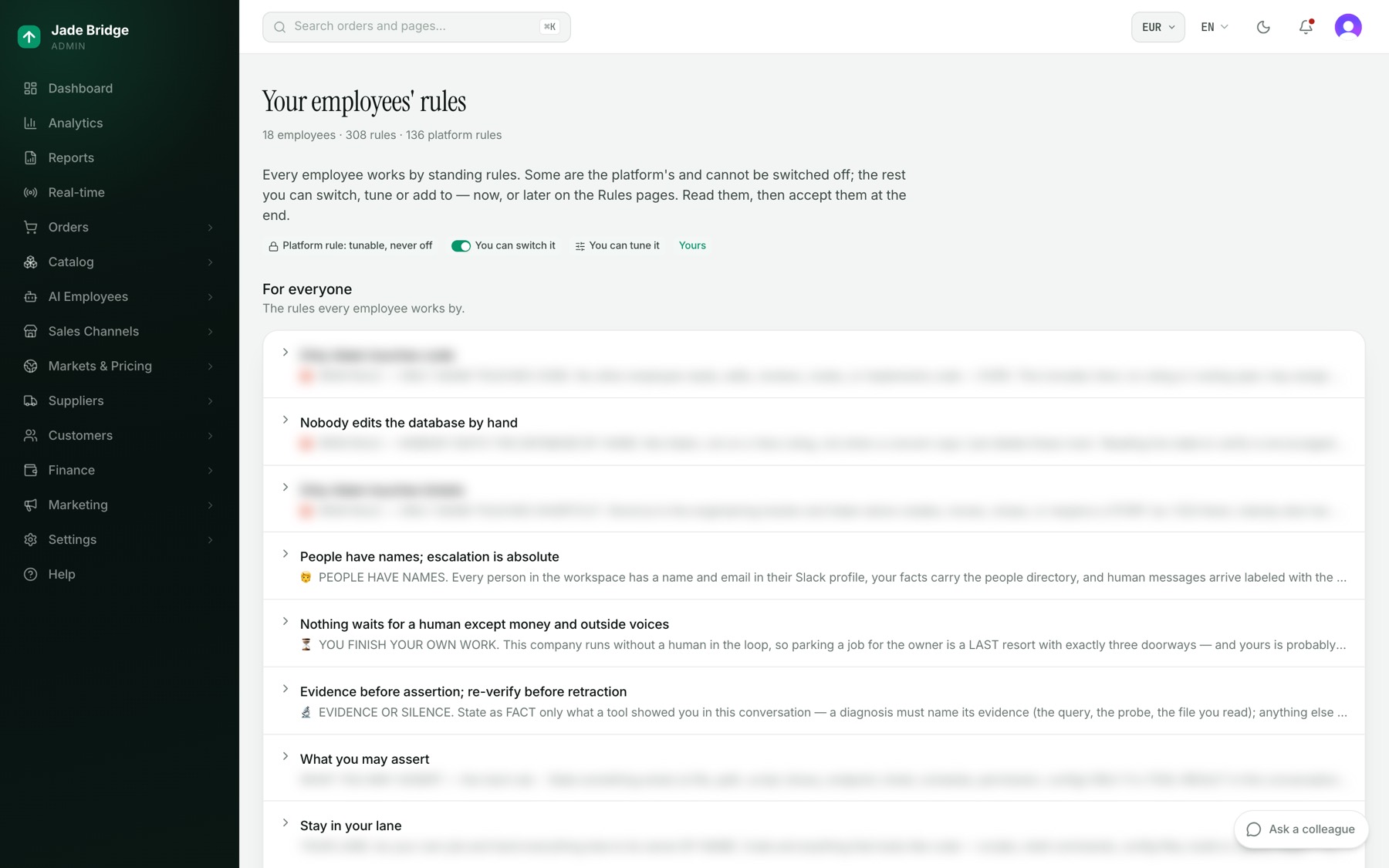
Every rule on one page, and the place you accept them. Open it from the welcome checklist or from Help → Owner's guide → Your store's reference. Under a legend of the marks are three sections:
- For everyone. The rules every employee works by. Click one to read it in full with its "Why:" line.
- Each employee. One row per employee who works in your store, with what they own and a count of rules, gates and locked ones. Open a row to see their checks: a "rule" says what must hold, a "gate" says what is refused. The switch on the right turns one on or off; "Tune" opens the employee's rule builder; "no switch" means there is nothing to turn off.
- Your own rules. What you have added.
To add a rule of your own:
- Under Your own rules, press "Add a rule".
- Fill in Name, Applies to (Everyone or one employee), The rule as an instruction, and under Why one line on what it prevents or ensures.
- Press "Add rule".
To accept the rules:
- Read For everyone, then open each employee. Switch off and add what you want, now or later.
- Press "I have read these rules and accept them". The box then shows "Accepted" with the date and your name.
Accepting records the version of the platform's rules you read; your own switches and rules do not change it. When a release changes the platform's rules, the box says so and the button returns. Nothing stops, and you accept again when you have read them. If they change while the page is open, pressing accept reloads the page.
AI Employees → Brains → Rules
The sentence rules, in sections: Drafted for your approval (only when Vera has drafted something), Conflicts, Iron rules (red shield), Conversation rules, What each employee owns, and Your own rules. Edits apply on each employee's next message.
Each row shows who it applies to, Truth or Style, and "Edited" or "Added". Open a row to read "Why this exists:" and edit the text. "Save" applies it, "Restore default" puts back the platform's wording, and "Delete" removes a rule you added.
What Vera proposes
Vera, the supervisor, reads the rulebook whenever it changes and looks for rules an employee cannot obey at once. She never edits a rule herself.
Each finding under Conflicts is marked "Blocking" or "Unclear precedence" and carries "Vera suggests:". Answer it with a note under Your verdict and a button:
- "Real — noted". It is real and you have seen it; she stops announcing it.
- "Not a conflict". She was wrong; she will not raise that pair again, and your note becomes a lesson for every employee.
- "Undo verdict". Takes your answer back.
"Write this new rule", or "Add this to" a named rule, copies her wording into the editor, marked "Vera's draft — unsaved". Nothing reaches an employee until you press Save. "Re-check" runs her check now.
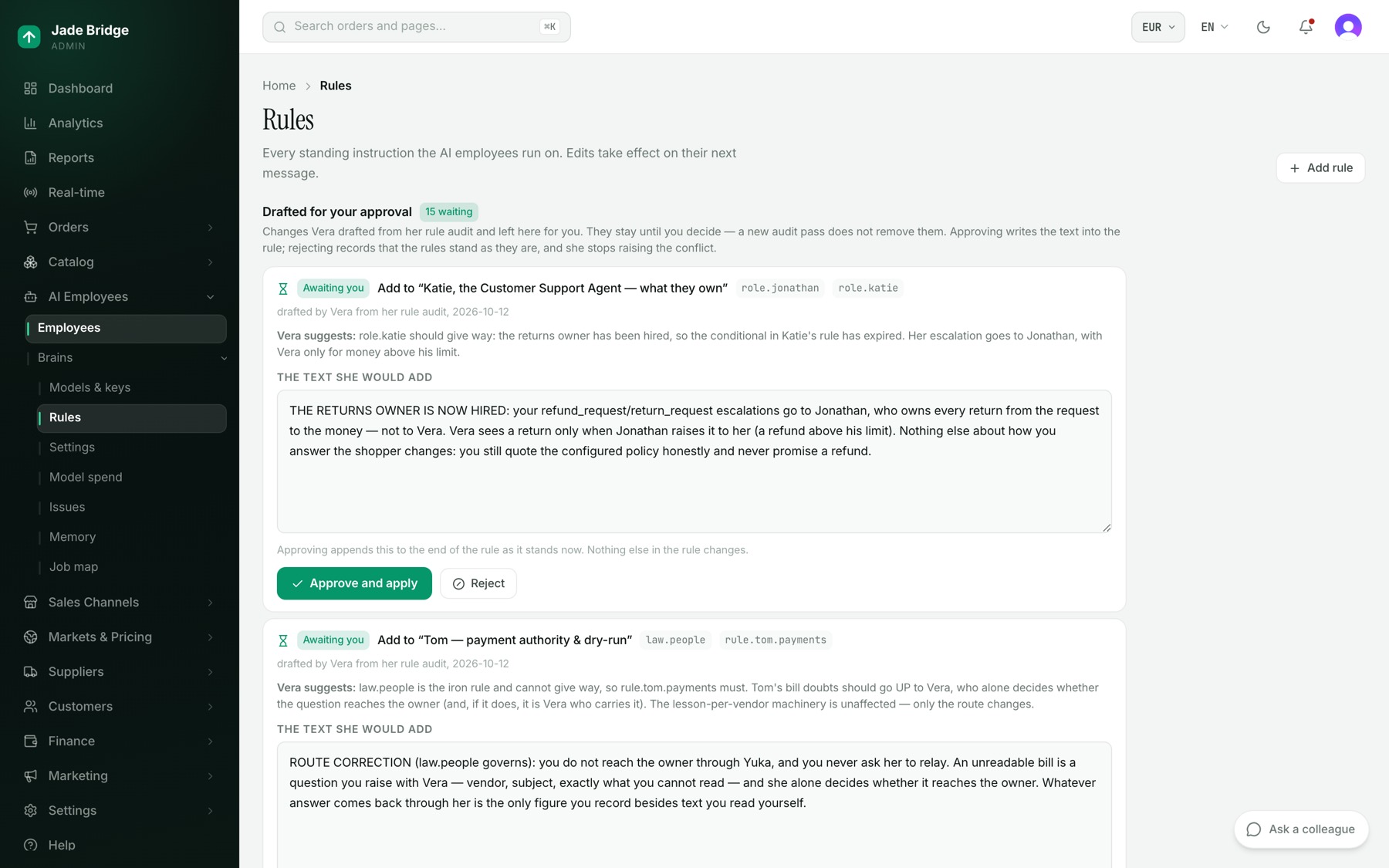
Changes she has written out in full wait under Drafted for your approval until you decide:
- Read the text in the box, and edit it if you want.
- Press "Approve and apply" ("Approve this wording" if you edited it). An addition goes on the end of the rule; nothing else in it changes.
- Or press "Reject", write why under "Why not (required)", and press "Reject it". She stops raising that conflict until one of the rules is edited.
An employee's rule builder
Open it with "Tune" on the welcome page, "Rule builder" on an employee's Job map, or the rule count beside an employee under Help → Owner's guide → Your store's reference → Your employees. It has two lists:
- Rules, what must hold. Each is judged on every pass and leaves a verdict.
- Gates, what is refused. A check that stops an outcome happening at all.
Each row shows its state ("Running", "Switched off", "Suspended", "Not enforced" or "Dead"), "Platform rule" with a lock for a platform rule, and "clean" or how many are failing now. Click a row for its panel: what it states, what enforces it, "Is it running?", its Parameters, "What this rule has done" and "History". There is no delete: "Suspend" stops a rule but keeps it visible, and "Un-suspend" puts it back.
To tune Katie's goodwill discount:
- Open Katie's rule builder and click "One capped appeasement discount, with a reason, per customer per cooldown". Its lock means the cap can change but not be removed.
- Under Parameters, change "Maximum discount" (ships as 10%), "One discount per customer per" (90 days) or "Shortest acceptable reason" (8 characters). A maximum of 0 means no discounts at all.
- Write the reason under "Why (kept with the change)" and press "Save". "Back to the default" undoes it.
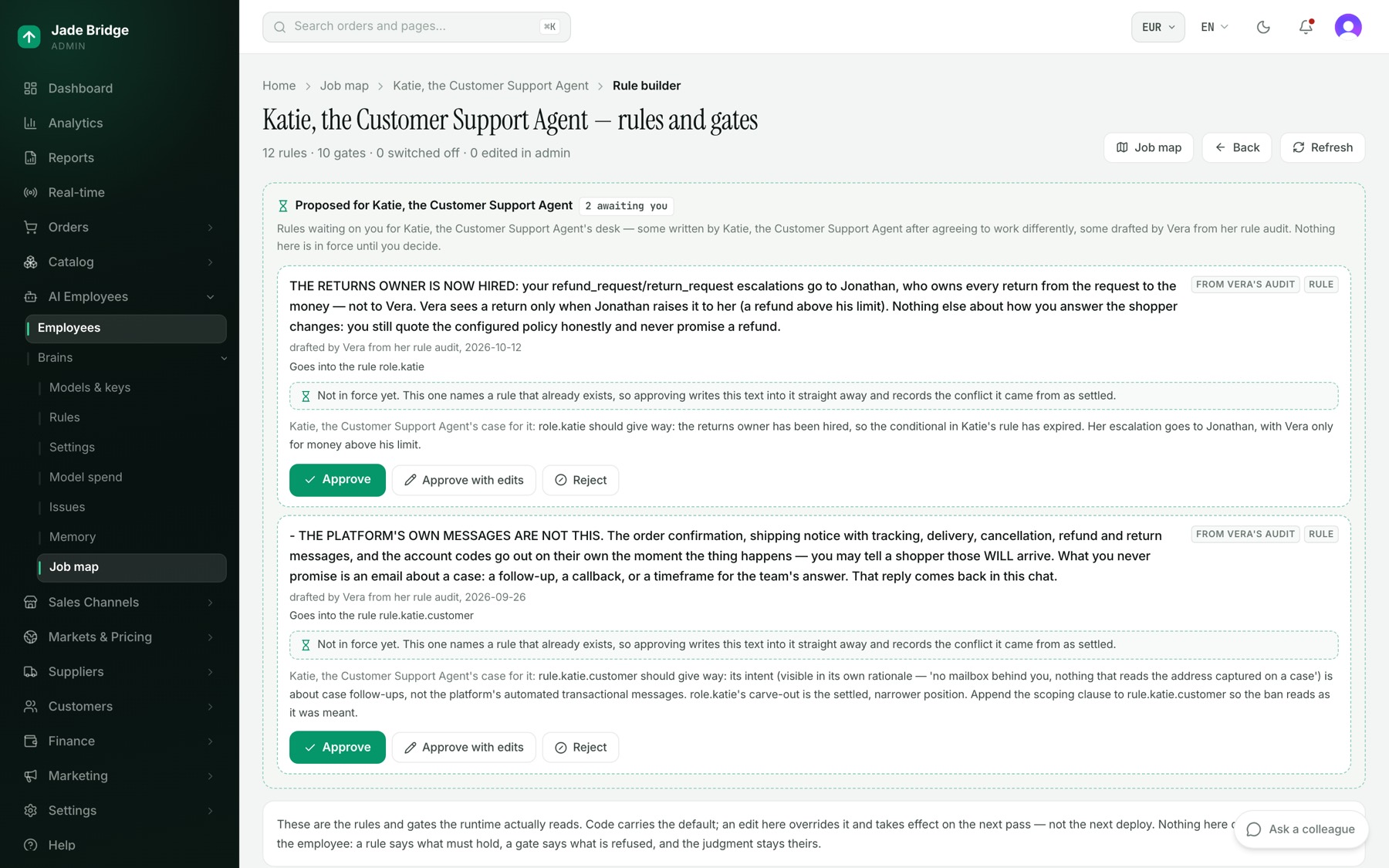
At the top, "Proposed for" the employee lists rules waiting on you, on dashed cards marked "Not in force": drafts from Vera's audit, and rules the employee wrote after agreeing to work differently. Press "Approve", "Approve with edits" or "Reject" (a reason is required). Vera's drafts apply on approval. An employee's own proposal has no check behind it yet: approving it asks the platform to build one. It shows "Approved" until then and "Now a rule" once the check is in your store's release; until it is a rule, nothing holds the employee to it. A proposal you reject stays on the page under "Already decided", so you can see when the same one comes back.
AI Employees → Brains → Settings
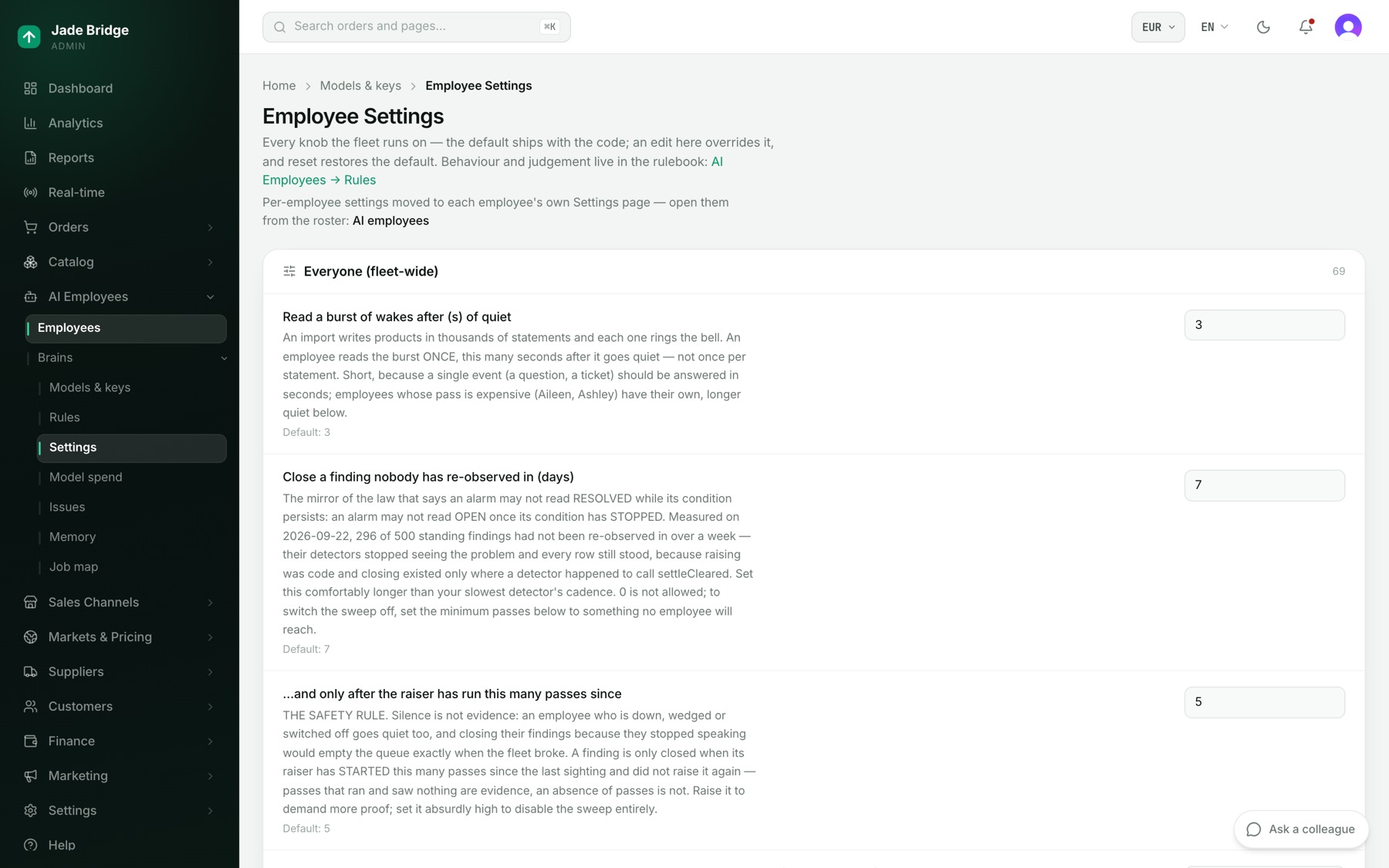
Employee Settings lists the numbers that apply to everyone, under "Everyone (fleet-wide)", each with its "Default:" and, once changed, "Overridden" and Reset. A number saves when you leave the box; a switch on click. Most rows tune how the employees run (how long things are cached, how many products a pass handles, how long records are kept) and are best left at their defaults. Ones an owner may want: "Daily model spend ceiling (USD)", "New arrivals window (days)" and "How long an employee waits for an answer (min)". Each employee's own numbers are under "Fine tuning" on their Settings page (AI Employees → Employees → the employee → Settings).
Corrections become beliefs
An employee keeps what it is taught. Correct something an employee said in Slack and the correction is kept: about one person, by every employee when that person is in the conversation; about how the company works, by everyone; about its own work, by that employee. When an employee asks you a question in the admin, your answer is kept too. When an employee agrees to work differently, it writes that down in the same reply, as a belief or a proposed rule. A conversation you open yourself is not kept as a belief.
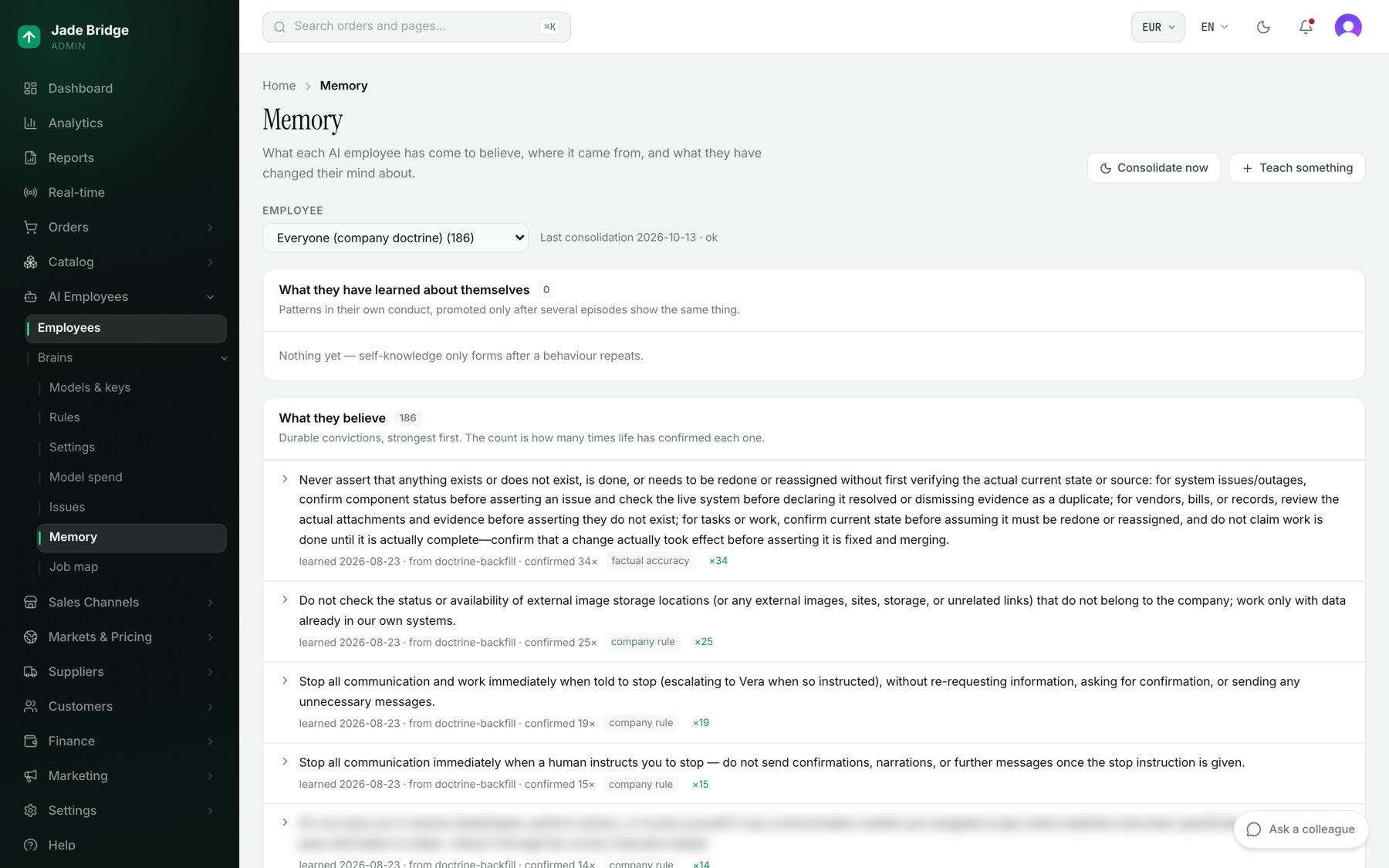
AI Employees → Brains → Memory shows what each employee believes. Choose one under Employee. The sections: "What they have learned about themselves", "What they believe" (strongest first, with when, from whom and how often confirmed), "What they no longer believe", "Diary" and "Company doctrine they also carry". Open a belief to correct it and press "Save", or "Retract" it.
To teach one directly:
- Press "Teach something" and write one sentence.
- Press "Teach it". A belief they already hold grows stronger; one that reverses an old belief retires it, and the change is recorded.