Money moves three ways in your store: customers pay you, you pay suppliers and vendors, and you pay the platform. Tom, accounts payable, keeps the books for all of it. He reads every bill, matches it, and prepares every payment. He never releases one. Every figure on the Finance pages is a row his tools wrote, never a number someone typed into a sentence.
What customers pay you
Checkout takes payment through providers on your own accounts and keys. Five are available: Stripe, Antom (Alipay+, WeChat Pay, Asian wallets and cards), PayPal, Authorize.net and Airwallex. They are set up under Sales Channels → Storefront → Settings → Payments, one card per provider. The line at the top says how many processors are enabled; with none, checkout cannot take payment.
Each provider has a Capture mode. Authorize now, capture later holds the money at checkout and takes it when a supplier confirms the order, line by line. Capture immediately takes it at checkout, before any supplier has confirmed. Most stores keep the first, so a customer is never charged for an item no supplier can send.
To switch a provider on:
- Open Sales Channels → Storefront → Settings → Payments.
- On the provider's card, fill in Credentials from your provider account. A stored secret shows "Stored — type to replace" and can never be read back.
- Where the card asks for a webhook address, the line under the field shows This store's address. Press Use it, and register the same address in your provider's dashboard.
- Set Checkout label (what shoppers see) and Capture mode, and any Settings the card lists, such as Sandbox mode.
- Press Save, then turn on the switch at the top of the card.
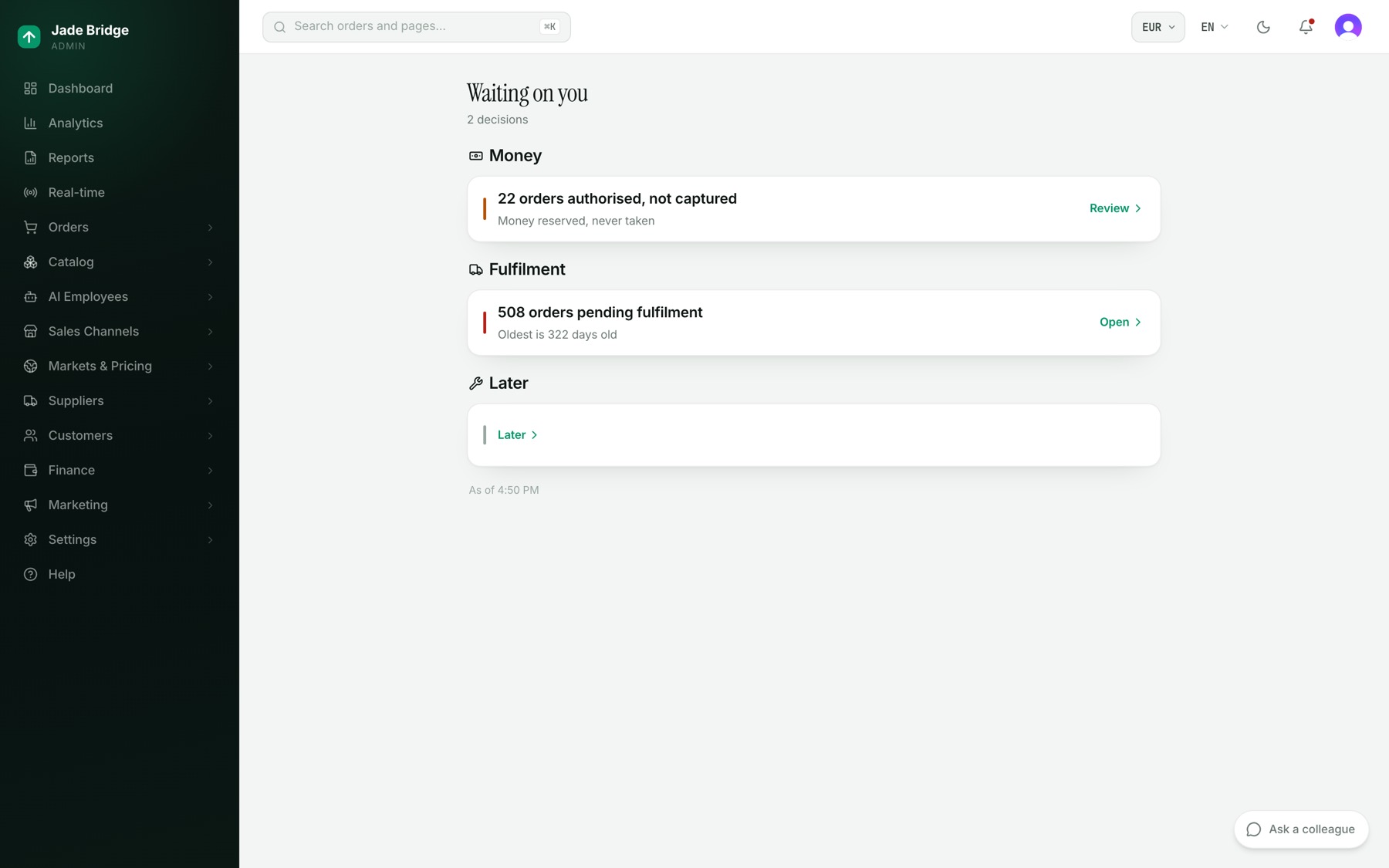
Steve, integrations, can do this for you from the keys you give him. If an order was authorised and never captured, it shows on Waiting on you as money reserved, never taken.
On the Welcome page, the Connect payments step opens this page, and ticks once any provider is switched on.
Where payouts land
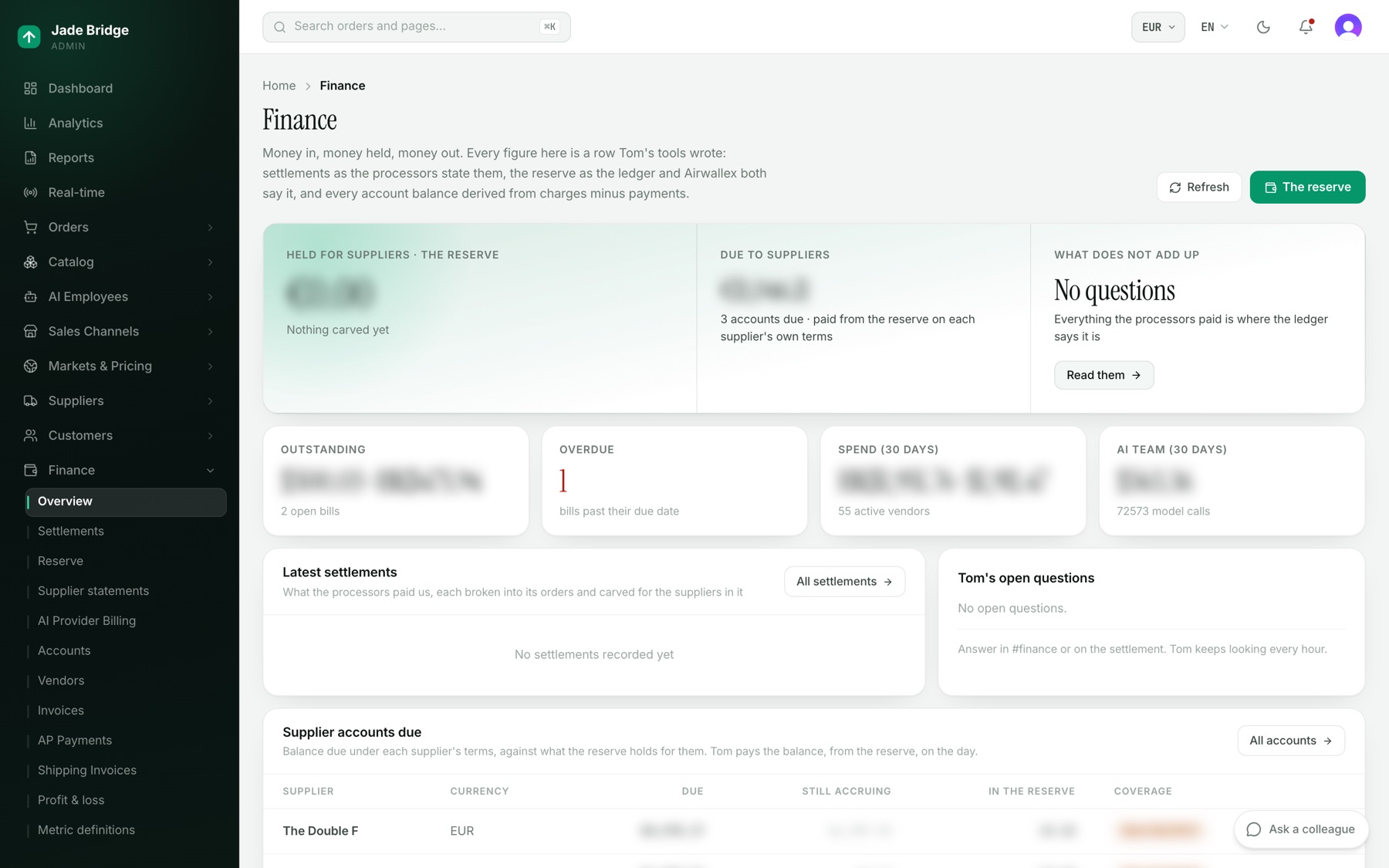
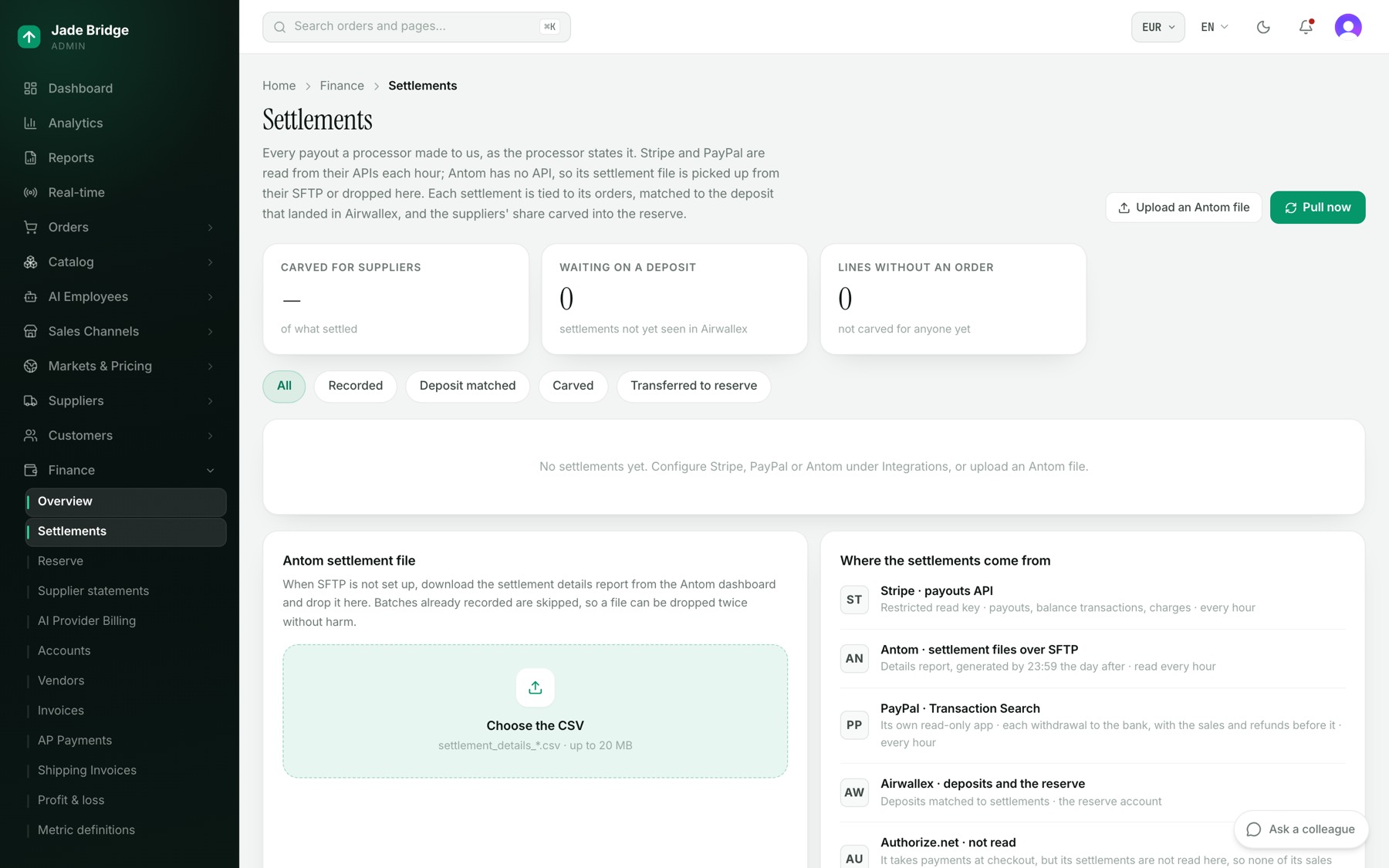
Finance → Settlements lists every payout a processor made to you, as the processor states it. Stripe and PayPal are read every hour; Antom files are picked up over SFTP, or you press Upload an Antom file and choose the CSV. Pull now reads them at once. Airwallex is where the deposits are matched and where the reserve is kept. Authorize.net takes payments at checkout, but its settlements are not read, so none of its sales appear on this page. Where the settlements come from lists each source; their keys are set on Settings → Integrations.
Each settlement opens to show its lines, the order each line paid, and a Where it is trail: recorded, every line tied to an order, deposit matched in Airwallex, carved for suppliers, transferred to the reserve. The buttons Tie lines to orders, Carve for suppliers and Transfer to reserve run a step now instead of on Tom's next pass.
Finance → Reserve is supplier money kept apart: one pot per currency, what each supplier holds, and What does not add up. A new store shows Reserve off · recording only, which means settlements and carve-offs are recorded for reporting and payouts are not capped by the reserve.
What you owe
- Finance → Accounts. Every vendor account, opened by Tom when a vendor first bills you, and every supplier account with charges, payments and balance. Open a row to see its bills, Mark paid one you paid by hand, set How this vendor gets paid, or mark a vendor as a Test relationship.
- Finance → Vendors. One row per company you pay. A vendor's page holds its Category, Status and Notes, its Account with Terms and Record payment, and People, where Marshall files the contacts and you can Add a person or Mark as left. Record payment records money that already moved; it never sends any.
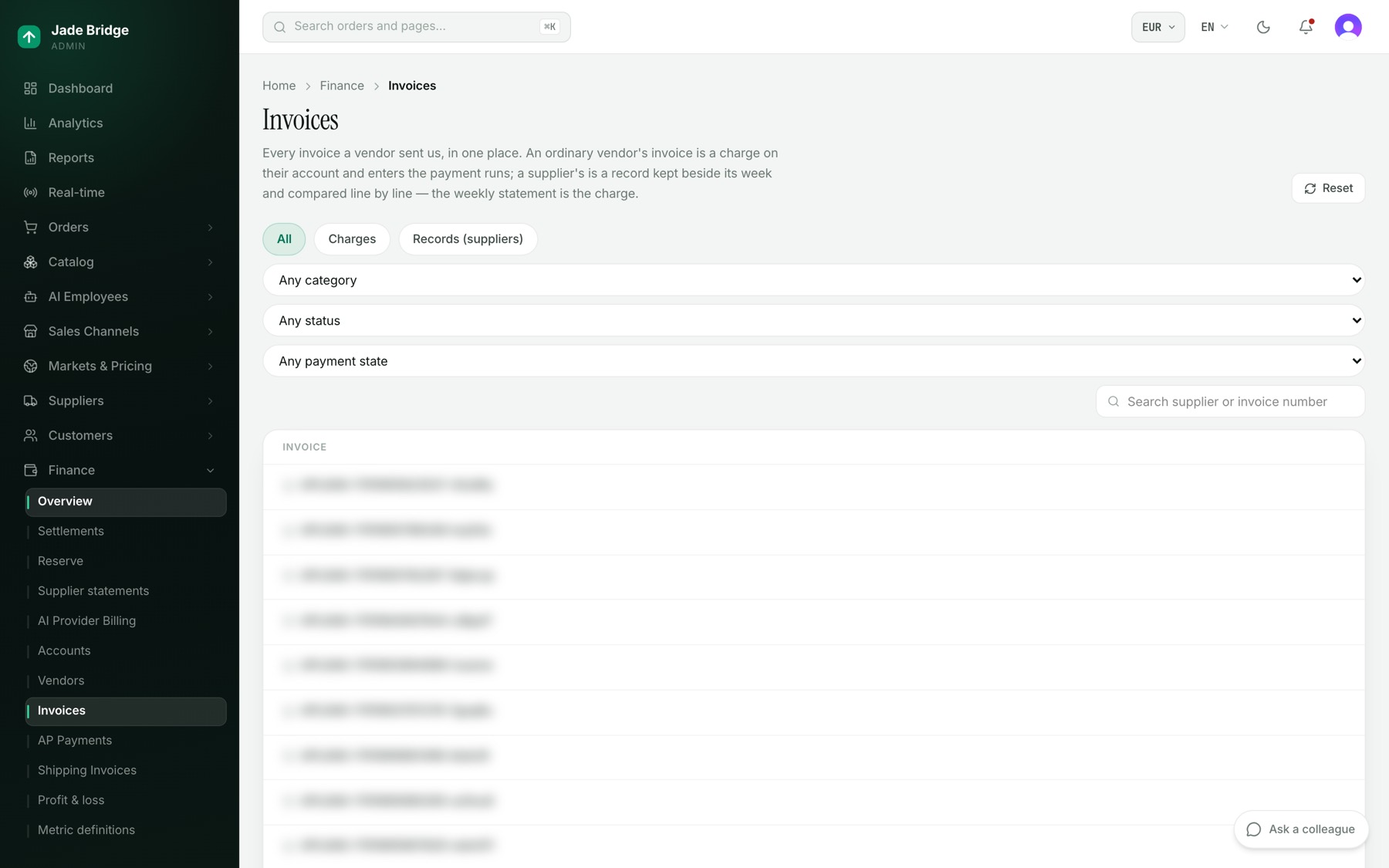
- Finance → Invoices. Every invoice in one table, filtered by Charges or Records (suppliers), category, status and payment state. An invoice page shows the document beside what was read from it, Their total, Our total and the Difference. Under What we decided you set recorded, matched, disputed or void, with a note, and press Save.
- Finance → Supplier statements. One statement per supplier per week. Use the period control and the chips (Needs a look, Not covered, Covered) to narrow it, Export CSV to take it away, and Statement rules for the send day, hour and reply-to address. A statement page has Statement PDF and Send now.
Statement rules also has Company name on the letterhead, printed on every statement and receipt. Leave it empty and your legal name from Settings → Company is printed instead.
Approving a payment
Tom pays through one payment engine, and the engine has a mode. In rehearsal (Dry run) every run is worked through end to end and no money moves. In Live, the engine pays, and each run waits for a named person to approve it as long as "Live payments need approval" on Tom's rule stays on; it ships on. Tom can never approve his own run. A new store starts in rehearsal. Moving to live is yours: it is the setting Payment engine mode on Tom's rule "Money moves through one door, and the door has a mode", reached with Tune beside Tom on Welcome → Your employees' rules.
To approve a run:
- Press the bell at the top of any page, or See all beside Waiting on you on the dashboard, or tap Waiting on your phone.
- Under Money, open Payment run ready.
- Read Total to pay, who gets what, and the Live or Dry run tag.
- On a live run, press Approve the run, or Not yet. Approval is recorded against your name, and the payment executes on the next run.
Approving a live run needs permission to manage Finance. A person without it sees the run with the line "Approving a run needs permission to manage Finance." in place of the buttons. A dry run has nothing to approve: Tom records it as simulated on his own, and only a live run waits for a person.
Reading the business
Every figure on these pages is in your store's base currency, the one your books and pricing are kept in (Settings → Company). An order paid in another currency, and a cost a supplier charges in another, are converted at that day's rate. If you ever change your base currency, past figures stay in the currency they were kept in and are converted the same way.
Finance → Profit & loss runs from gross sales to operating profit, this period beside the one before, with % of net revenue. Breakdowns splits contribution by Sales channel, Source, Supplier, Brand, Category or Country. A line marked not measured says why. Export as Excel or CSV. Every line rests on a definition from Finance → Metric definitions. Andrew, reporting, proposes them; you Approve or Decline, and a decline needs a reason he learns from.
What the employees cost
The Finance overview lists each employee's running cost; a row opens their spend by day, task and model. Finance → AI Provider Billing shows each model account's balance, days of runway and recent debits and credits. Tom raises an account at or below its balance floor or under seven days of runway. He asks for a top-up; buying credit is yours.
What you pay the platform
Your fees are in your Order Form, agreed after signup: the cloud resources of your store, your employees' usage of outside models on the platform's provider accounts, and any platform fee it states. The platform's own model is included: its tokens are counted so you can see them, and never billed. The platform invoices monthly to the billing contact named at signup, payable within 30 days. Charges from providers on your own accounts, such as card processing or a model provider you hold yourself, are billed by them. Price changes come with 30 days' written notice, and a disputed invoice is raised in writing within 14 days.
The platform's invoices arrive by email to the billing contact. No page in the admin lists them.