The button in the corner
Every admin page has a button in the bottom right corner. When nobody has anything for you, it reads "Ask a colleague". When a conversation is live, it changes to say so: "Katie has a question" when there is one, or "3 from your colleagues" when there are several, with a red count of those waiting on your answer.
When conversations are live, pressing it opens the panel, titled "Your colleagues". It lists every live conversation in your store, including ones other people on your team started, each with the employee's name, a tag and the subject. The tags are "Waiting for you" (they asked), "Waiting for Kat" (someone asked and the answer is owed), "Answered", and "Went ahead" (they asked, nobody answered in time, and they did what they said they would). When nothing is live, pressing the button goes straight to a new question.
Asking from a page
The page you are on decides who answers first, and the page goes with your question so the employee reads what you are reading.
- Press "Ask a colleague". If the panel opens on the list of conversations, press "Ask a colleague" at its top. You are now on "Ask from here", with two tabs: "Ask a colleague" and "Report a platform problem".
- Under Who, the first name is marked "for this page". Leave it, or pick anyone else on the list.
- Type your question, or say what you want done.
- Press Send, or ⌘↵.
The employee is told your name and the page. They read it with their own tools before answering about figures. If you asked for something in their lane, they do it and say what they did; if it belongs to a colleague, they say whose and hand it over by name. While you wait, the panel shows "Waiting for" and their name, and the answer appears in the thread on its own.
Who is offered first:
- Finance pages and Waiting on you: Tom.
- Dashboard, Analytics, Reports and Welcome: Andrew, then Tom. The Reports pages also have an "Ask Andrew" button that opens the same panel.
- Products, Brands, Taxonomy, Collections, Markets & Pricing and Search: Amy, then Aileen and Ashley.
- Suppliers: Marshall, then Suejean.
- Imports: Kat, then Marshall and Suejean.
- Orders: Kat, then Jonathan.
- Customers (All Customers, Waiting list, Support history): Katie.
- The Storefront pages under Sales Channels, and Menus: Emi, then Suejean.
- Marketing: Marian.
- Settings, Integrations, Drop reminders, Customer messages and AI Employees: Steve. He owns everything your store is connected to, so ask him about a payment or mail provider, a carrier, a marketplace, a supplier's system, an AI model provider, or any other outside technical question.
- Any other page, such as Real-time, Site Builder or Help: Vera.
After the first names, the list holds everyone else who works in your store. Yuka is never in it: an executive assistant is private to the person she works for. Vera is offered only on the pages that are nobody else's.
A conversation is a thread
Everything said about one subject stays in one thread. It opens with "Asked from" and the page, and it stays: you can come back to it and so can the employee.
To reply, type under "Write back…" and press Send. "Send and settle" sends your words and closes the conversation.
When an employee opens a thread with a question for you, it says what they will do if you stay silent: "If you don't reply by" a time, "I'll" do what they propose. They do not wait on you for ever; silence is taken as an answer. Your reply to their question is a ruling. It is kept as a belief, and the thread says what it did: "I've learned this", "I've changed my mind about this" or "This confirmed what I already thought". Work they paused carries on.
Replies in a conversation you started are not kept as lessons. To make a correction stick, use "Close & teach" on the issue, or "Teach something" on AI Employees → Brains → Memory.
Where the answer comes
- In the admin, always. The thread in the panel is the record. The button checks for new conversations about once a minute.
- In Slack, when your store has Slack connected under Settings → Integrations and your sign-in email is your Slack email. The employee's answer also goes to your direct message with the employees' Slack app, signed with their name, and the thread shows "Also in your Slack DM". Each conversation is its own Slack thread, and your reply there lands back in the admin.
- Without Slack, the admin is the whole conversation. Nobody emails you an answer to a question you asked; open the panel.
The questions employees raise for a person travel the same way. With Slack, you are told there. Without Slack, the ones that need a person (Vera's questions and anything critical) are emailed to the store's owners with a link straight to the issue; the rest wait on the Issues page.
That email is one of the messages listed on Customers → Customer messages ("An AI employee needs a decision and the store has no Slack"), and it goes through the same outbox as your customer messages. While that page is on Dry run (Rehearsing), it is written down there and not sent, like every other message.
The Issues page
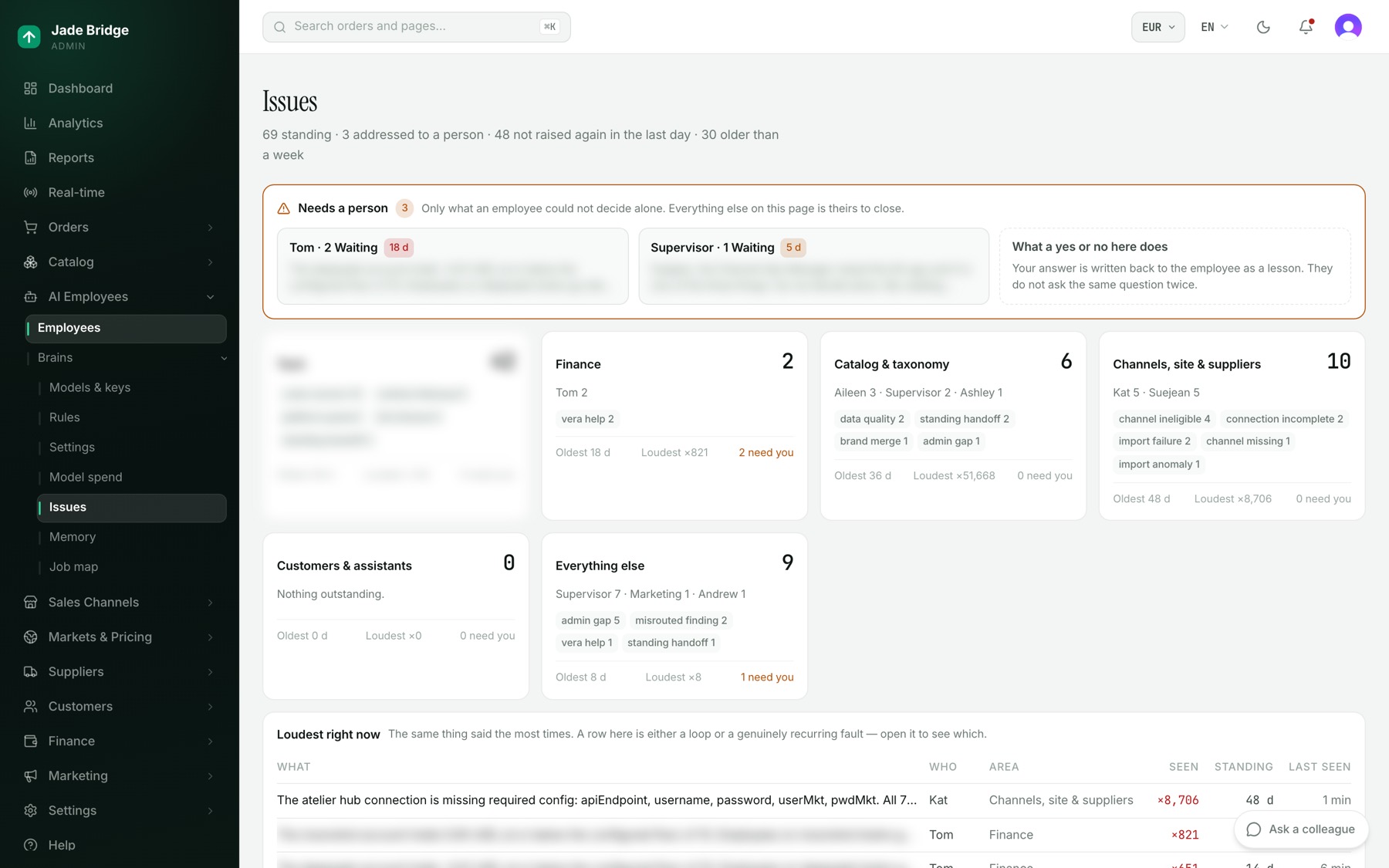
AI Employees → Brains → Issues holds everything the employees have raised. The line under the heading counts what is standing, what is addressed to a person, what has gone quiet in the last day and what is older than a week.
- Needs a person. The amber band. One card per employee with how many are waiting, the oldest in days, and an example. It is the only part of the page that asks anything of you.
- The areas. A card for each: Tech, Finance, Catalog & taxonomy, "Channels, site & suppliers", "Customers & assistants", and Everything else. Each shows its count, owners, oldest, loudest, and how many need you.
- Loudest right now. The things said the most times.
- Loop watch and Work that never happened. For spotting an employee repeating itself, or work that could not even start.
An area's card opens a table you can filter by Kind and Owner, or by "Only re-raised".
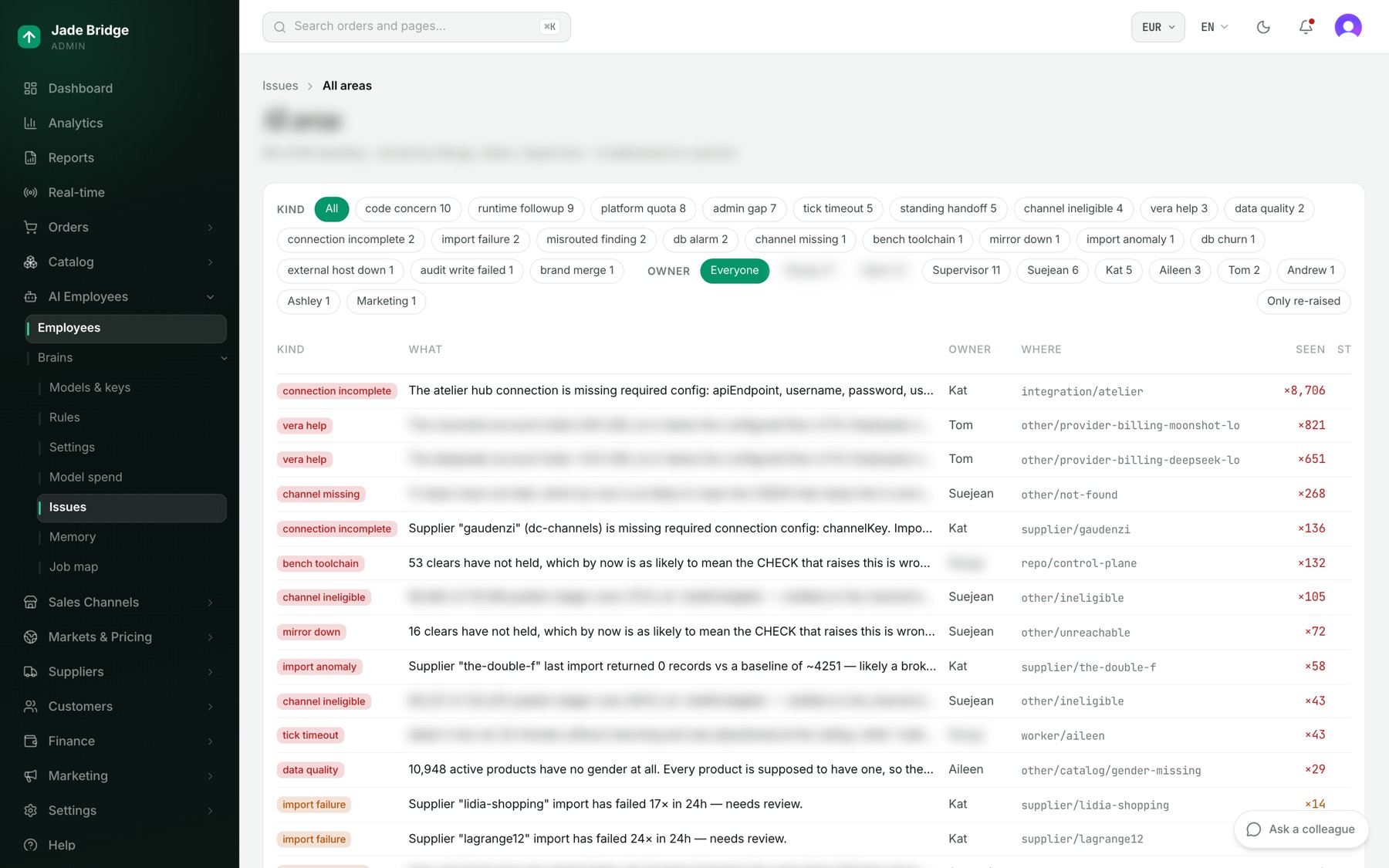
To answer an issue:
- Open the employee's card in Needs a person, then the row.
- Read "What" the employee "says", its History, and anything "About the same thing".
- Choose one of the three actions at the top of the issue.
- "Close…": write your answer and press "Close & teach". It becomes a lesson on their record, and they do not ask the same question twice.
- "Hand to Vera": she rules from the record; you hear from her only if she cannot.
- "Quiet for a day": it stays standing and does not post again until tomorrow.
Reporting a problem with the platform
A page that does not load, a figure that cannot be right, a button that does nothing: report it from the page where you saw it.
- Press "Ask a colleague" and choose "Report a platform problem".
- Say what you saw and what you expected.
- Press Report.
A thread with Steve opens, and he answers at once that he has carried your report to the platform, with the page and the release your store runs. Later he says in the same thread, once each, when the platform accepts it, when it declines it and why, when the fix is merged, and when the fix has reached your store. A change reaches you when your store takes up a new release. If he cannot reach the platform, your report is kept and he carries it later.
What to expect
- An answer from the record: the order, the invoice, the feed, the tracking. When a fact is not there, they say so.
- Work, reported as done or as failed. A failed action is reported as failed.
- A question when it is yours. At money, words that leave the company, and the calls only you can make, they stop and ask.
- Operating information, never professional advice on law, tax or finance.