Each employee thinks with a model, which the admin calls its brain. You choose which. An employee has up to three: the Conversational brain for conversations and decisions, the Batch brain for high-volume internal work such as classifying or extracting (most calls), and a Content model for bulk product copy and translations (the Set all employees picker calls it Content). Emi also has an Image model for sale imagery.
AI Employees → Brains → Models & keys
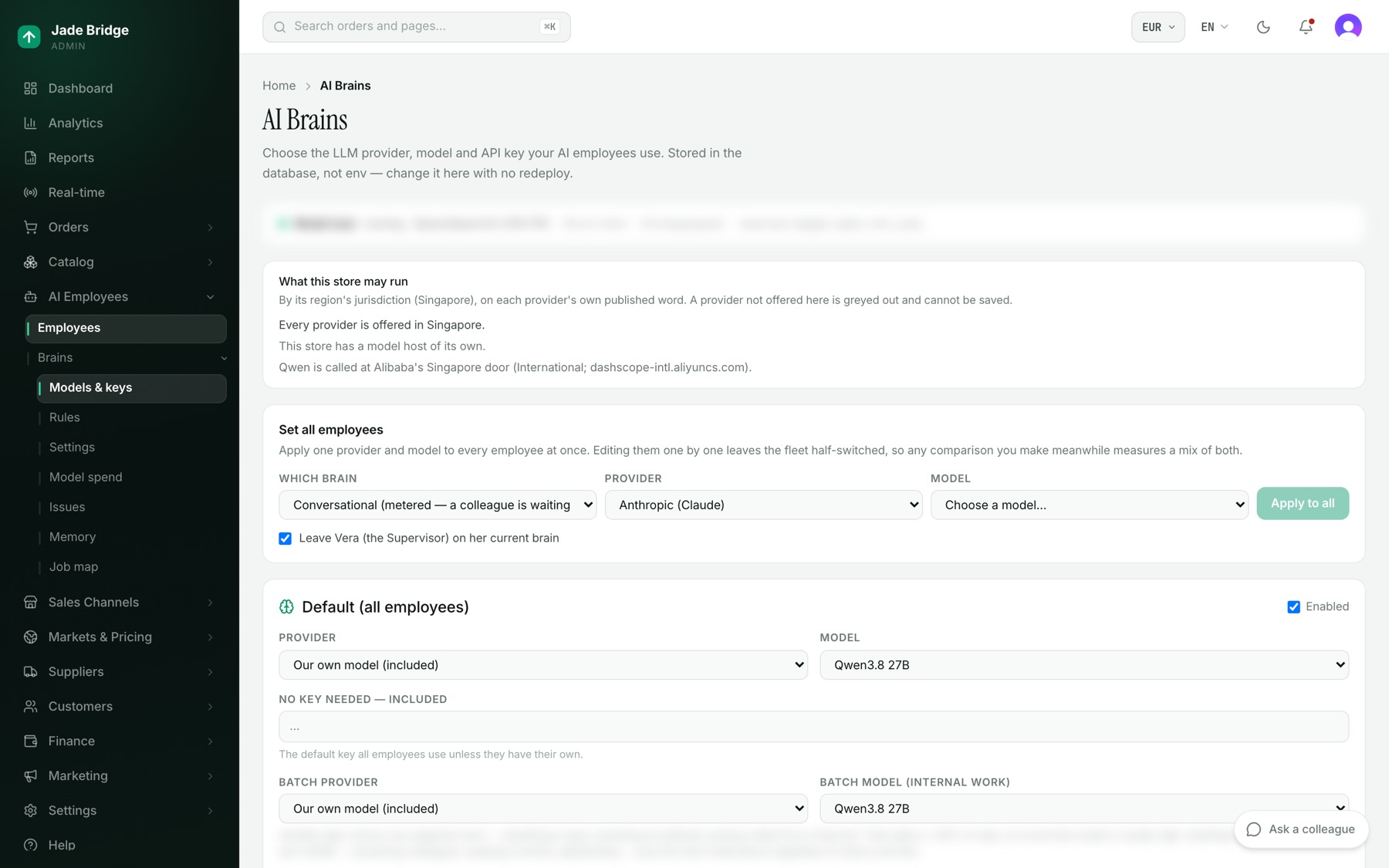
The page is titled AI Brains. From the top:
- Model host. Shown when the store has a model host of its own: whether it is running and which model is loaded.
- What this store may run. Which providers your store's region allows, judged on each provider's own published terms. A provider that is not offered here is listed with the reason, greyed in every picker, and cannot be saved. "Our brain is offered here." means the platform's own model runs in your region.
- Set all employees. One provider and model for every employee at once.
- The card below Set all employees is the store's default brain. Provider, Model, the API Key, the batch pair, and the advanced fields: Endpoint (Base URL), Effort and Max tokens. Every employee without a choice of its own uses this.
- Task routing. Which internal tasks run on the Conversational brain and which on Batch. "Default" leaves a task where the platform put it; a changed task shows "overridden".
The providers in the list are Anthropic (Claude), OpenAI (or compatible), Qwen (Alibaba), DeepSeek, Moonshot (Kimi), and the platform's own model, which the picker calls "Our own model (included)". It needs no key; its key box reads "No key needed — included".
To move every employee at once:
- Under Set all employees, choose Which brain: Conversational, Batch or Content.
- Choose the Provider and the Model.
- Leave "Leave Vera (the Supervisor) on her current brain" ticked if Vera should keep a stronger brain than those who come to her.
- Press "Apply to all". The page lists who moved and who did not.
One employee's brain
Each employee's own choice is on their Settings page: AI Employees → Employees → the employee → Settings. The Brain card there shows Provider, Model, "Batch provider" and "Batch model", and the Content or Image model where the employee has one. "Use default model" and "Same as main model" follow the store's default.
- Open the employee's Settings page.
- Choose the Provider, then the Model.
- Choose the batch pair, or leave it on "Same as main provider".
- Press "Save". It takes effect on the employee's next request. "Reset to default" puts the employee back on the store's default brain.
Two switches sit under the card. "Not bound by the daily spend ceiling" keeps this employee on their brain when the day's budget runs out; every call is still counted. Keep it for the few desks that must always answer. "Own connection to the model" reserves a connection on the store's model host for this employee alone.
Your own keys, or through the platform
A key typed into the API Key box belongs to your account with that provider. It is checked with the provider the moment you save, and the card says "Key proved at the provider on" a date, or "The provider refused this key:" with the provider's words. Usage on your own key is billed to you by the provider and is not charged by the platform. The key stays in your store; the platform never sees it.
A key saved for the same provider on Settings → Integrations counts the same way: that usage is yours with the provider, never the platform's. A provider you use with no key of your own runs on the platform's account with that provider, and that usage appears on the platform's invoice under your Order Form. The platform's own model is included: its usage is counted so you can see it, and never invoiced.
Qwen can be called from Alibaba's endpoint in your own region. The Brains page says which endpoint is used today, and what to add on Settings → Integrations → Qwen (a Model Studio workspace in that region and its key) to keep prompts there.
The list is kept for you
The models offered for each provider come from the platform's catalogue, which reads each provider's list every day. A new model is offered only after it has been judged worth having, run through a fixed set of test tasks, one for each kind of work the employees do (classifying a product, translating while keeping a placeholder, reading a bill to the cent, ruling on money above a ceiling, writing short copy, reading a short status list exactly), passed all of them, and been given a price.
A model a provider withdraws leaves the list. Nobody is moved for you: moving an employee to a newer model is yours, on their Settings page or with Set all employees.
When a provider runs out of credit
If a provider refuses for want of credit, the employee keeps working. The refused request is run again elsewhere, in this order: the employee's own batch brain, if that is the platform's model; else the store's default brain, if that is the platform's model; else the stand-in named in AI Employees → Brains → Settings. The employee returns to its own brain when the account is topped up; Model spend shows where the work went. A provider that is only busy or unreachable is waited for, not replaced.
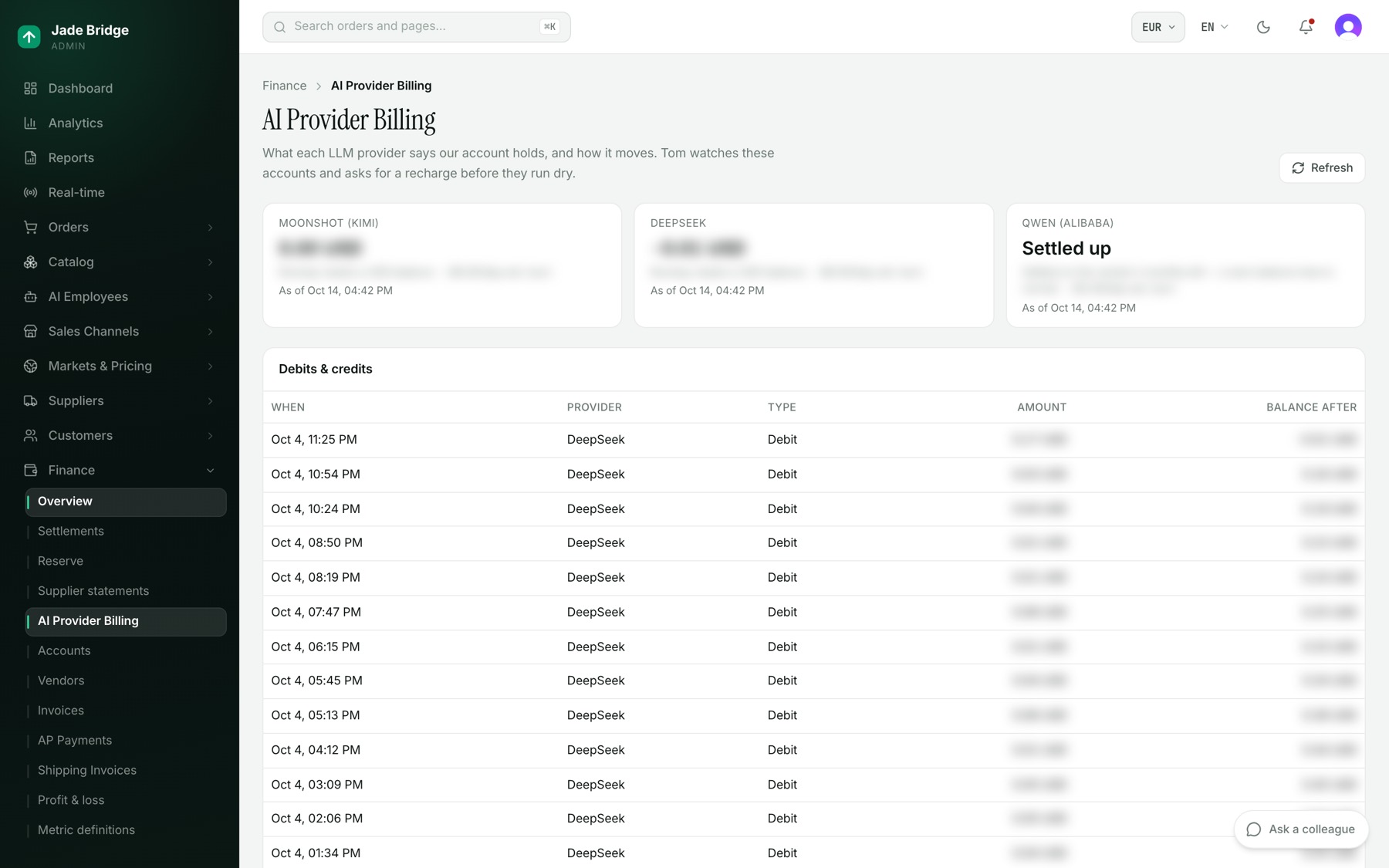
Tom watches the balances on Finance → AI Provider Billing. Each provider shows its balance, "days of runway", "est. burn" per day and when it was read, or "Credentials missing" or "Unreachable". Below are the movements between readings and a check against each provider's own billing records. When a balance is under its floor, runway is under seven days, or a provider cannot be read, Tom raises an alarm under Needs a person on AI Employees → Brains → Issues. With Slack connected, you are also told in a direct message that says which account, which employees run on it, and where to top up: from Yuka if she is your assistant, otherwise from Tom to each owner of the store. It is said again after two days if nobody answers. Without Slack, it reaches the owners by email like any question for a person (see Talking to them). When it recovers he says so and closes the alarm. Recharging is yours: Tom asks, he never pays. His thresholds are a platform rule on his rule builder ("The fleet does not run out of credit unannounced"): the Balance floor, the Runway alarm and how soon an unanswered alarm is repeated, all tunable, never off.
AI Employees → Brains → Model spend
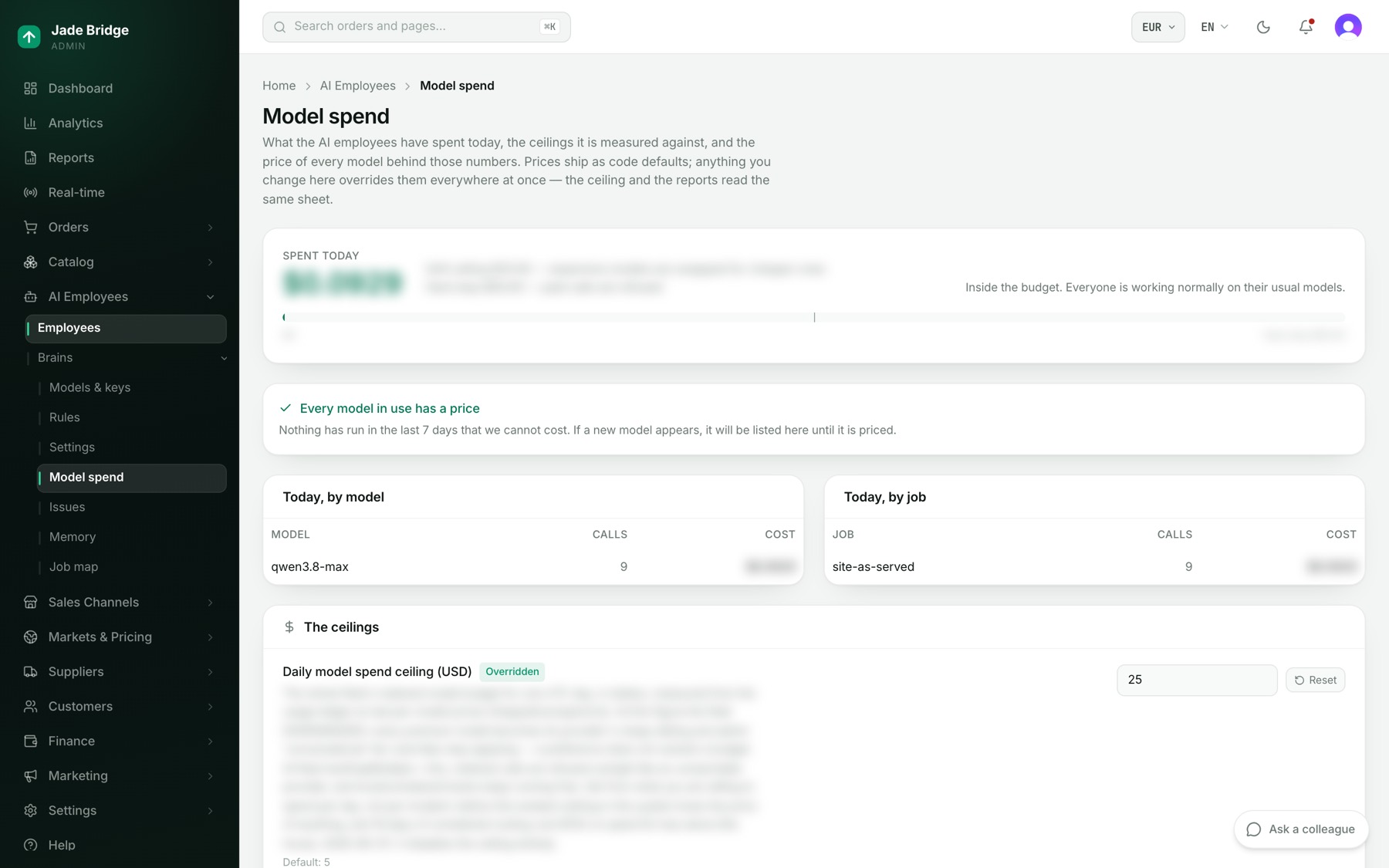
What paid models from outside providers cost today, against two ceilings. The model that comes with your store is included and never counts against them, so a store that runs only on it has nothing to watch here. A day here is a UTC day.
- Spent today, with the soft ceiling and the hard stop, a bar, and a sentence saying where you are. Over the soft ceiling, expensive models are swapped for cheaper ones. Over the hard stop, paid calls are refused for the rest of the day and the employees run on the platform's own model where they have it; employees exempt from the ceiling carry on.
- Models we cannot put a price on. Anything used in the last seven days with no price counts as $0.00 everywhere, including against the ceilings, until you price it.
- Today, by model and Today, by job, with what each cost.
- The ceilings: "Daily model spend ceiling (USD)" (ships at 5), "Hard stop = this × the daily ceiling" (2), and the price per million input tokens above which a model counts as premium (0.5).
- Cheaper stand-ins. For each provider, the model its expensive models become over the soft ceiling, or "No cheaper model — stop instead".
- Prices. In, Out and Cached in per million tokens, marked "Estimate" or "Checked", with the built-in price beside them.
To raise the daily ceiling:
- Under The ceilings, type the new figure in "Daily model spend ceiling (USD)".
- Press Enter. It saves at once and shows "Overridden"; Reset returns the default, and 0 switches the ceiling off.
To correct a price when a bill disagrees, type the figure in its box on the Prices table and click away. Empty a box to go back to the built-in price for that figure; "Back to built-in" resets the whole row.