Who works here
Marshall, supplier onboarding, takes each supplier from first contact to live, keeps the list of people at every supplier, and answers suppliers in their portal. Kat, supply chain, runs a live supplier's imports, stock and orders. Steve, integrations, looks after the providers your store connects to and carries a request to the platform when a supplier's system needs a connection the platform does not have yet. On these pages the Ask a colleague panel offers Marshall first, then Suejean, channel operations; the rest of your employees follow in the same list, Steve among them, so pick him there for a provider or connection question.
Directory
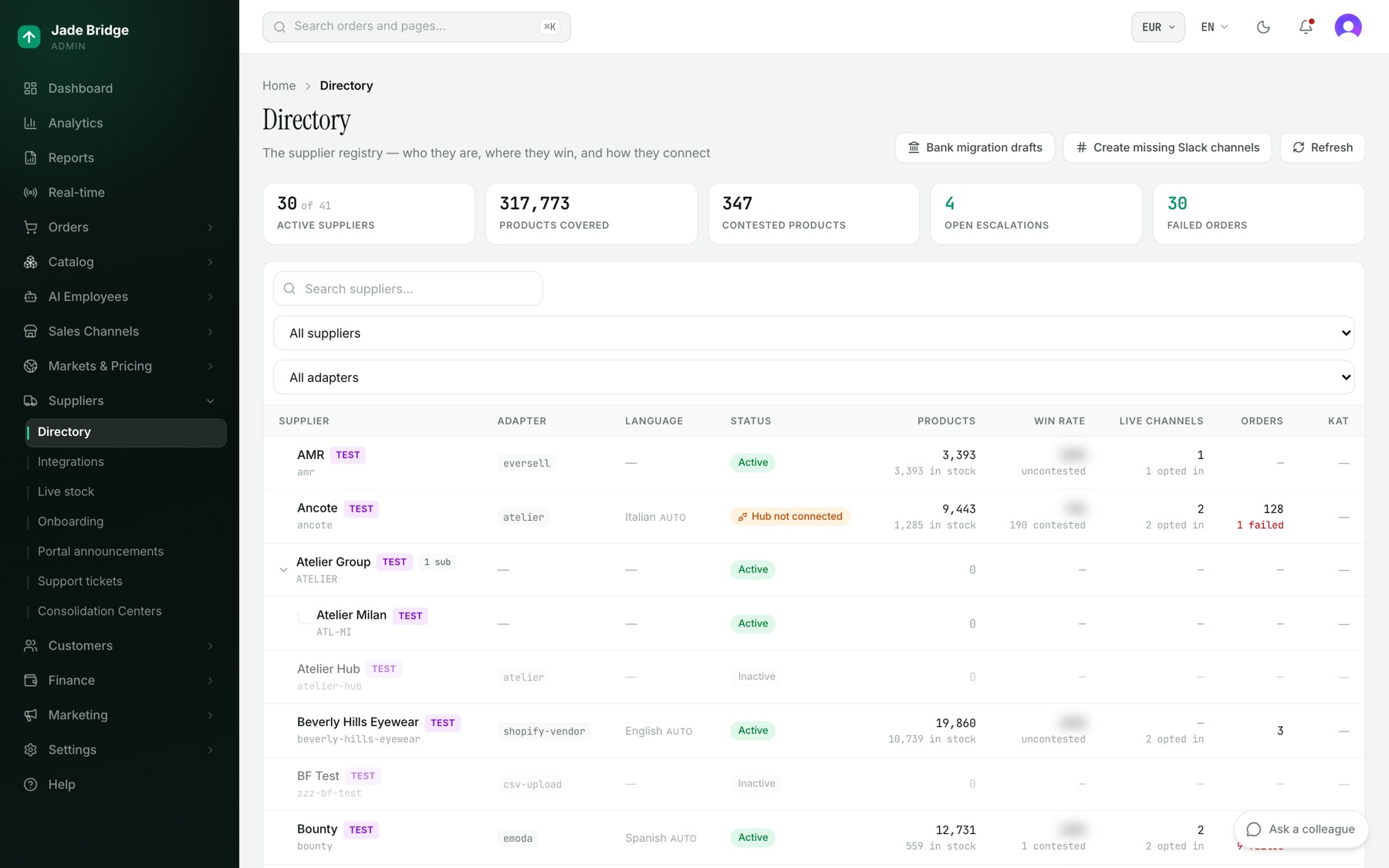
Suppliers → Directory counts Active suppliers, Products covered, Contested products (offered by more than one supplier), Open escalations and Failed orders. Each row shows the supplier (a Test badge means live money never moves to it), how it connects, language, status, products, win rate, live channels, orders, and Kat's open escalations. Status shows a problem first: Auth broken, Needs config (hover for the missing fields) or Hub not connected. Bank migration drafts has Marshall draft a secure-link request to every active supplier whose bank details are still held here.
A supplier's page
Click a supplier. Four figures lead: Market position, Products, Supplier orders, Categorization conflicts. Each card below shows Save once you change it:
- Marketplace position: sole source, contested wins, losing, and who it is losing to.
- Sales channels: switch on each storefront this supplier's stock may sell on.
- Ingestion: schedule, Imports enabled, the last import and Kat's escalations.
- Connection: the fields its import and orders read, stored encrypted, and Test mode.
- Fulfillment: whether orders go to the supplier's system or need manual routing, and recent supplier orders with tracking.
- Commercial & SLA: processing and shipment days, cutoff time, minimum supply price, currency, handling fee per order or per item, Who ships to the customer, Who pays for shipping labels.
- Registry & hierarchy: Status, Active, Test supplier, Import schedule, Master supplier.
- Business profile, Banking (masked; Migrate to Airwallex… moves bank details to Airwallex and deletes the local copy), Documents, and Record verification: Verify record has Marshall check the record against the signed agreement and public information; safe fixes he makes, the rest wait for your Apply.
- Supplier portal, Slack channel, and Onboarding, which sends the setup link as a Marshall draft.
To start taking a supplier's orders:
- Fill in Connection and Save. Leave Test mode on: orders are recorded as they would be placed, and nothing reaches the supplier.
- Under Sales channels switch on the storefronts and Save.
- When the test orders look right, switch Test mode off.
Warehouses lists where stock ships from. Add warehouse asks for a Name, a Code (locked once offers point at it), an address, Notes, Active and Make this the default; then Create warehouse. Until country and street are filled in, a warehouse is Address incomplete and cannot be a ship-from. The default warehouse is the origin for every offer that names none, and its address is what shipping, duties and labels are worked out from.
Onboarding
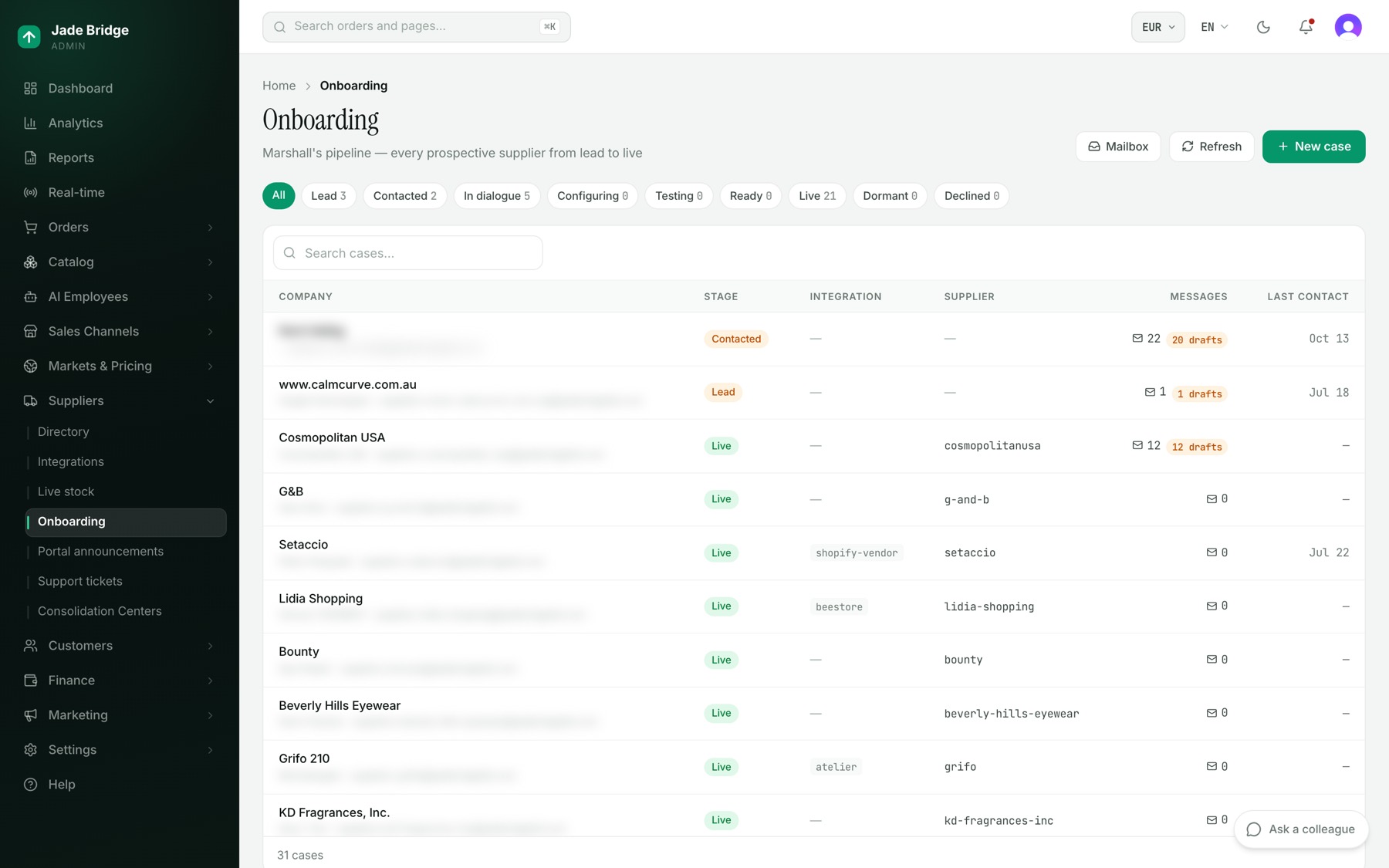
Suppliers → Onboarding is Marshall's pipeline. The stage chips count Lead, Contacted, In dialogue, Configuring, Testing, Ready, Live, Dormant and Declined. New case asks for Company, Contact and Email. Mailbox shows every message Marshall received, drafted or sent.
A case's page has the stage, the linked supplier, the Email thread with Approve & send on each draft, Notes and a Timeline. A case goes live only once its supplier is set up.
To set up a case's supplier:
- Open the case and press Set up supplier.
- On Create new, check the Supplier name and choose How they send their catalogue, then press Create supplier. The supplier appears in the Directory as pending, with its feed off. If it is already in the Directory, use Link existing, pick it and press Link supplier instead.
- Open the supplier in the Directory, fill in its Connection and switch it on there.
Marshall moves cases himself: once the linked supplier's connection is complete he runs a test import (Testing); a good import makes it Ready; then he makes the supplier live and hands it to Kat, staying its tech contact.
Integrations
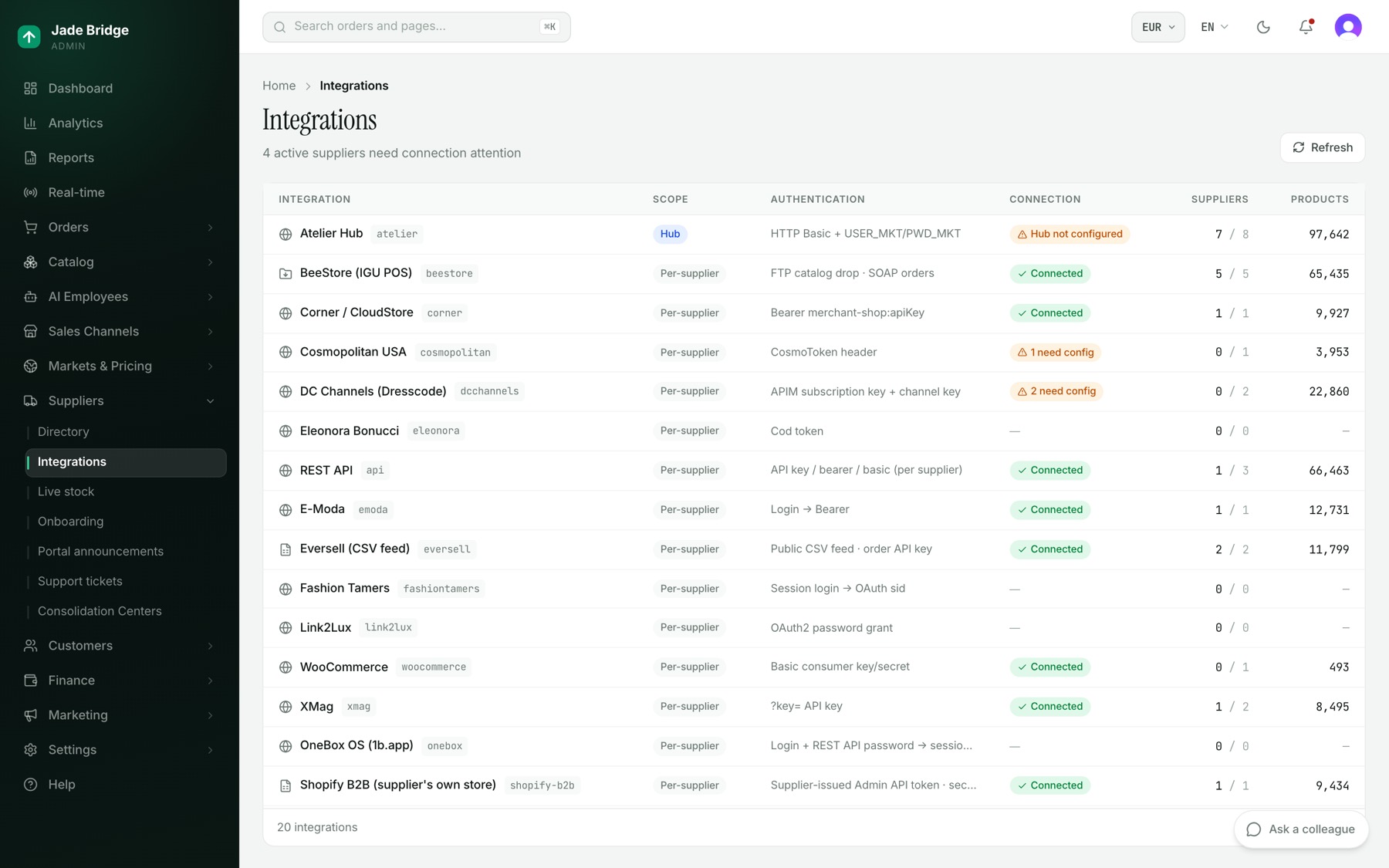
Suppliers → Integrations lists each way catalogues arrive (Direct API, FTP drop, CSV feed, Pushed by supplier) with its scope, connection state and configured suppliers. A Hub serves many suppliers with one shared login, entered once in Hub connection on its page. Per-supplier integrations list each supplier with the fields still missing; those are filled in on the supplier's Connection card.
Live stock
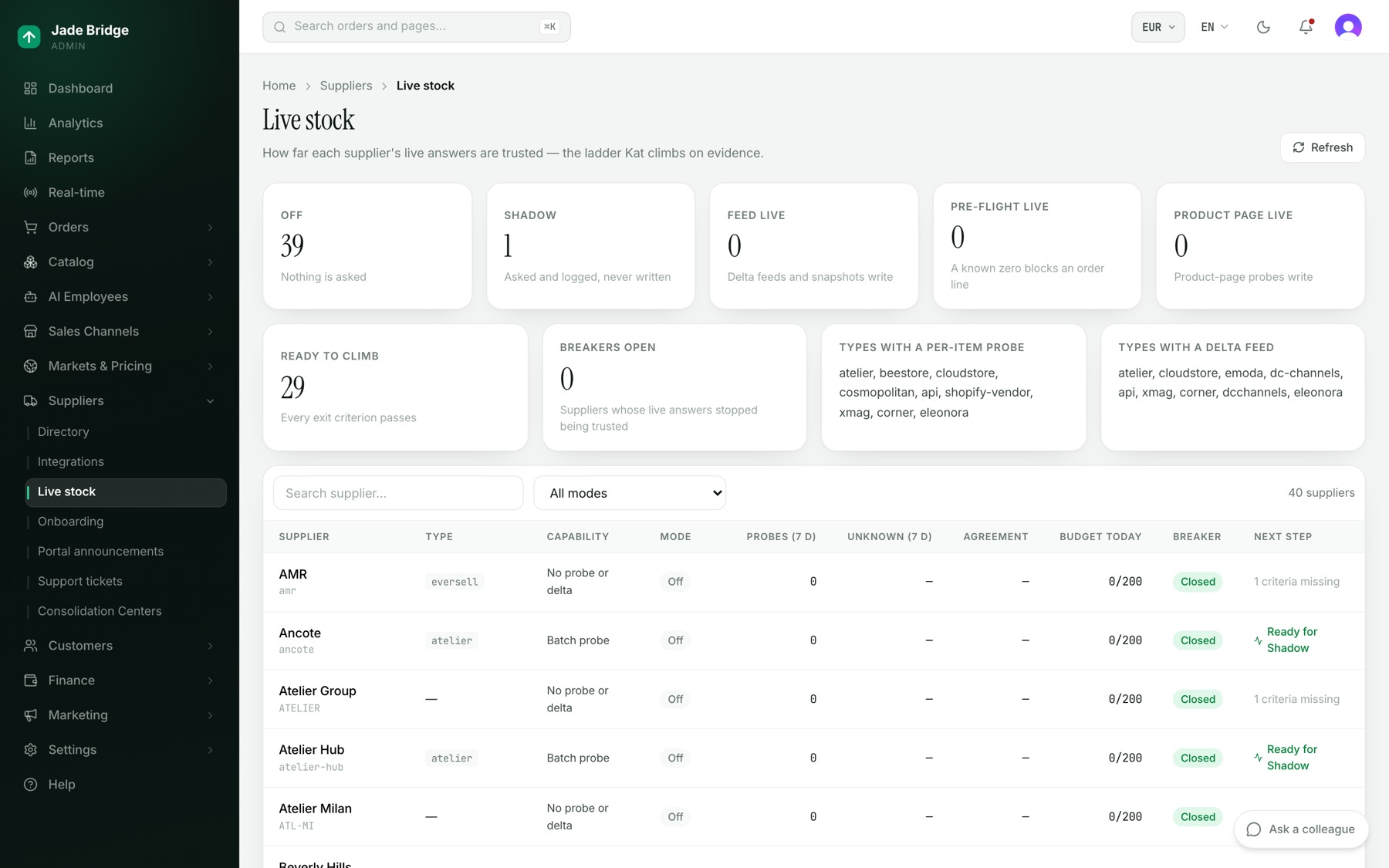
Suppliers → Live stock is a ladder of trust in a supplier's live stock answers: Off, Shadow (asked and logged, never written), Feed live, Pre-flight live (a known zero blocks an order line) and Product page live. Tiles count each step, Ready to climb and Breakers open. A supplier's page shows the exit criteria for the next step, Promote to, Promote anyway, Demote to and Switch off with a reason; the Circuit breaker with Reset breaker; the Call budget; Probe 5 offers, which compares live answers with the feed and writes nothing; and Run delta now. Kat checks the criteria. A supplier that passes them all she promotes herself only when her rule "Promote ready suppliers herself" is on; it is off in a new store, so she reports the supplier ready to climb and you press Promote to.
The Kill switch makes every supplier behave as Off until released, keeping their steps. Ingestion settings hold the Import price floor in your base currency, the Stale stock window in hours and Snapshot minimum seen; click Save settings.
Support tickets and announcements
Suppliers → Support tickets holds every request suppliers open in their portal. Marshall answers; in approval mode his reply waits, marked Awaiting approval. A ticket shows the conversation in your language ("show original" for theirs), Internal notes the supplier never sees, and Marshall's draft reply, which you edit and Approve & send, or Discard so he tries again. Send as Marshall replies in his name; Close ticket ends it.
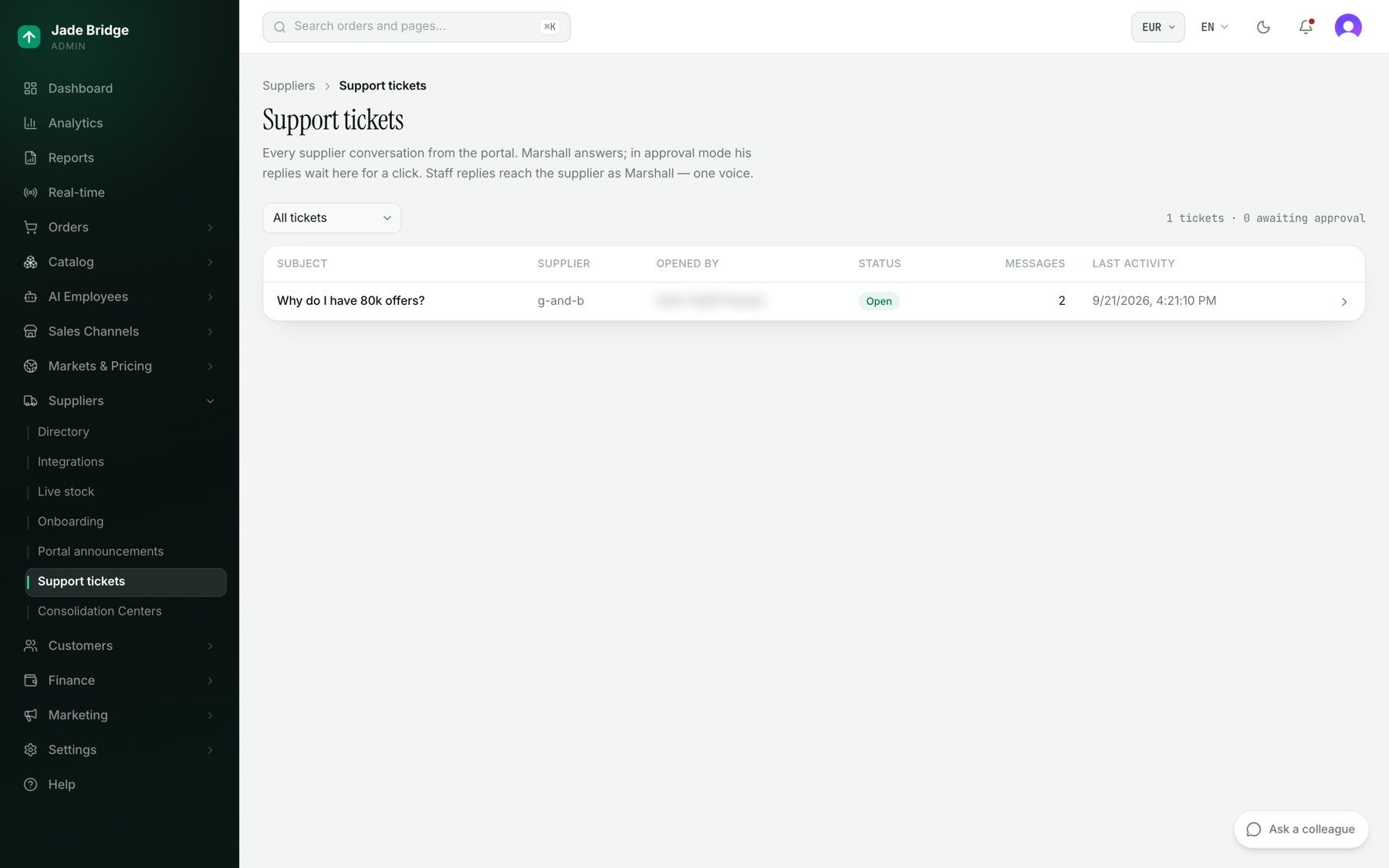
Suppliers → Portal announcements puts messages on the portal's dashboard. New announcement takes a Title, Message, Audience (All suppliers or Specific suppliers) and an optional expiry; Publish. Aileen translates it into every portal language; edit one to override it, or Back to automatic. The Visible switch hides it.
Consolidation Centers
Your own ship-to addresses: where a B2B customer's orders go instead of their door, and where returns come back. New center asks for a name, address, contact, What it takes (Orders, Returns, or Orders & returns), Active and notes. On a center's page, change what you need and press Save.
The portal your suppliers use
Each supplier signs in to its own portal, in one of ten languages, and sees only its own account:
- Dashboard, and Orders: Add tracking, Confirm shipped, Cancel a line (it is rerouted or refunded), Generate label, with ship-by dates marked On time, At risk or Delayed.
- Products, with a Winning badge where theirs is the offer that sells, and Feed health. For a supplier without a feed, switch on Manual inventory in the portal on its Supplier portal card, and it edits stock and price itself.
- Finance: weekly settlements from Monday, Accruing, then Statement sent, then Paid, with Download statement and an invoice upload.
- Settings (Company, Users), Support and Help.
A new supplier's setup link, valid seven days, covers contacts, where parcels leave from, how they are paid, and the supply agreement, signed by typing a name. The portal and the setup link carry your store's name as you set it in Settings → Company.
To give a supplier access:
- On its Supplier portal card click Provision portal access.
- Enter an email under Invite first admin and click Invite.
- Their admins invite their own colleagues from then on.
Settings → Users & Permissions → Supplier users lists every supplier's portal, members and pending invitations, with Invite, Revoke, Remove, Demote and Sign in as this user, a single-use link valid ten minutes and recorded. A supplier always keeps one admin.
What comes to you
Marshall's drafts on cases and tickets, his questions on his Desk, verification findings awaiting Apply, and Kat's word that a supplier is ready to climb.