Every number in the admin comes from one definition per figure, so the dashboard, Analytics, a report and Andrew's brief agree. Andrew, the reporting analyst, owns those definitions and the reports. Ask a colleague on the dashboard, Analytics and Reports starts with Andrew.
Dashboard
Your own board, and the page the admin opens on after you sign in. Dashboard is the first item in the left menu; on a phone it is the "Today" tab. The heading gives the day, the store's time zone and a "Live" mark: cards re-read themselves when orders, refunds or ad spend change.
The period control offers Today, Yesterday, 7 days, 30 days, This month, Last month and Dates. The page always opens on Today and does not remember another period. Waiting on you, the calendar and Latest orders show the present whatever the period.
A new dashboard has six cards:
- Revenue. Gross revenue with cancelled orders included and nothing taken off, gross margin and profit, against the day before.
- Waiting on you. Orders authorised and not captured, payment runs to approve, orders not yet shipped, and Tom's questions.
- Your calendar. Today's events, once Google Workspace is connected.
- Top suppliers today, Latest orders and This week.
Every card has "How?": what the figure counts, what it leaves out, and whether its definition is approved or still proposed. "See all" on Waiting on you opens the full Waiting on you page, the same page the bell at the top of every page opens. The bell shows a dot only while something is waiting.
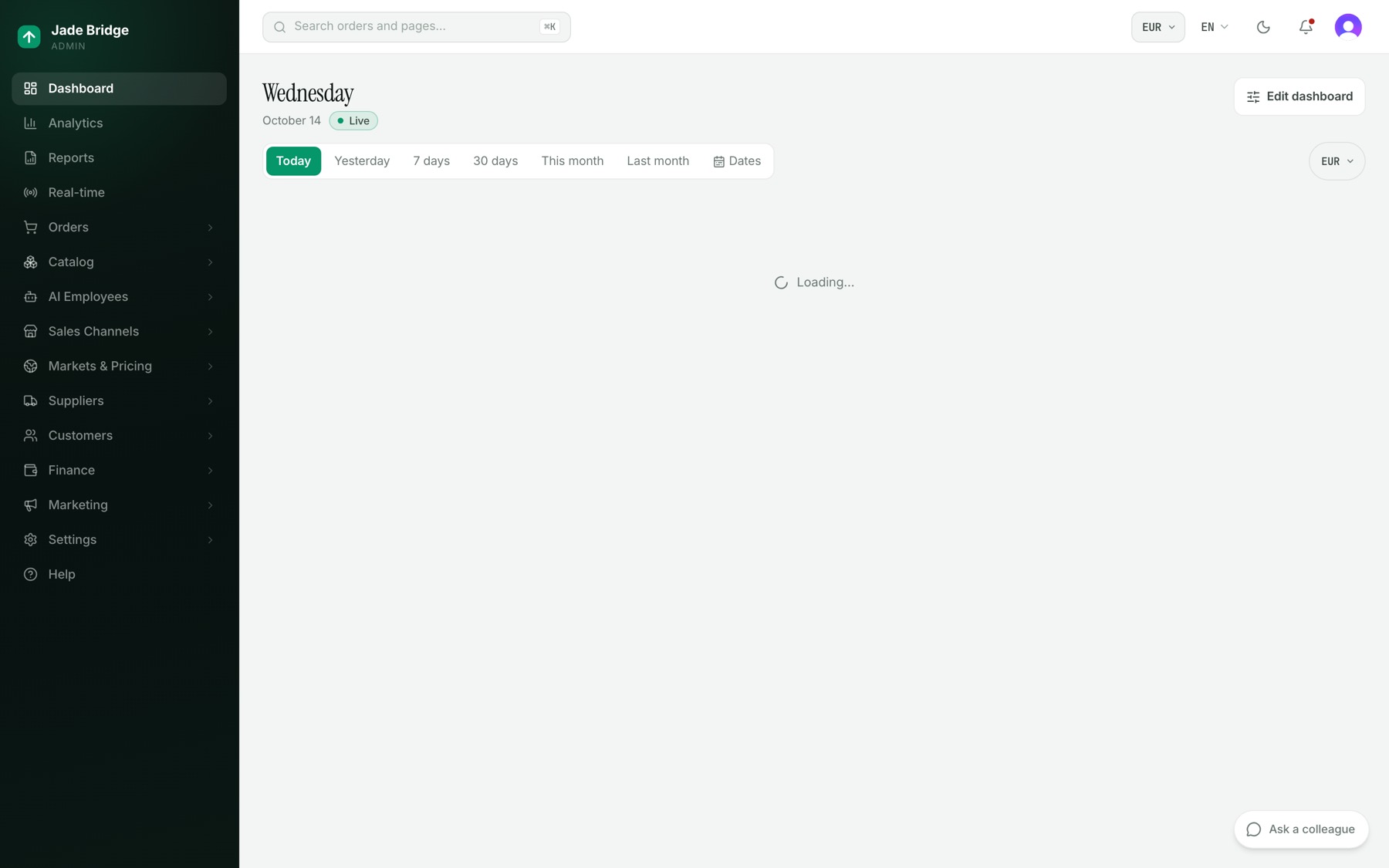
To change your dashboard:
- Press "Edit dashboard".
- Drag a card by its handle. Choose its width: Small, Medium or Full width. "Remove" takes it off.
- Press "Add cards". The Card library groups cards by subject; each is marked Ready, Draft, Partial or Needs new data. Press "Add" on the ones you want.
- On a wide screen, switch between "Wide screen" and "Phone" to arrange each; the two keep their own order.
- Press "Done". The layout is kept in your profile. Cards your role cannot open are not offered.
Analytics
The store's analysis: the same cards as the dashboard, arranged by subject, for any period. It opens on 30 days. The tab and period are in the page address, so a link you send shows what you saw.
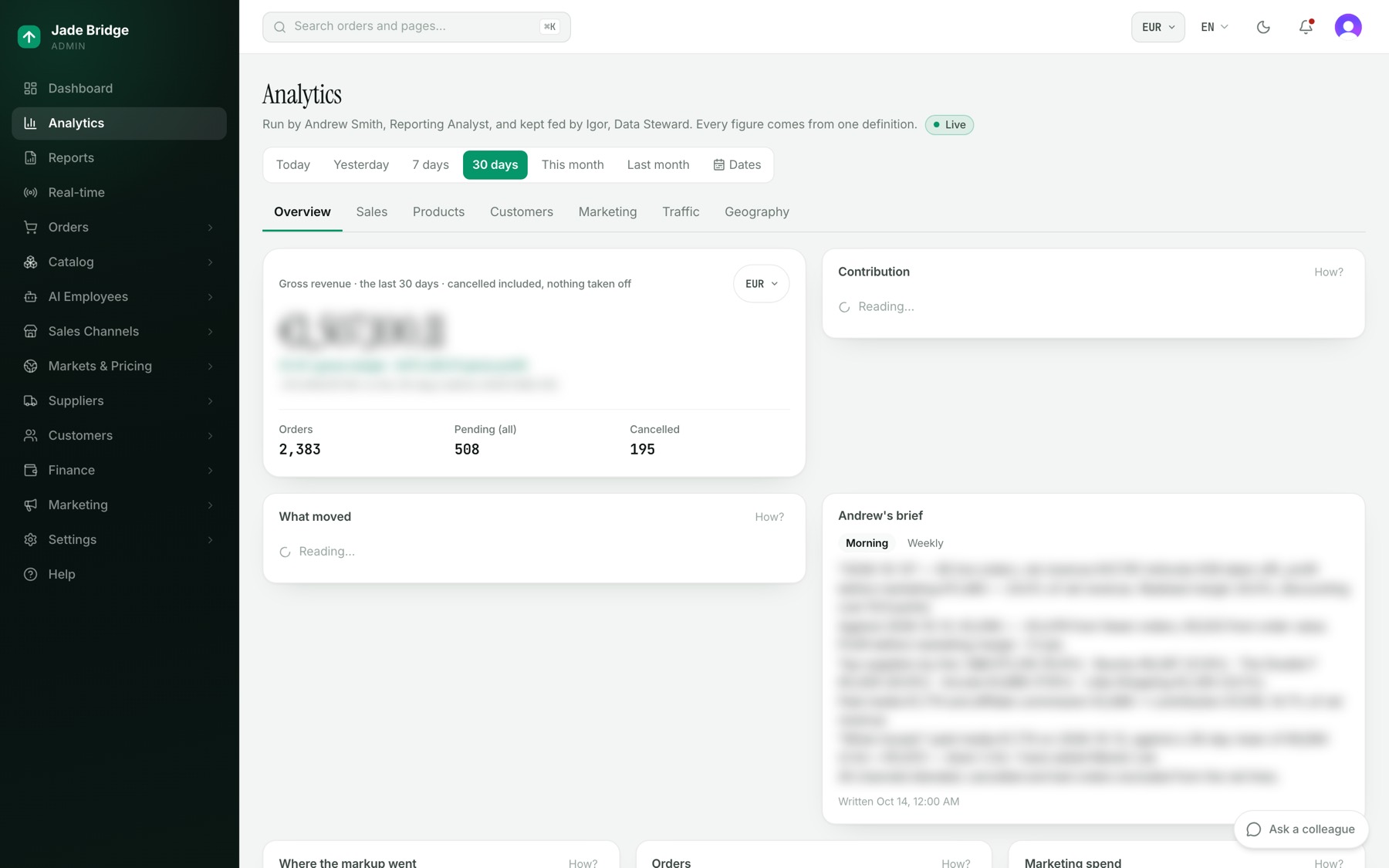
- Overview. Revenue, Contribution, What moved, Andrew's brief, Where the markup went, Orders, Marketing spend and the revenue trend.
- Sales. Net revenue, discounts, customer shipping, cancellations, refunds, average order value, order value bands, payment methods, refund status, revenue by source, return rate.
- Products. Revenue by supplier, brand and category, top products, what is new in the catalogue, returns by supplier and brand.
- Customers. New against returning customers, cohorts and repeat rate, sales channels, top countries.
- Marketing. Spend, paid ROAS, campaigns, cost per order, affiliates, email. Campaign detail stays on Marketing → Ad spend, where Marian, the marketing manager, works.
- Traffic. Visits from your own storefront, counted without cookies: a visitor is one person on one day, and no IP address is stored. Visitors, conversion, the shop funnel, where carts drop, devices, top pages.
- Geography. Countries and visitors.
What Andrew does
- He writes a brief every morning at 08:00 store time: yesterday, what moved it and the top suppliers. On Mondays he adds the week against the week before, and on the 1st the month against the month before. It appears on the "Andrew's brief" card and in Slack when the store has it. The hour is on his rule builder.
- When yesterday moved well outside the last month's normal range, he says so in the brief and asks the employee whose work it touches.
- He checks the definitions against the arithmetic on every pass. A change to what a figure means is proposed and waits for you on Finance → Metric definitions.
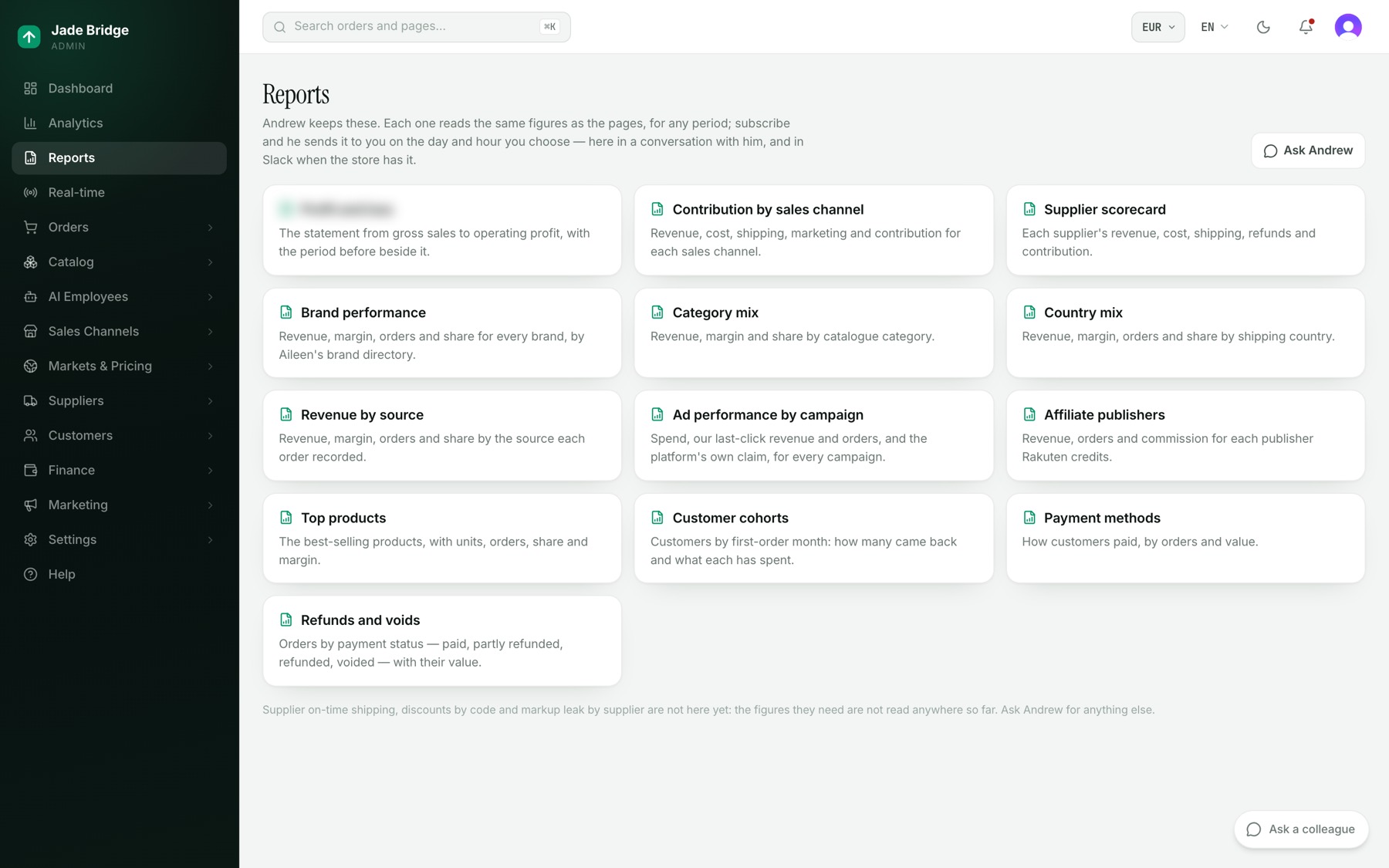
- "Ask Andrew", on Reports, opens a conversation with him for any figure or a report that does not exist yet.
Reports
Each report reads the same figures as the pages. The catalogue: Profit and loss, Contribution by sales channel, Supplier scorecard, Brand performance, Category mix, Country mix, Revenue by source, Ad performance by campaign, Affiliate publishers, Top products, Customer cohorts, Payment methods, and Refunds and voids. Supplier on-time shipping, discounts by code and markup leak by supplier are not there yet.
Your subscriptions sit at the top, each with when it next goes and "Stop".
Open a report to see Andrew's one-sentence headline, the days, time zone and currency it covers, and the table. Change the period with the same control as Analytics, and download it with "Excel" or "CSV".
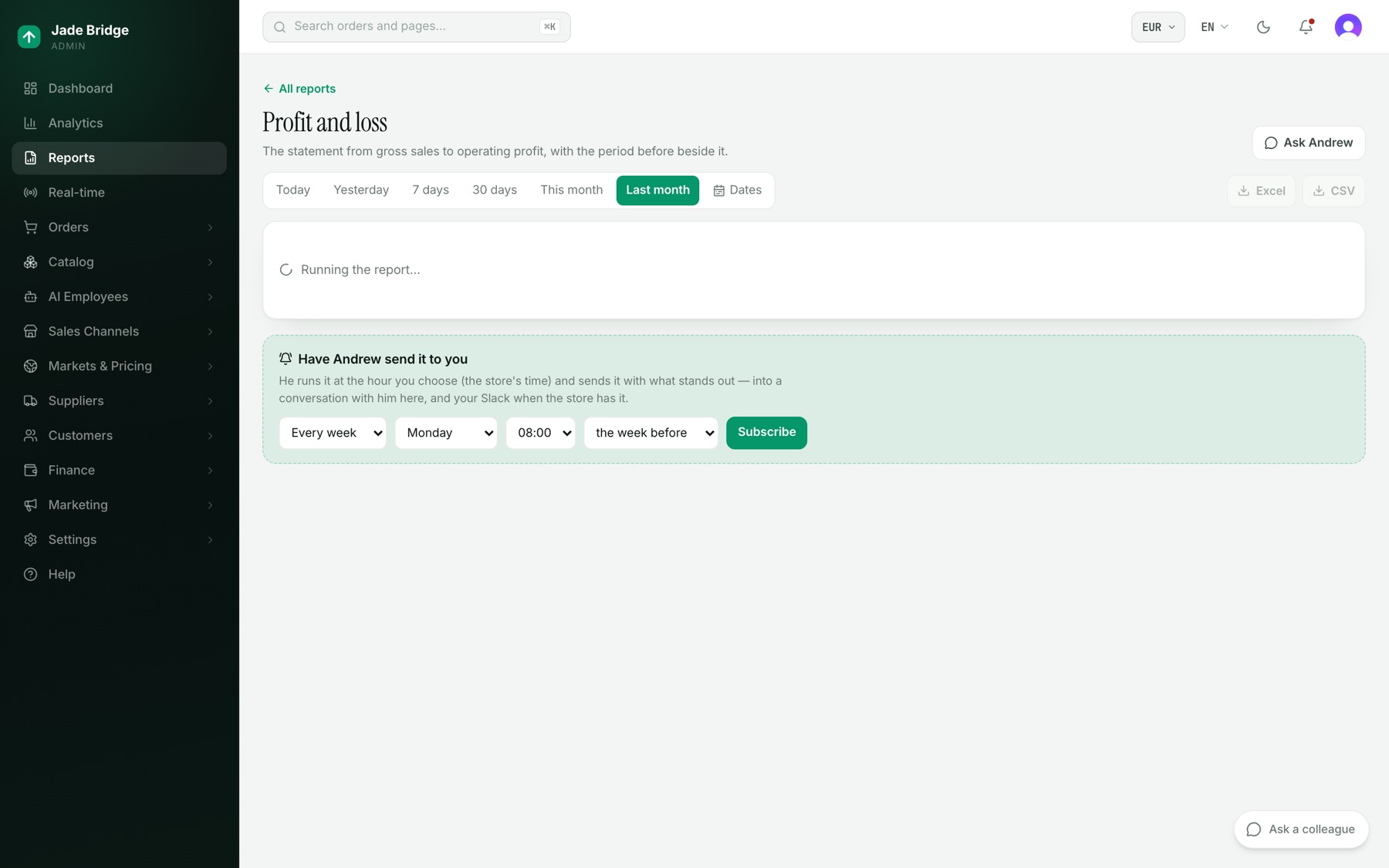
To have a report sent to you:
- Open the report. Under "Have Andrew send it to you", choose Every week or Every month.
- Choose the day, the hour (the store's time), and what each delivery covers: the week or month before, the last 7 or 30 days, or the month so far.
- Press "Subscribe". Andrew confirms in a conversation with you. Each delivery comes there, and to your Slack when the store has it, with what stands out.
Real-time
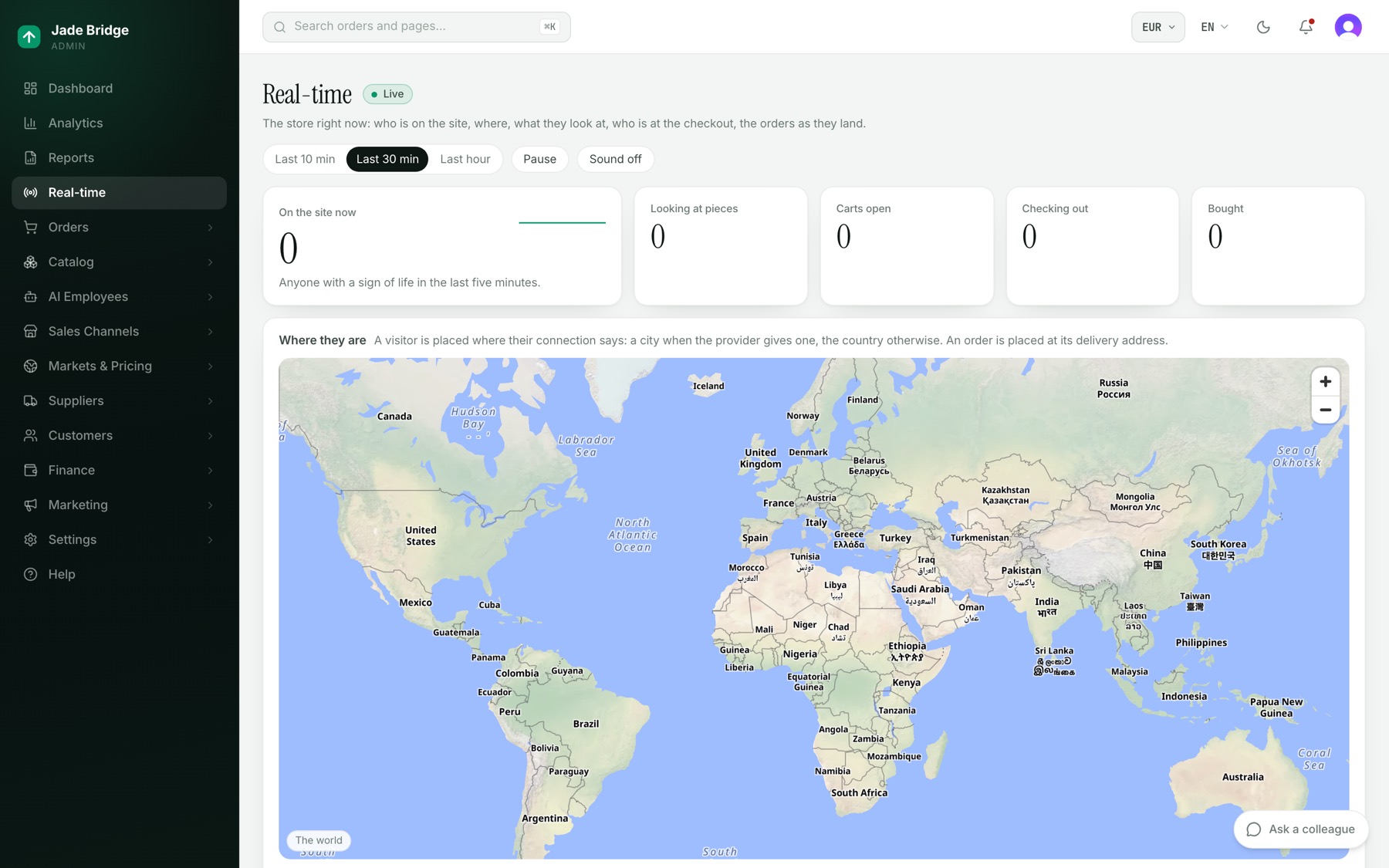
The store right now. Choose a window of Last 10 min, Last 30 min or Last hour. "Pause" holds the stream and counts what is waiting; "Resume" lets it through. "Sound on" chimes for each order.
- The strip: On the site now (anyone active in the last five minutes), Looking at pieces, Carts open, Checking out, and Bought with its value.
- Where they are. A map from the world down to a country, a city and a door. A visitor is placed where their connection says, a city or a country; an order is placed at its delivery address. "Back to the world" zooms out.
- Checkouts and orders, in three tabs: Checking out, Open carts, and Just ordered (the last 24 hours).
- The pulse: pages and pieces viewed minute by minute, against the same hour yesterday.
- Happening now, filtered by Looking, Carts, Checkouts, Orders or Searches.
- By their own clock, What they are looking at, and Searched for.
- The team right now: each employee, Working or Idle, and what they did last.
On a phone the page splits into Map, Orders, Live and Team.
To see where an order is going:
- Under Checkouts and orders, open Just ordered and press "Show on map" on the order.
- In the panel, press "Go to their door". The delivery address appears and the map zooms to the street, or says it could only place the city or country. Only people who may see orders can open a door.
Click a visitor's pin or a line in Happening now to see their place, device, local time and the path they took through the site.
Search
The box at the top of every page reads "Search orders and pages…". Click it, press ⌘K on a Mac or Ctrl+K elsewhere, or use the Search tab on a phone. It finds orders by order number, email, SKU or tracking number, and jumps to any admin page you may open by its name. Products, customers and suppliers cannot be searched here yet.