Everything your shoppers see is set under Sales Channels → Storefront. The menu groups it by job: Products, Pricing, Featured, Site Content and Settings. Ask a colleague on these pages starts with Emi, then Suejean, channel operations.
Who works here
Emi, the site merchandiser, owns the site: the homepage and its sections, the footer pages, the menus she is asked to change, and the daily flash sales. Aileen translates every word Emi or you type in English into the other languages. Amy keeps every menu link pointing at a live collection. Kat owns what delivery costs and what the shopper is charged for it. Katie owns the drop reminders under Site Content → Drop reminders, described in the Customers chapter.
Site Builder and Start from an example
Site Content → Site Builder opens the visual editor full screen. You pick a page, add, hide or reorder sections, and preview it on Desktop, Tablet or Mobile. Save Draft keeps your work; Publish puts it live; Schedule publish sets a time. History lists every saved version, and Restore brings one back.
Site Content → Start from an example is the way to say "make my site look like this".
- Give the example a Name and say What you want from it, then press Start.
- Under Add PDF pages or pictures, add files of up to 3MB each, or type web addresses under Addresses and press Add. When Figma is available for your store, Connect Figma appears here too; once connected, paste a Figma link to add its frames.
- Press Give it to Emi. She reads it in a few minutes and shows What Emi saw: each page's blocks, marked have or missing, the colours, type and copy voice.
- Your draft appears. Open the draft to look at it in the Site Builder, or Talk to Emi.
- Approve and publish puts it live. Ask for changes opens her conversation instead.
Blocks the platform does not have yet stay hidden placeholders, and the platform is asked for them when you approve. Nothing goes live until you approve.
Pages
Site Content → Pages holds the prose pages: About, FAQ and the policies your checkout links to.
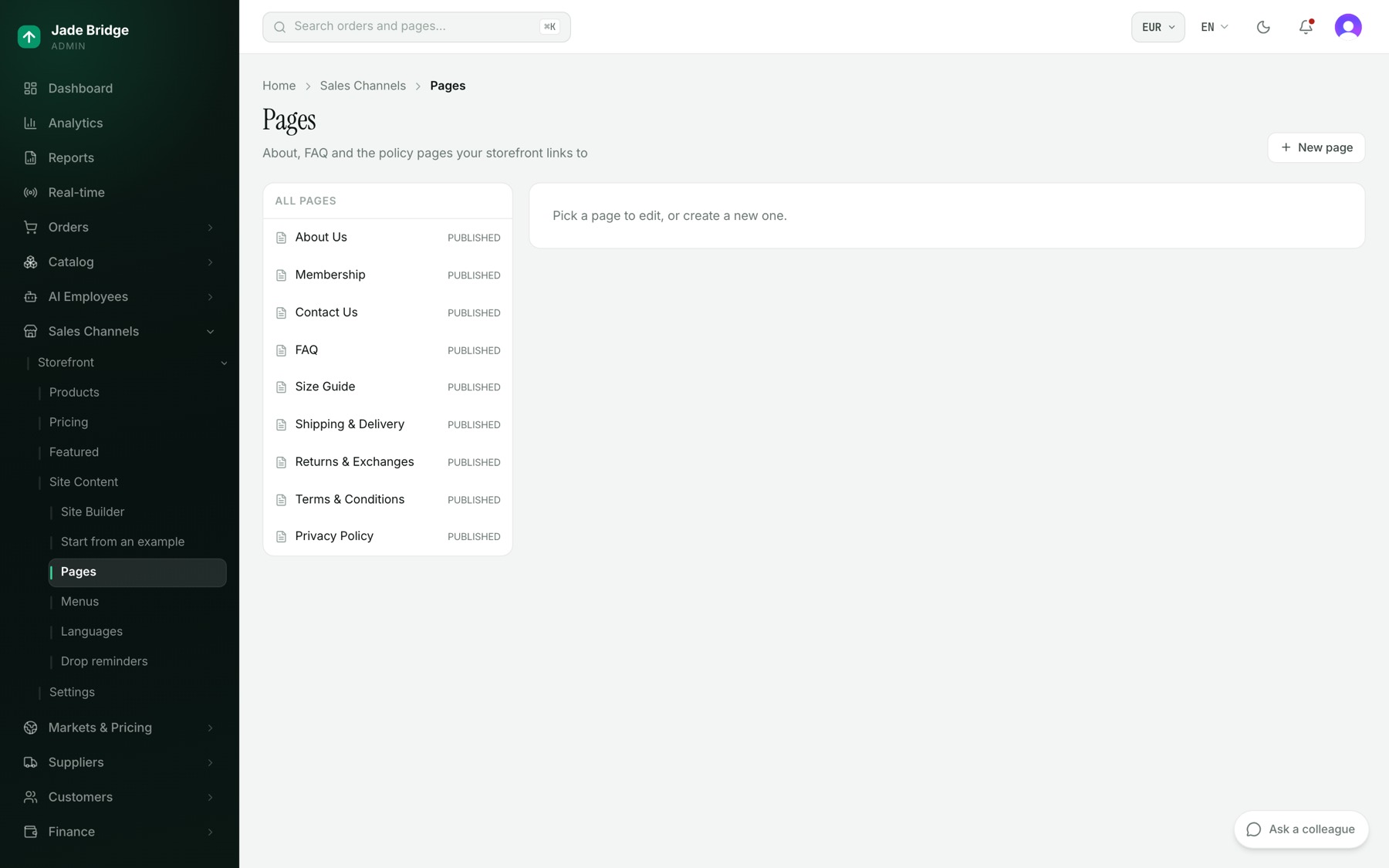
- Press New page and type a URL slug, for example privacy-policy. The page lives at /pages/ and that slug.
- Write the Page title and Content in English. English is the source; other languages show English until they are filled.
- Open Search engine listing for an SEO title and SEO description if you want them.
- Tick Published and, if you want it linked, Show in footer. Press Save.
Emi keeps the footer pages complete and writes the English of any that are missing. She never invents a policy fact: a returns or privacy page she writes goes live with a review request to you. Aileen fills the other languages.
Menus
Site Content → Menus edits the Header, Footer and Mobile menus. Add menu item, choose its Type (Link, Collection, Page or Product), drag to reorder, then Save and Publish. A bar shows whether all links are healthy; Ask Amy to audit has her check every link now.
Flash sales
Featured → Sales lists your time-boxed sales. Prices freeze the moment a sale goes live.
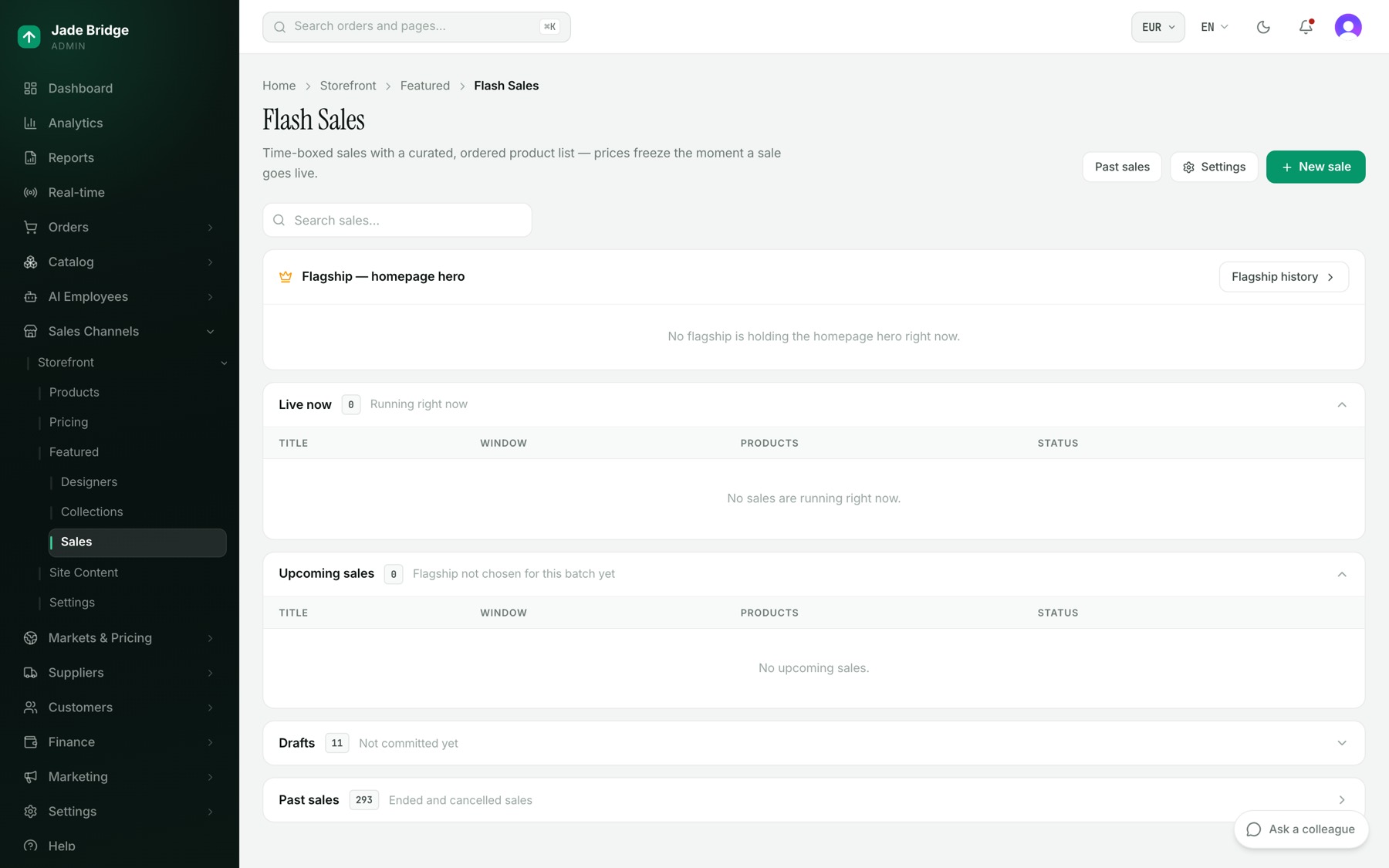
Emi invents the day's sales herself, seven by default, and builds each one: products, prices, campaign imagery. Her limits are on the Settings button of this page, under Daily sale boundaries: Sales invented per day, Sale start times, Store time zone, Sale discount (%), Deepest discount off MSRP (%), Holiday mode and the rest. The switch "Flash sales — employees may create them" turns her daily sales off; you can still create sales yourself. The same page holds the Merchandising doctrine and Imagery brief she plans with, and a selection funnel showing why a day came back short.
To run a sale yourself:
- Press New sale. Type a Title, choose the Time zone, set Starts and Ends, press Create.
- In the sale, add products under Products by searching, or use Add by rules to add every matching product.
- Under Markup rules, set per-brand or per-category discounts if you need them. A manual product price beats any rule.
- Press Preview prices. Each product shows Regular and Sale (in your base currency), Discount, Margin and a flag such as Thin margin or Negative margin.
- Press Schedule, or Activate now.
A scheduled sale can be extended or cancelled; a live one can be extended or ended early; a finished one can be re-launched or cloned. Past sales and the history of flagships are behind the Past sales button.
Discounts
Pricing → Discounts holds coupon codes and automatic promotions for the whole storefront.
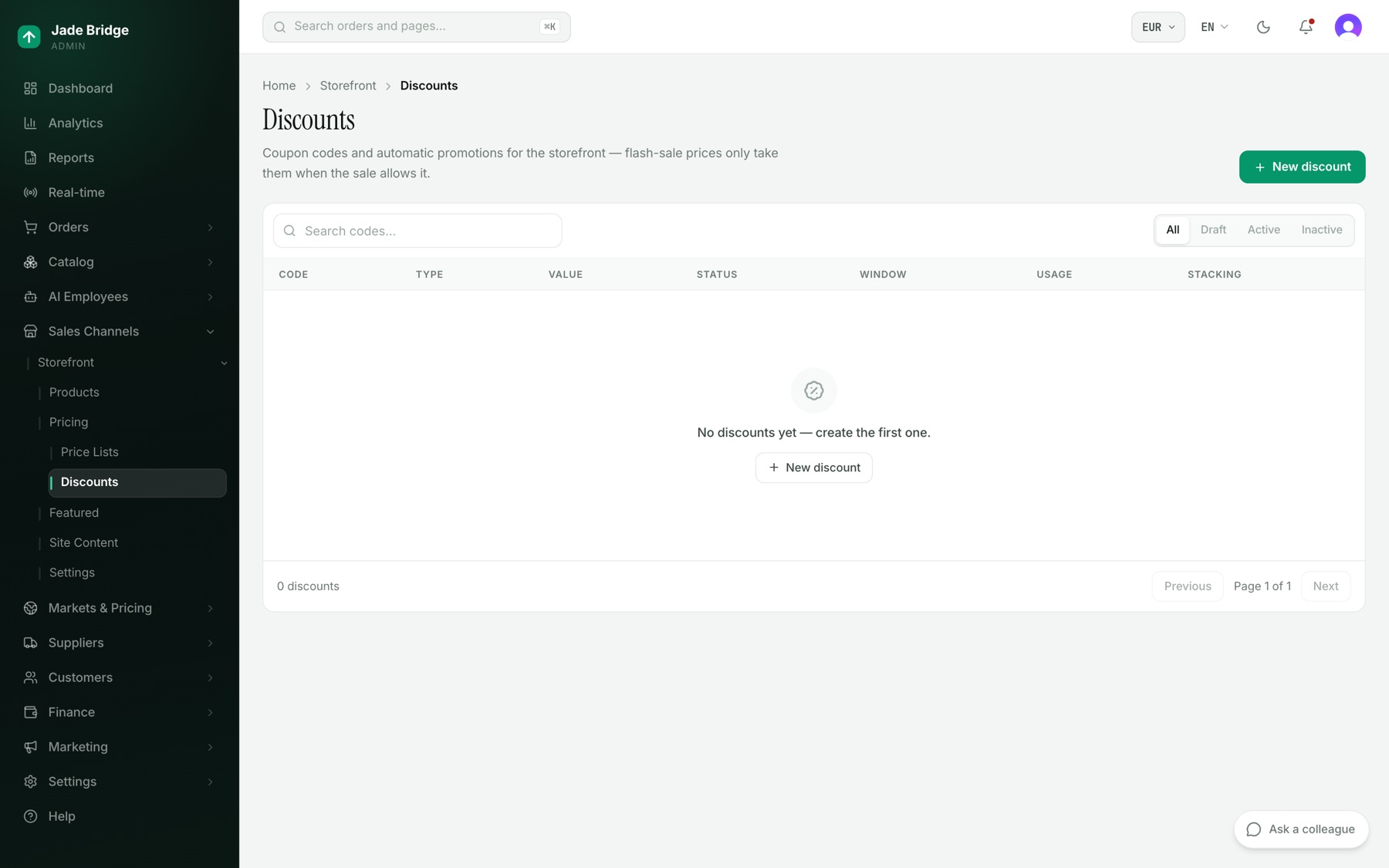
- Press New discount.
- Type a Code such as WELCOME10, or switch on Automatic promotion to apply it to every eligible cart.
- Choose the Discount type (Percentage or Fixed amount) and the value. Choose what it Applies to: Order total, Items or Shipping.
- Set Starts, Ends and a Usage limit if you want them. Leave Stackable off if it must be the only discount on a cart.
- Set Status to Active, or leave it on Draft to switch it on later. Press Create.
An active discount has an End button. Whether codes reduce flash-sale prices is set per sale under Discount codes on this sale; by default they do not.
Products, collections and price lists
Products → Products lists what the storefront sells. Opening one lets you tailor its title, subtitle, handle, status and description for this storefront, language by language, with Side by side to compare two. When the catalogue next publishes a change to that product, its title, description, handle and status are written again from the catalogue, so make a lasting change to a product's words on Catalog → Products. Collections and Price Lists are read-only lists of what the storefront holds.
Languages
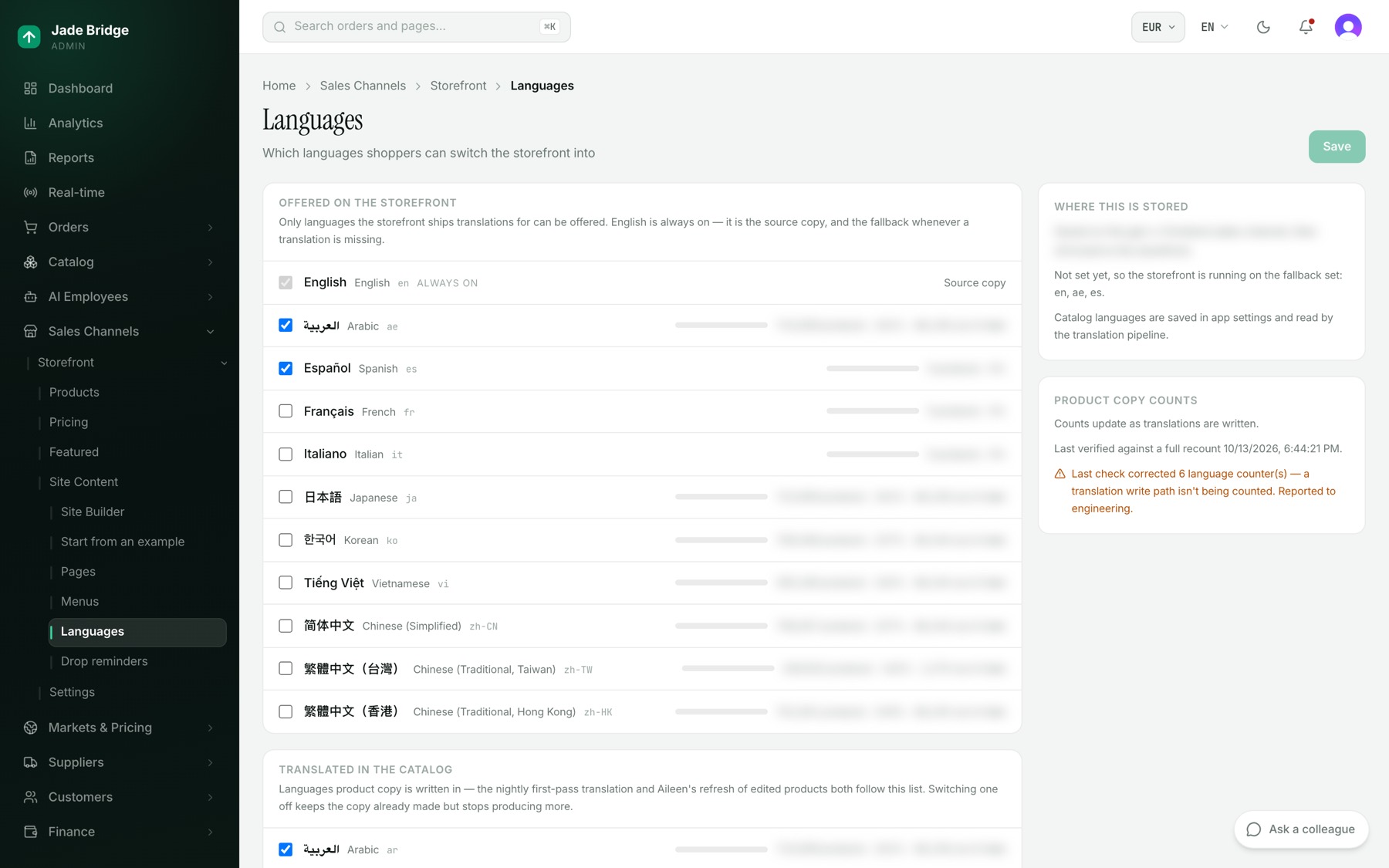
Site Content → Languages has two lists. Offered on the storefront is what shoppers can switch into; English is always on. Translated in the catalog is what product copy is written in. Each row shows how many products have copy in that language, and how many are out of date. Tick or untick, then Save.
Payments
Storefront → Settings → Payments chooses who takes the money at checkout. Your store supports five providers, each on your own account and keys: Stripe, Antom (Alipay+, WeChat Pay, Asian wallets and cards), PayPal, Authorize.net and Airwallex. Shoppers see payment methods, never the provider's name.
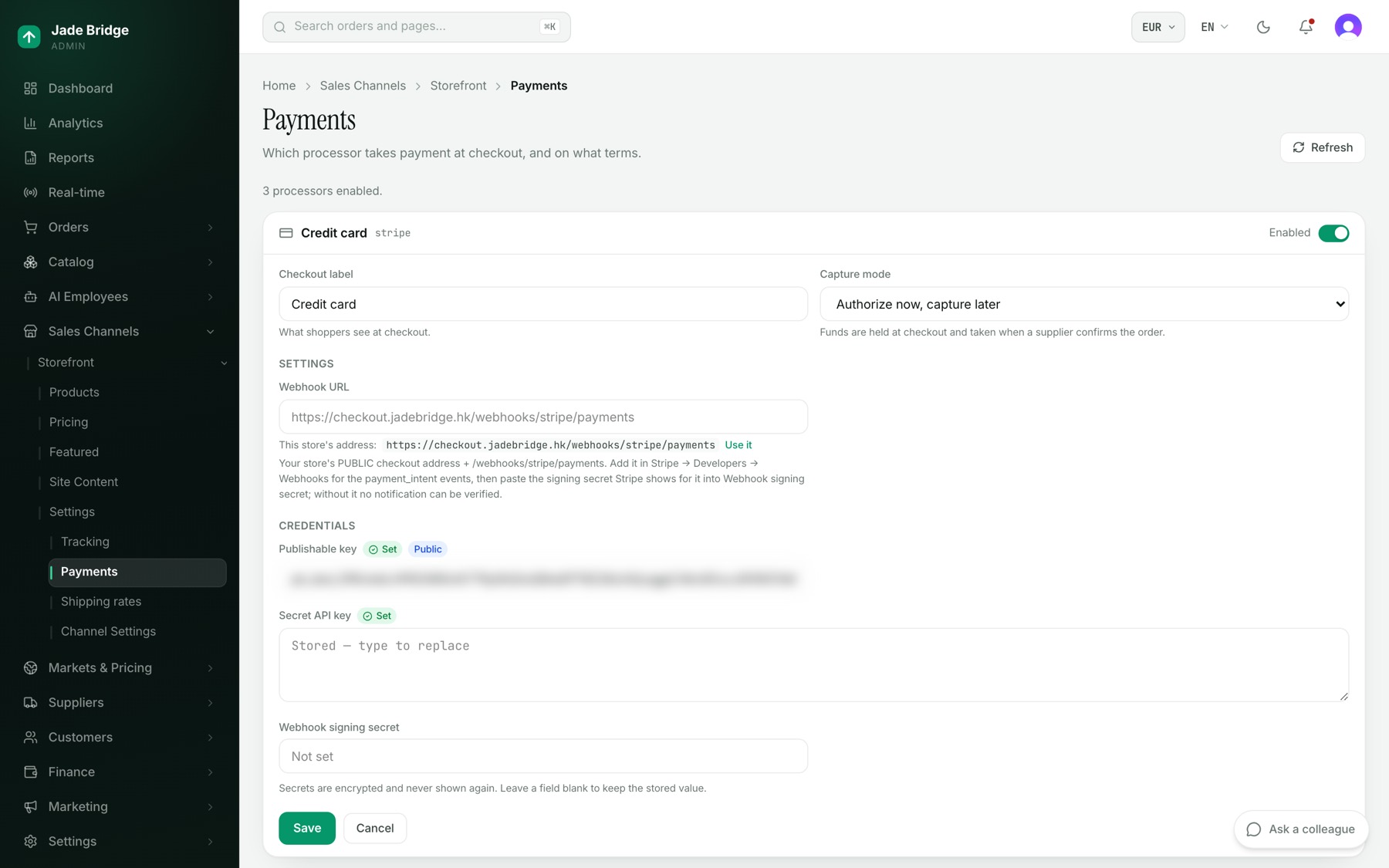
- On the provider's card, fill in the Credentials. Under Settings, each provider has its webhook address field (Antom calls it Payment notification URL), and all but Stripe have Sandbox mode. Below that field the page shows "This store's address:" with your own checkout's address; press Use it, and register the same address in the provider's own dashboard.
- Set the Checkout label and leave Capture mode on Authorize now, capture later. Payment is then authorised at checkout and captured when the supplier confirms the order.
- Press Save, then turn the card's switch on.
A stored secret shows "Stored — type to replace"; leaving it blank keeps it. The line at the top says how many processors are enabled; with none, checkout cannot take payment. Every change is recorded, naming which keys changed, never their values. The keys are entered on this page by a person; no employee reads or changes it. Steve, integrations, can deal with a provider's support desk for you by email.
Shipping and tracking
Storefront → Settings → Shipping rates sets what delivery costs per supplier and what the customer is charged. The Fleet default applies to everyone; each supplier overrides only the fields you fill in. Rating is Live carrier quote, Flat rate or Free shipping, with Markup %, Handling fee and Free over. Turning off Charge the customer absorbs the cost. Kat owns this page.
The same page lists Carriers, which a supplier on Live carrier quote uses, Duties & import taxes (explained in the Markets and pricing chapter), and Warehouse locations with Check every warehouse. Each carrier's connection, its keys and whether it is on, is set in Settings → Shipping; the Settings → Shipping link on this page takes you there.
Storefront → Settings → Tracking sends store events to Google Analytics 4, Meta, Pinterest, Matomo or RBRun from the server, so nothing third-party loads in the shopper's browser. Channel Settings, and the Storefront button on it, hold the storefront's Public base URL, its languages and Members-only mode.