An order arrives, Kat sends each item to the right supplier, the payment is taken when the supplier accepts, the parcel leaves, and Katie tells the customer at each step in their own language. You watch it here and step in only when you want to. Ask a colleague on any orders page starts with Kat, with Jonathan next in the list.
How an order moves
- The customer pays at checkout. The payment is authorised, not taken. Katie sends the order confirmation.
- Kat sends each item to the supplier warehouse the checkout quoted it from, because the customer paid duties and shipping from there. If that warehouse has run out, the item goes to the cheapest supplier with stock in the same country. It crosses a border only when nobody in that country has it.
- If a supplier refuses an item, the next supplier with stock is tried. When every supplier says it has none, the item is flagged for cancellation and refund. Any other failure, such as a supplier's system being down, is never cancelled on a guess: the item waits and Kat is told.
- When a supplier accepts an item, the payment for that item is captured. If capture keeps failing for two hours, the item says so and Kat is told.
- The supplier packs the parcel. A supplier working in their portal makes one parcel per order by default and books a courier from the list offered, and the label travels with the parcel. At the carrier's pickup scan the parcel counts as shipped and the customer gets the shipping message with tracking.
- Kat watches each parcel until it is delivered, and the customer is told when it arrives.
The orders list
Orders → All Orders. The tabs are All orders, Processing, Shipped, Delivered, Cancelled, Refunded and Chargebacks. Each is a real search, so the count in the header is the truth.
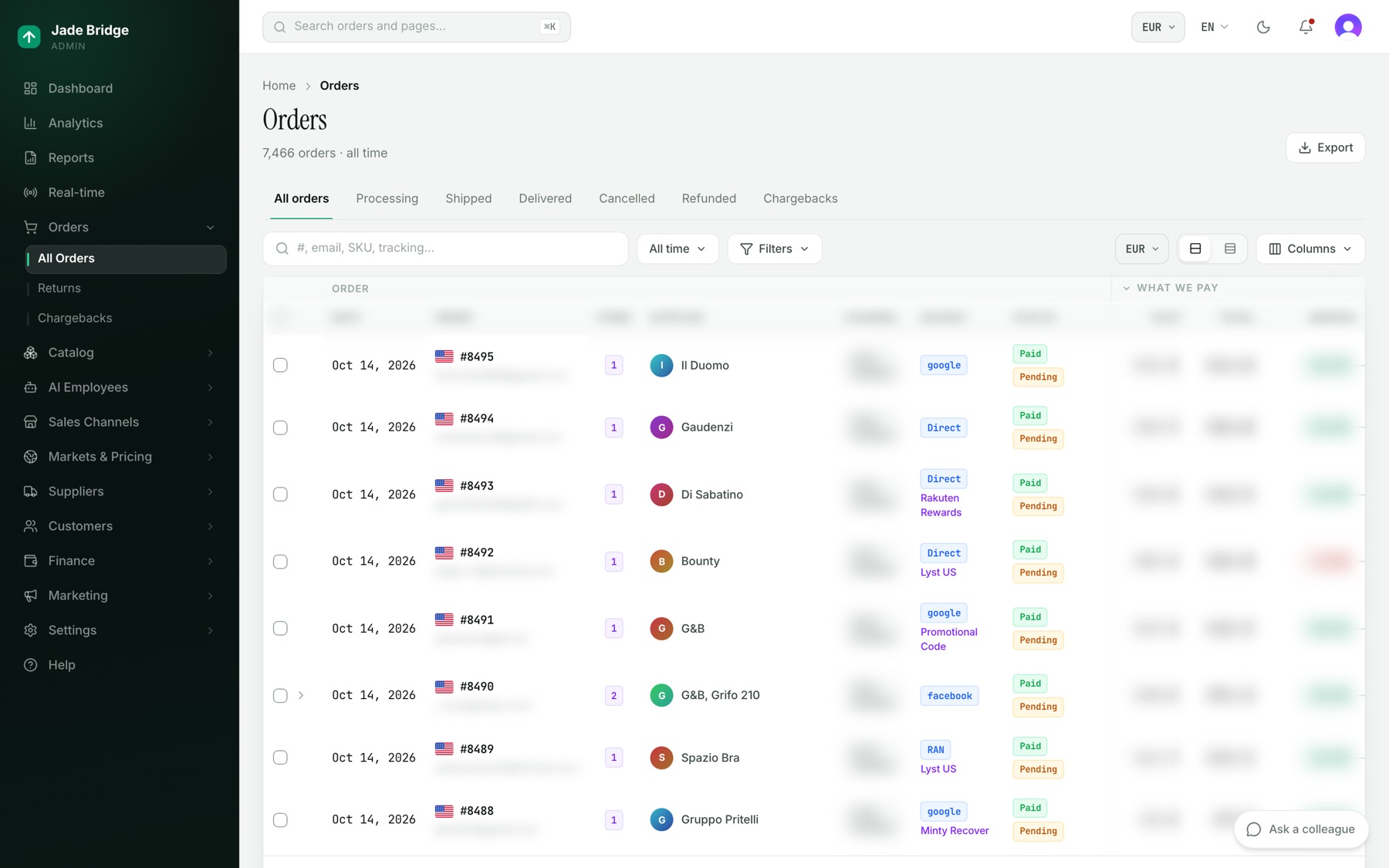
- Search finds an order by number, email, SKU or tracking number. Press / anywhere to jump to it.
- The period button sets Today, Last 7 days, Last 30 days, This month or All time.
- Filters narrows by Supplier, Status, Payment and Channel, with switches for Show cancelled, Show test orders and Chargebacks only. Each filter in use shows as a chip; Clear all removes them.
- Columns adds or hides columns. Campaign, Chargeback and Invoices start hidden.
- The costs sit under What we pay (Cost, Comm, Ship, Handle); click that heading to fold them into one Total cost. What we take holds Cust ship, Total and Margin.
- An order with several items has an arrow that opens them in place.
To export: set the tab, period and filters, then press Export at the top of the page. It downloads every order that matches, across all pages, as a CSV file. To export only some, tick them and press Export selected.
Orders are not created by hand here: every order comes from a checkout or a sales channel.
One order
Click an order number. The header shows its payment and fulfilment state and a Test or Chargeback badge when one applies.
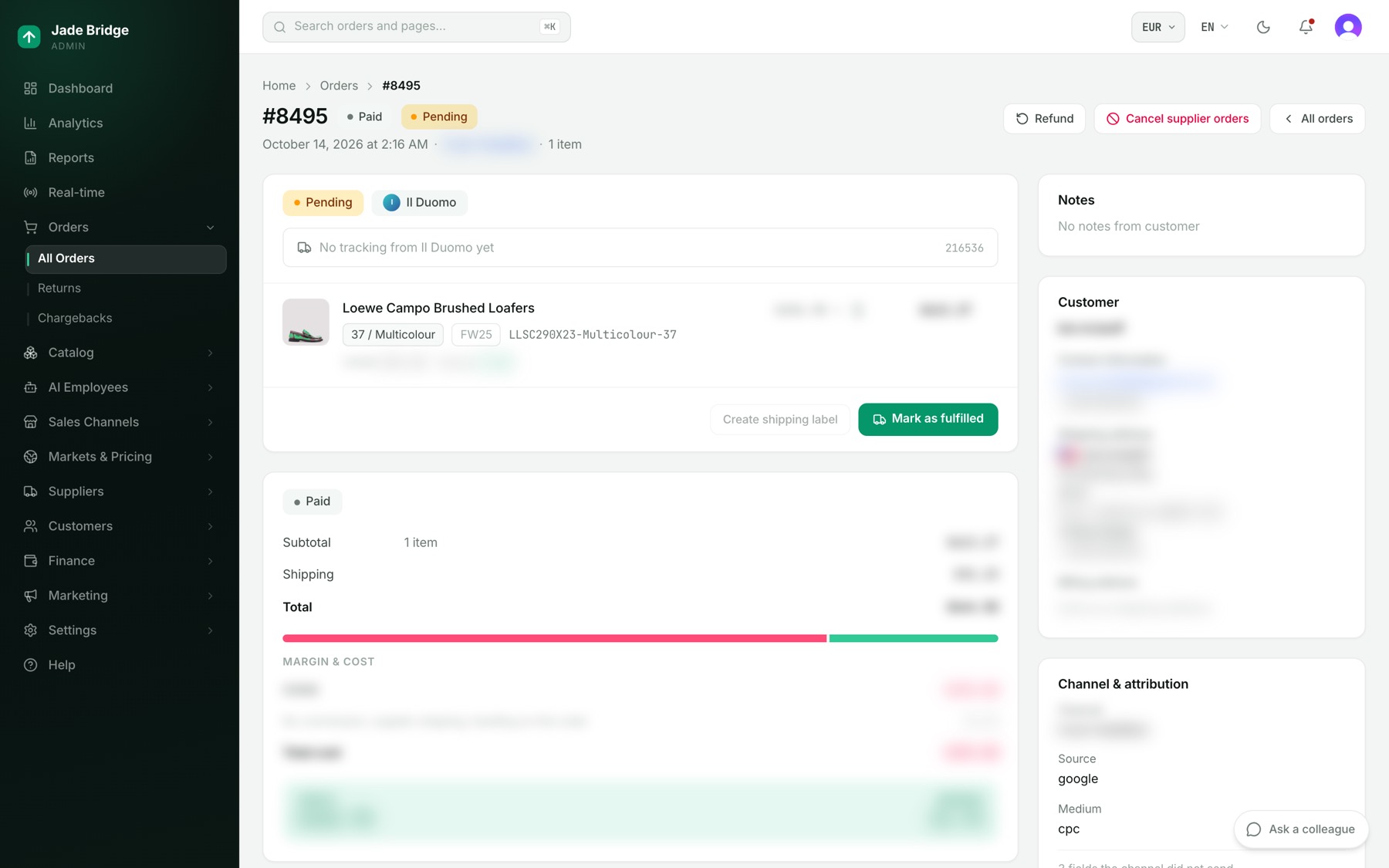
Each shipment has its own card: one per supplier warehouse, with its state, where it ships from and its tracking. Click an item to see its documents: shipping label, shipping invoice, supplier invoice, supplier payment and any return.
The payment card shows Subtotal, Shipping, Duties & import taxes when the customer paid them at checkout, and Total; then Margin & cost, Profit (or Loss) and Margin. The Timeline lists every event with its time, from Order placed and Payment captured to Delivered or Refund issued. Type in Leave a comment and press Post to add a note only staff can see.
On the right: the customer's Notes, their contact details and addresses, Channel & attribution, Attribution & journey (where the visitor came from), and Disputes when there are any.
These are your manual controls:
- Refund opens Refund order. Add a reason if you like and press Refund. The money goes back through the provider the customer paid with; a line that cannot be refunded that way is reported as needing a manual refund.
- Cancel supplier orders cancels what the suppliers were asked to send. It does not refund the customer.
- Mark as fulfilled, at the foot of a shipment card, takes a tracking number (carrier and URL optional) and records the shipment.
Chargebacks
Use the Chargebacks tab, the Chargebacks only switch, or the Chargeback column. On the order, a red Chargeback badge shows beside the number and the Disputes card gives the status, amount and reason. Kat is told when a new dispute appears, with the date the evidence is due.
Returns are off until you switch them on
A new store takes no returns: every item is final sale and the store's returns page says so. Jonathan still follows returns that arrive from your channels, but sends no refunds.
- Go to Orders → Returns and press Settings.
- On the Policy tab, turn on Accept returns.
- Check the Return window, counted from the day the carrier marks the order delivered, and the rest of the page.
- Press Save. Jonathan uses the policy from the next return.
The returns list
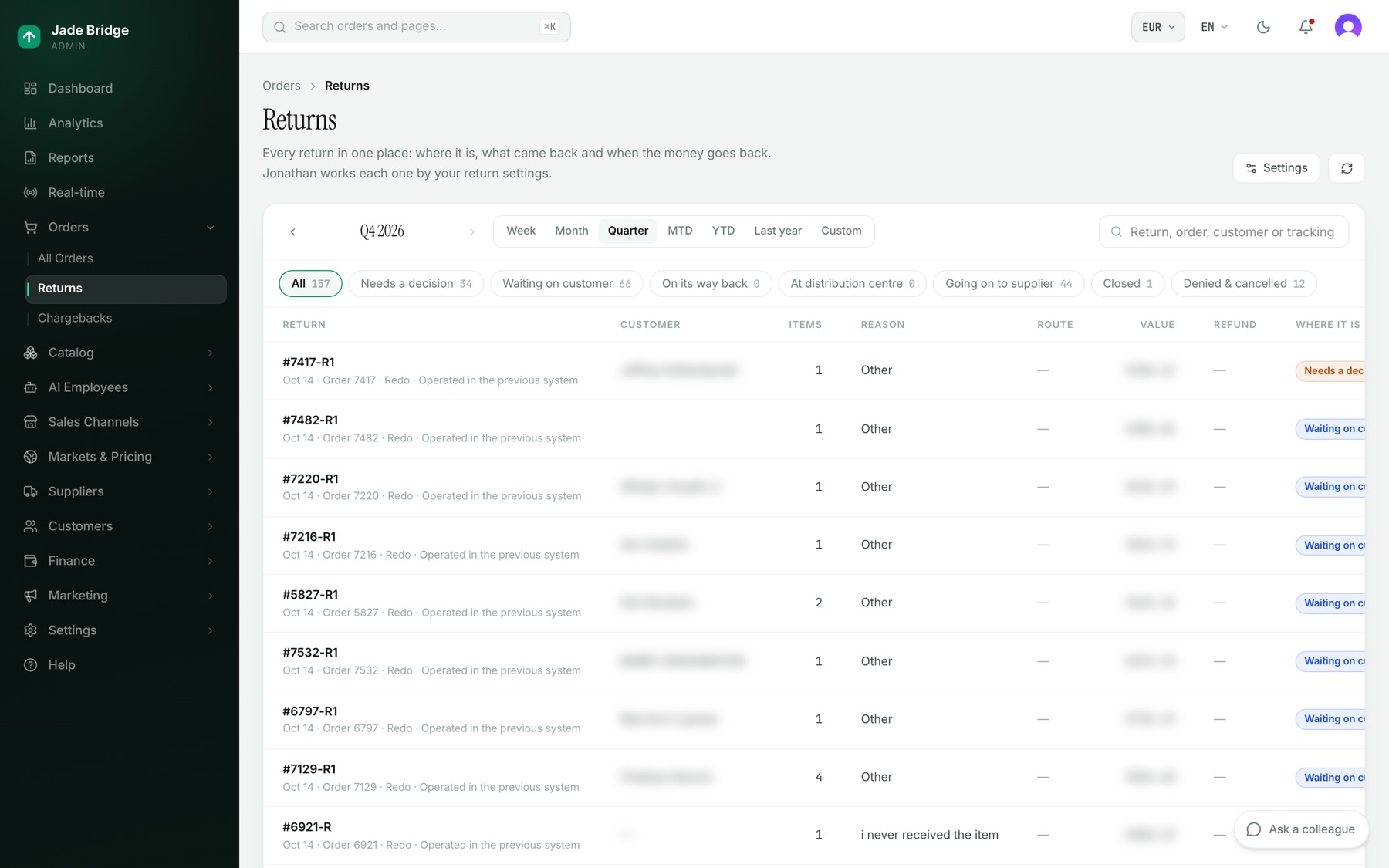
Orders → Returns. Choose a period and search by return, order, customer or tracking. The chips are All, Needs a decision, Waiting on customer, On its way back, At distribution centre, Going on to supplier, Closed, and Denied & cancelled. Each row shows the reason, route, value, refund and where the return is.
One return
- Ask Jonathan to look, at the top, gets his answer on the page.
- Needs a decision appears when the rules could not approve it, with the reasons. Press Approve, or choose what the customer is told and press Deny.
- Route shows each stop and the date it was reached.
- What came back lists the items. Set each Condition when it is checked: As new, Worn, Damaged, Wrong item or Missing.
- Refund says when the money falls due. Press What would it be? for the amount; once due, the button Refund (amount) now sends it, or Credit (amount) now for store credit.
- Labels has Label PDF and QR code for each label, and Buy the cheapest label when one is needed.
- Every step is the full record.
Return settings
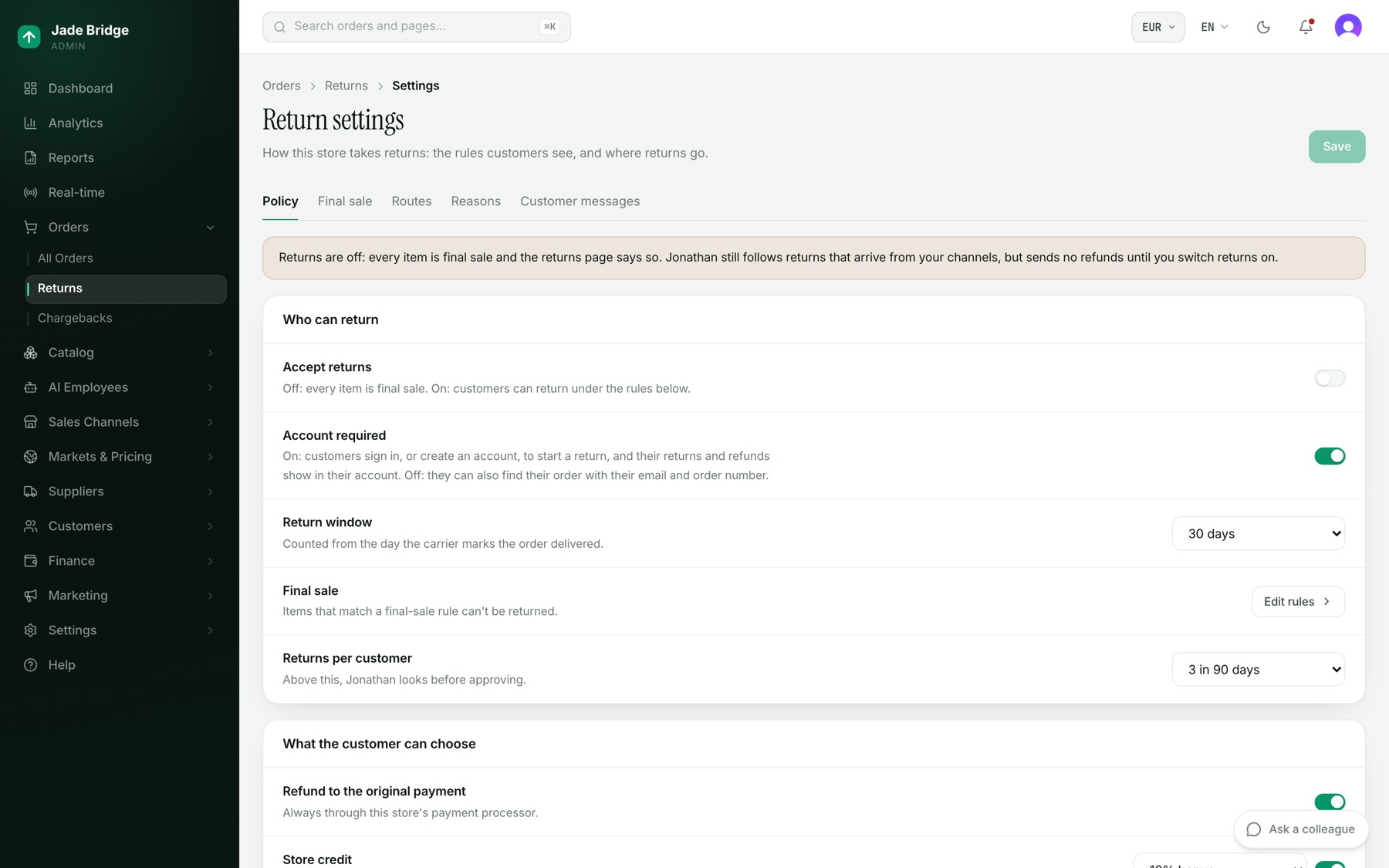
- Policy: who can return, what customers can choose (refund, store credit with a bonus, exchange, keep it under a value), who pays return shipping and restocking, Approve without asking up to a value, when the refund goes out (shown as the sentence customers will read), and labels. Press Save.
- Final sale: Add rule makes items final sale by brand, season, collection, supplier, category or discount.
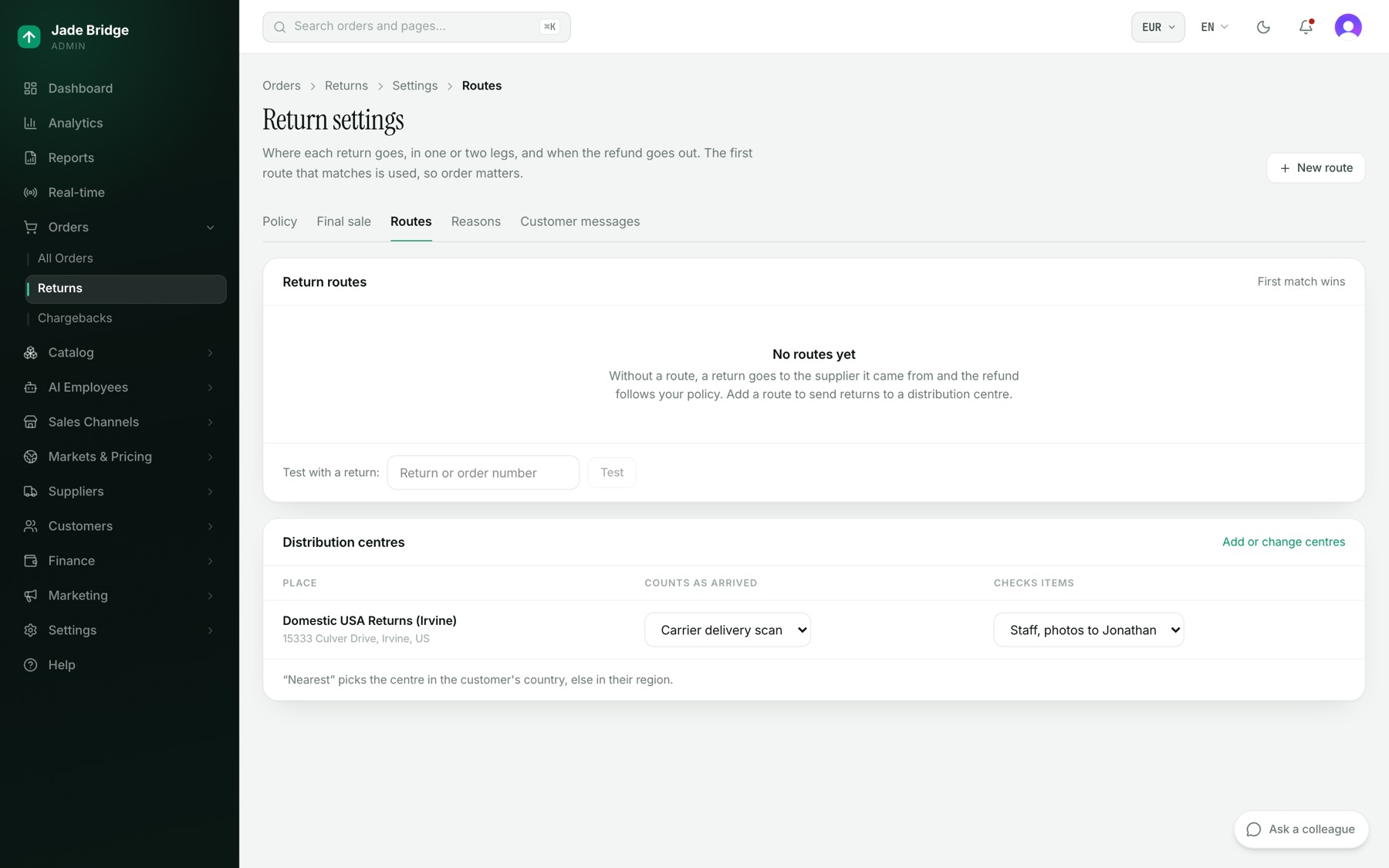
- Routes: New route sets when it applies, where the return goes (a distribution centre, straight to the supplier, or both in turn), the carriers, who pays the second leg and when the refund goes out. Use the arrows to order them. Type a return or order number and press Test to see which route it would take.
- Reasons: what customers pick from, in every language, with photos, who pays shipping, and what it counts as.
- Customer messages: the eight return messages Katie sends by email. Each switch saves at once.
Who does what
- Kat routes every order, watches capture and parcels, and hears about disputes.
- Katie sends every order and return message.
- Jonathan works every return by your settings.
- Vera decides a return refund above Jonathan's limit and hears about failed messages.