What a store is
Your store is a complete business, delivered as one piece. It has five parts, and they arrive together.
- The storefront. The site your customers shop on, in every language you sell in, on your own domain or on the address the platform gives you.
- The checkout. Payment runs on your own accounts with each provider and your own keys: Stripe, Antom (Alipay+, WeChat Pay, Asian wallets and cards), PayPal, Authorize.net and Airwallex. Payment is authorised when the customer pays and captured when the supplier confirms the order.
- The admin. Where everything is done and recorded. This guide is about the admin.
- The vendor portal. Each supplier has its own sign-in, under your store's name, to see its orders, statements and payouts. You choose who at each supplier can sign in under Settings → Users & Permissions → Supplier users.
- The employees. A team of AI employees with names and jobs, working inside your store. Each owns a part of the business and comes to you only for the decisions that are yours.
Yours alone
The store runs in an isolated cloud environment dedicated to it, owned and run by the platform, in the region you chose when you opened it, with its own databases, keys and sign-in. Nothing in it is shared with another store. The platform keeps on its side only what it needs to run and bill you: your signup and the agreement you signed, your members, your domain, your usage figures, your reports to the platform, and your store's health.
One release for everyone
Every store runs the same release of the platform. When the platform improves, your store improves with it; there is nothing to install. What differs between stores is their data, their settings, their rules and their choice of models.
What's new
Help → What's new lists every change the platform made to your store, in plain words, by day, newest first. Each release is a block with its number and when it was released. The one your store runs says "Your store runs this"; one that is ready but has not reached your store yet says "On its way". Your store moves to a new release when its rollout reaches it.
Each line says what kind of change it is (New, Better or Fixed) and the part of the admin it is about, with a link to the chapter of this guide that covers that part. The chips at the top show one kind at a time, with how many lines each has; Area shows one part of the admin. Lines are written in your language; one still being translated shows in English, marked "In English for now".
The band at the top shows the release your store runs, how many releases are on their way, and how many lines are new since you last looked. A dot beside What's new in the menu, and beside Help while it is closed, says there is something you have not read. Opening the page marks nothing as read; press "Mark all as read" when you have read it. Each person who signs in has their own.
The menu
Every page has the menu down the left, the bar along the top, and the "Ask a colleague" button in the bottom right corner. The menu shows only the areas your role lets you see. One section is open at a time. Items in grey are not built yet; pointing at one shows "Coming soon".
- Dashboard, Analytics, Reports and Real-time. The store today, the numbers by period, the reports you subscribe to, and who is on the site right now.
- Orders. All Orders and Returns. Chargebacks is coming soon.
- Catalog. Products, Collections, Brands, Taxonomy and Imports. Feeds is coming soon.
- AI Employees. Employees is the roster. Under Brains sit Models & keys, Rules, Settings, Model spend, Issues, Memory and Job map.
- Sales Channels. Storefront, your storefront channel, in five groups: Products (Products, Collections), Pricing (Price Lists, Discounts), Featured (Designers and Sales; Collections is coming soon), Site Content (Site Builder, Start from an example, Pages, Menus, Languages, Drop reminders) and Settings (Tracking, Payments, Shipping rates, Channel Settings).
- Markets & Pricing. Markets, Pricing, Pricing Intelligence, Competitors and FX Rates.
- Suppliers. Directory, Integrations, Live stock, Onboarding, Portal announcements, Support tickets and Consolidation Centers.
- Customers. All Customers, Waiting list, Support history, Drop reminders and Customer messages.
- Finance. Overview, Settlements, Reserve, Supplier statements, AI Provider Billing, Accounts, Vendors, Invoices, Profit & loss and Metric definitions. AP Payments, Shipping Invoices and Service Providers are coming soon.
- Marketing. Ad spend and Marketing desk.
- Settings. Company, Users & Permissions, Channels, Integrations, Shipping, Mail domain, Appearance, Telemetry and Scheduled Jobs. Utilities is coming soon.
- Help. Owner's guide, which is this guide and your store's own reference (who works here, the rules each works by, and the welcome steps), and What's new, every change the platform made to your store.
The top bar
- Search. The box reading "Search orders and pages…" opens the Search page, as does ⌘K (Ctrl K off a Mac). It finds orders by number, email, SKU or tracking number, and jumps to any page by name. Products and suppliers are not searchable yet.
- Currency. The currency you read money in. Amounts are kept in your store's base currency (Settings → Company) and converted at the day's rate. Your choice is saved to your profile.
- Language. Ten languages: English, Italiano, Français, Español, three forms of Chinese, العربية, 日本語 and Tiếng Việt.
- Theme. The moon or sun button switches between light and dark.
- The bell. Opens Waiting on you. A red dot shows on it only while something is waiting for a person.
- Your account. Your picture or initials, for your sign-in and signing out.
Waiting on you
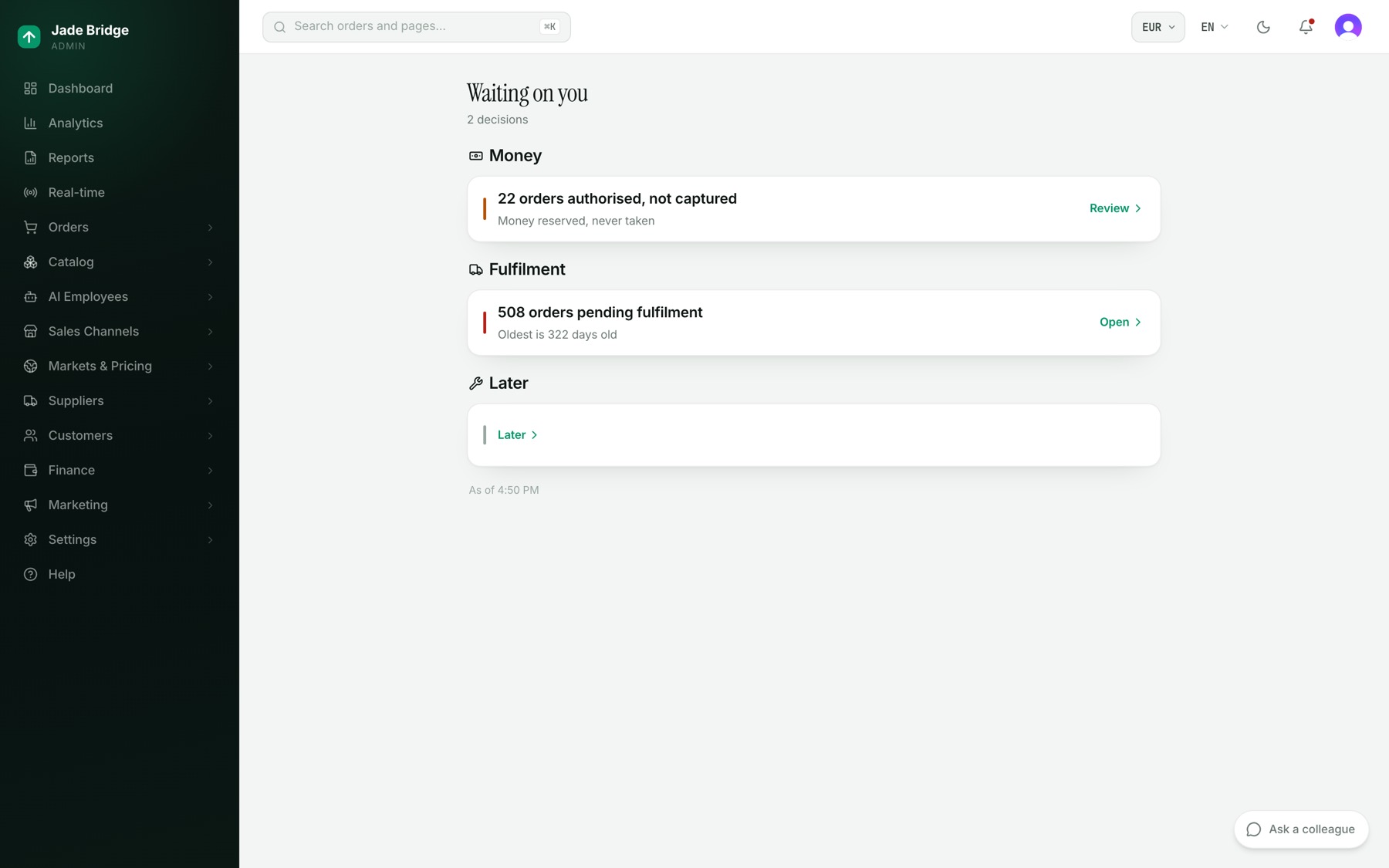
The bell, the dashboard card's "See all" and the phone's Waiting tab open the same page and count the same things:
- Orders authorised, not captured: money reserved at checkout and never taken.
- A payment run ready: a live run Tom has prepared to pay vendors, with its total.
- Orders pending fulfilment: orders nobody has shipped yet, with the age of the oldest.
- Tom's questions: a surprise on a supplier account he has parked for a person. Answer opens Finance → Reserve.
To approve a payment run:
- Press Approve on the run.
- Read the "Total to pay" and each vendor, with how many bills and by what method.
- Press "Approve the run". Every bill in it is cleared to be paid on the next run. "Not yet" leaves it waiting.
Ask a colleague
The button in the bottom right corner opens a conversation with the employee whose area the page is. When an employee has a question for you, it says so, for example "Katie has a question". Talking to them covers it in full.
On a phone
On a narrow screen the menu becomes a bar along the bottom: Today, Orders, Search, Waiting (with a dot when something waits) and More. More opens Everything, the whole menu as one page, with your recent pages and a "Jump to a page…" box.
The dashboard
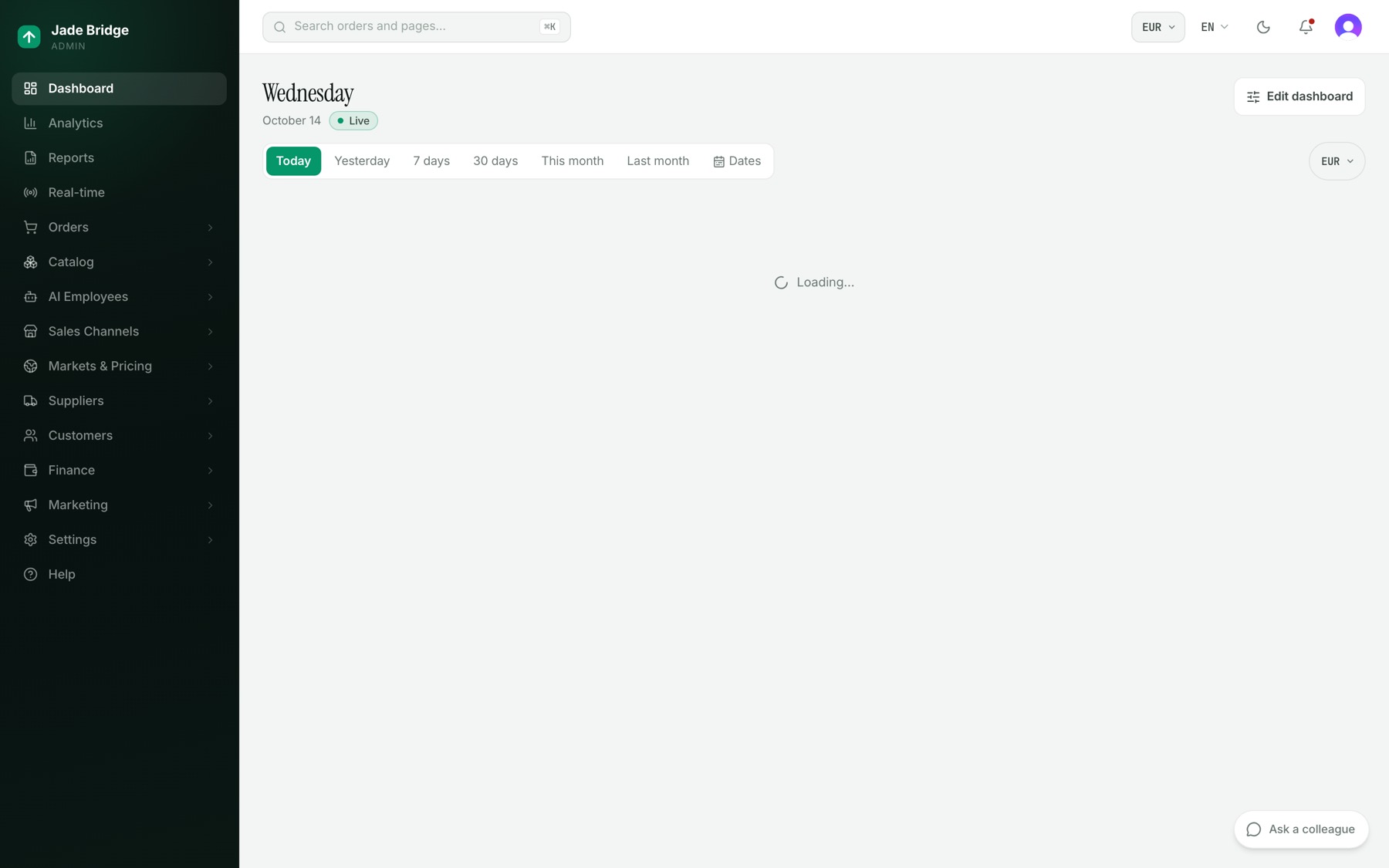
The dashboard is where you land when you sign in, and the Dashboard item at the top of the menu opens it. A new store opens on the Welcome page at sign-in instead, until you press "Go to the dashboard" there (see Your first week).
What you see: the day of the week, today's date, the time zone your store's days are counted in, and a Live marker that says whether the cards re-read on their own as orders and refunds land. Below that is a row of periods: Today, Yesterday, 7 days, 30 days, This month, Last month and Dates. The dashboard always opens on Today; a period you pick moves the cards for this visit only.
The standard cards are Revenue, Waiting on you, Your calendar, Top suppliers today, Latest orders and This week. Every number has a "How?" link that shows exactly what it counts and what it leaves out, from the definitions your store has approved under Finance → Metric definitions. A card that cannot be read says so; it never shows a zero in place of a failure. With nothing waiting, the Waiting on you card stays off.
Who works here: Andrew, the reporting analyst, owns the definitions behind the numbers and writes the brief you can add as a card.
To arrange your dashboard:
- Press Edit dashboard.
- Press Add cards to open the Card library. Search it, filter it, and press Add on the cards you want. Cards your role cannot see are counted at the bottom and left out.
- Drag a card by its handle to move it. On a wide screen, choose its width: Small, Medium or Full width. Press Remove to take it off.
- To set the order your phone shows, choose Phone in the Wide screen / Phone switch and drag again.
- Press Done.
The arrangement is saved to your profile; each person has their own.
What you do
- Decide. Money, words that leave the company in your name, and the calls only an owner can make wait for you. Waiting on you (the bell) and AI Employees → Brains → Issues are where they wait.
- Set the rules. Every employee works by standing rules. You read and accept the platform's, switch or tune the ones that are yours to change, and add your own.
- Read the record. Every action an employee takes is written down with its reason. You can read it, and you can ask the employee about it.
The rest of this guide says how.